Keyframe and After Effects, compared honestly
Keyframe is built on After Effects’ classic model — compositions, layers, keyframes, Expressions and effects — and runs in your browser with an AI Agent beside it. Here is what works the same, what only Keyframe does, and what it deliberately leaves out.
What works the way After Effects does
| Area | In Keyframe | Compared with After Effects |
|---|---|---|
| Compositions and layers | Nested compositions, precompose, parenting, track mattes, masks, 38 blend modes and 9 layer styles. | The same model. Layer times cannot start before frame 0. |
| Keyframes | Easing with incoming and outgoing velocity and influence, auto and continuous Bezier, Easy Ease, the Graph Editor and separate dimensions. | The same controls and shortcuts. |
| Expressions | After Effects’ semantics and common API: references by name or index, Expression Controls and the pick whip. Opacity is 0–100%, colour 0–1. | Run in an isolated JavaScript sandbox; no Legacy ExtendScript engine, and no sampleImage or sourceRectAtTime yet. |
| Effects | Grouped in After Effects’ categories: colour correction, blur, distort, generate, keying, stylize, transition, time and simulation (rain, snow, particles, shatter, caustics). | Fewer effects than After Effects’ roughly 300. |
| Paint and Roto | Paint with duration modes and brush settings; each stroke’s Stroke Options and Transform are properties you can keyframe and drive with Expressions. Roto Brush and Refine Edge. | The same way of working. |
| 3D | 3D layers, cameras and lights with shadows in one depth buffer; lit image layers with normal maps; glTF, GLB and OBJ models; extruded text and shapes; depth of field. | No Cinema 4D renderer or ray tracing. |
| Tracking | Point and planar tracking, mask and face tracking, Warp Stabilizer, Content-Aware Fill and the 3D Camera Tracker. | Fewer analysis options; no Mocha. |
| Render and export | 8, 16 and 32 bits per channel, motion blur and frame blending, a Render Queue with output modules. PNG, JPEG, WebP, AVIF, image sequences, GIF, WebM and MP4. | No ProRes or EXR: browsers cannot encode them. |
What only Keyframe does
- An Agent in the editor. Describe a motion and it builds it with the editor’s own tools, as a draft you apply or discard. How it works (opens in a new tab).
- It runs in a browser. Nothing to install; projects stay on your device. It needs a browser with WebGPU (external website, opens in a new tab).
- Layer separation. Cut a subject, its shadow and a filled background out of one picture on your device, or separate it into more layers with AI.
- Bones, IK and mesh skinning built in. After Effects’ own Puppet tool uses pins; bone rigs there usually come from third-party scripts.
- Pictures written as code. Shader effects, simulations and programs that draw a whole layer, written by the Agent or by hand, run on your graphics card.
What Keyframe leaves out on purpose
- A Cinema 4D-class renderer, ray tracing, global illumination and volumetric light.
- Audio editing and general video editing. It is a motion design and animation tool, not an editing suite.
- Plugins and scripting: no plugin SDK, ExtendScript or UXP, MOGRTs or Dynamic Link.
- Formats browsers cannot write, such as ProRes and EXR.
Still behind After Effects
- Text: per-character styles within one layer, OpenType features and vertical text.
- Effects: the rest of the time effects, Lumetri-style grading, Stroke and Write-on, Gradient Wipe, and audio effects.
- 3D: model editing and FBX or USD import; particles do not collide with 3D geometry.
- Time: layers and keyframes cannot go before frame 0.
Which one to use
- After Effects if you need its full effects library, third-party plugins, a ray-traced 3D renderer, or Premiere Pro and Media Encoder alongside it.
- Keyframe if you want After Effects’ way of animating in a browser, character rigs without plugins, pictures separated into layers, and an Agent that does the repetitive work while you review it.
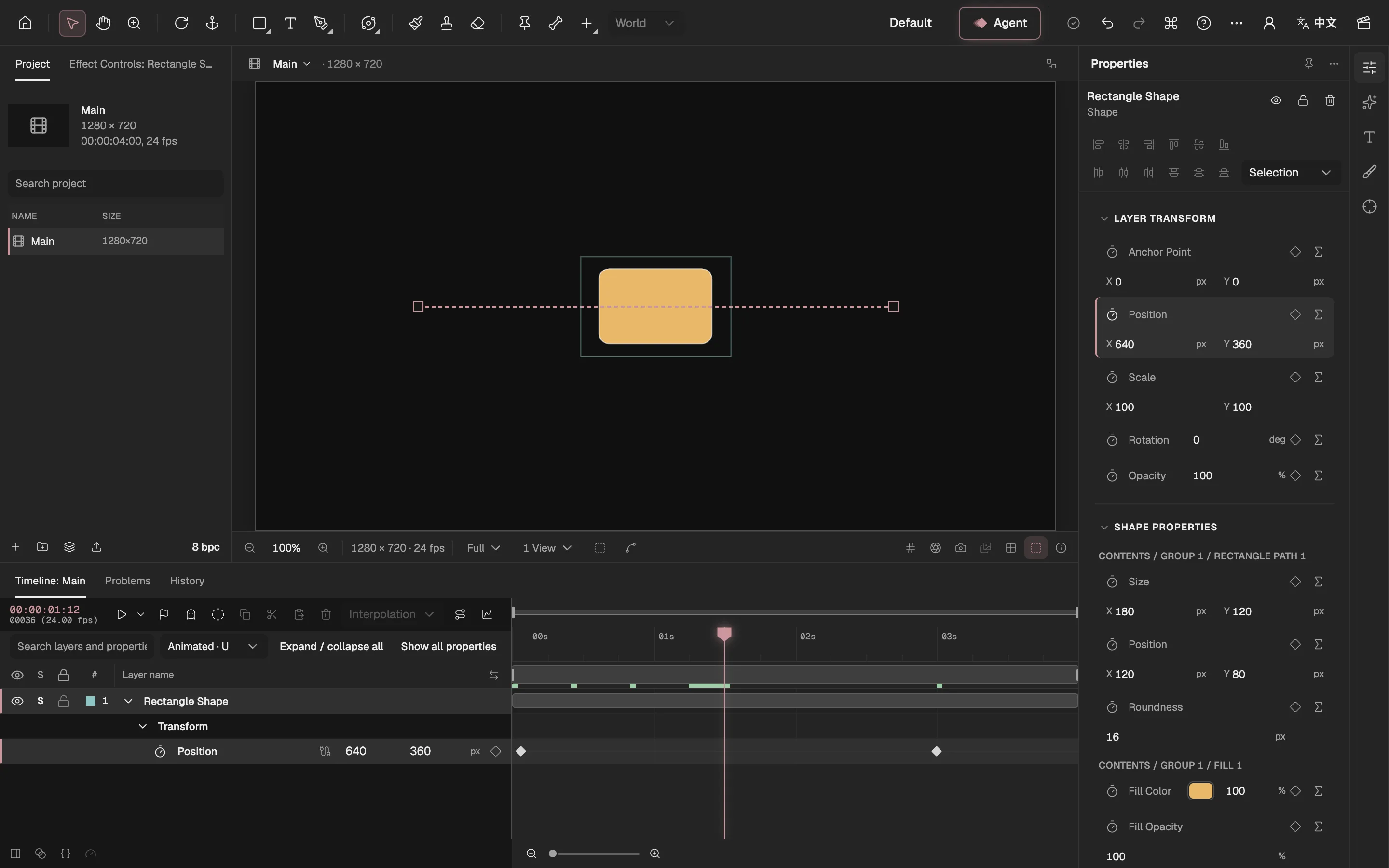
- Tools, as in After Effects’ toolbar.
- The Project panel.
- The Composition viewer.
- The Timeline, with keyframes.
- Properties and effect controls.
- The Agent.
- Export and the Render Queue.