Getting started
What Keyframe is
Keyframe is an animation studio that runs in your web browser. This page says what it makes, what it needs from your computer and where your work is kept.
What it makes
What you make in Keyframe is editable animation, not a finished video. A project holds compositions: each is a canvas of a set size and a stretch of time, holding a stack of layers such as pictures, video, sound, text, shapes, 3D models, cameras and lights.
Every layer has properties, like position, scale, colour and opacity. You animate a property by giving it different values at different moments, its keyframes (external website, opens in a new tab); the editor works out every frame in between.
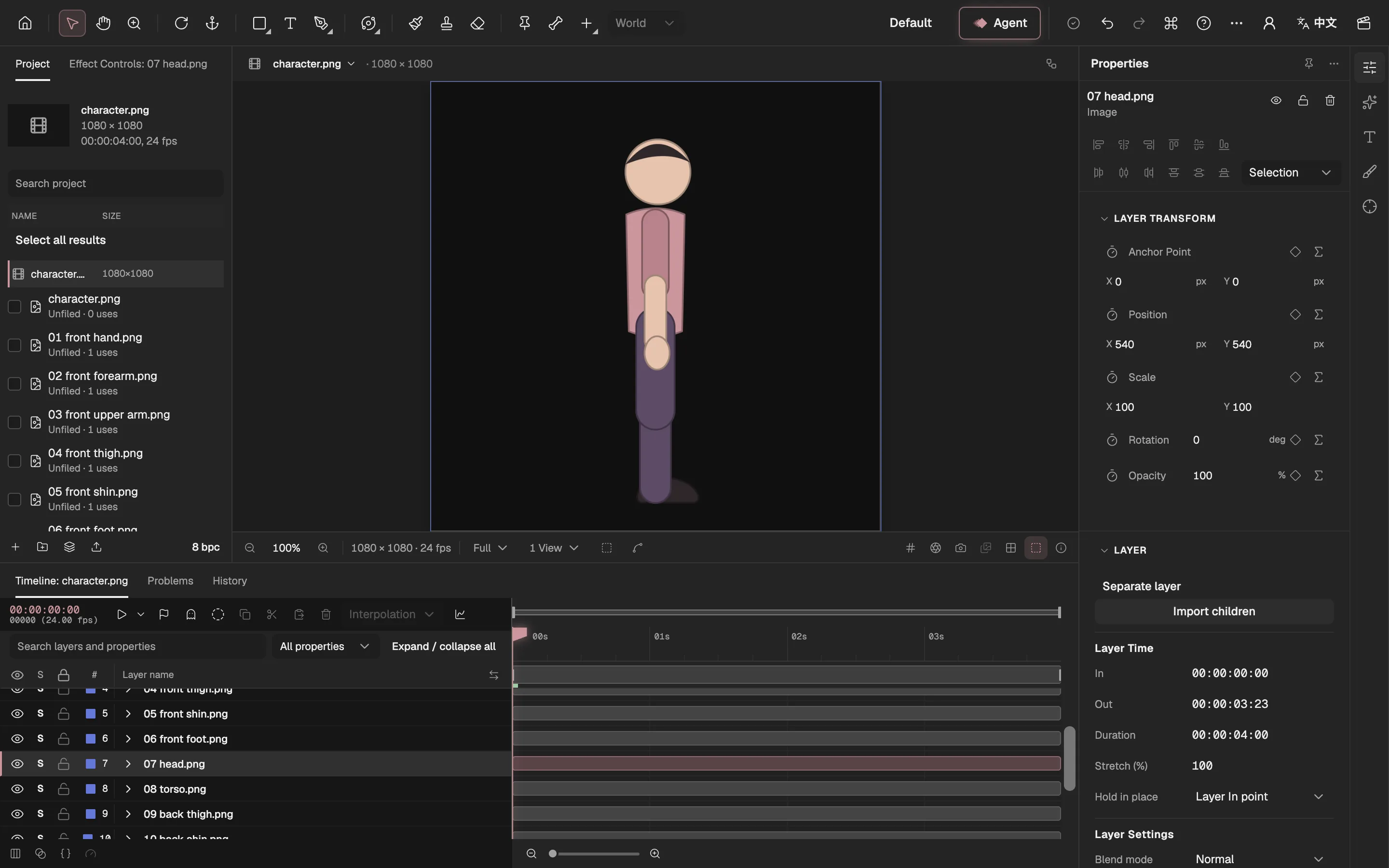
- The composition at the current time.
- Its layers, one per part, front to back.
- The selected layer’s properties, each one animatable.
- Makes a video or pictures, only when you ask.
It all stays changeable. Move a keyframe, swap a picture or restyle a layer whenever you like, and undo any step. A video, an animated image or a sequence of pictures exists only when you export (opens in a new tab) one, and you can export again after every change.
The editor works like After Effects: if you know it, its panels, layers and keys will be familiar.
What your browser needs
The editor draws every frame on your graphics card through WebGPU (external website, opens in a new tab), and it has no other way to draw. Use a current version of Chrome or Edge on a computer with a supported graphics card.
In a browser without WebGPU, opening the editor shows This browser can’t run the editor and a Back to home button instead of the editor. There is no setting to fix this in that browser: open the editor in another browser or on another computer. The rest of this site, this documentation included, works in any browser.
Some graphics cards can’t blend colours stored as 32-bit floating-point numbers. On those the editor works as usual, except that 32 bits per channel (float) can’t be chosen in the project settings (opens in a new tab), and a line under the list says why.
Where your work is kept
- In this browser, on this device. Your project, its imported files and its undo history are saved in the browser’s own storage (IndexedDB (external website, opens in a new tab)) as you work. They are not uploaded anywhere.
- Not in an account. Signing in does not upload or sync a project. Another browser, another computer or a private window starts with an empty project.
- In a project file when you want a copy. To back a project up, move it to another computer or send it to someone, export it as a project file (opens in a new tab).
- Presets and layouts stay in the browser. The animation presets (opens in a new tab) you save and the panel layouts you arrange are kept in this browser for all your projects, not in a project file.
Accounts and the Agent
The editor is free and needs no account: open it and start.
The Agent (opens in a new tab) is an optional assistant inside the editor: you describe what you want, and it plans and makes the changes with the editor’s own tools. It uses AI models, so it needs an account and a subscription; subscriptions open soon, and until then its panel says so. When you use it, what a task needs is sent to the model for that task only; your project itself stays in your browser.
Where to go next
Make a first animation from nothing in the quick start (opens in a new tab), then take a tour of the workspace (opens in a new tab).