Effects
Shaders, simulations and picture programs
When no ready-made effect makes what you need, an effect can be written as code: a shader (external website, opens in a new tab) that colours each pixel, a simulation whose elements remember where they were, or a program that draws the whole layer. The program is part of your project, its settings are ordinary properties you can keyframe, and the Agent can write one for you.
Three kinds of program
Each is an effect in Effects & Presets whose content is a program, written in WGSL (external website, opens in a new tab), the shading language of WebGPU (external website, opens in a new tab), or in JavaScript (external website, opens in a new tab). Choose the narrowest one that can make the effect.
| Effect | Language | Use it for |
|---|---|---|
| Shader (opens in a new tab)In Stylize | WGSL | A picture worked out pixel by pixel from the layer at this frame: patterns, colour treatments, distortions, shapes. |
| Simulation (opens in a new tab)In Stylize | WGSL | Anything that depends on what happened before: particles, cloth, ripples, trails. |
| Picture Program (opens in a new tab)In Generate | JavaScript | What the other two cannot draw: a whole picture made with WebGPU, in several passes if needed. |
Write or paste a program
Select a layer and add the effect from Effects & Presets. A new Shader or Simulation effect shows the layer as it is; a new picture program draws nothing.
Open its program. In Effect Controls the effect says how long its program is; select Edit Program.
Write or paste the source in Source (WGSL), and list the settings it reads in Parameters (JSON). A Simulation effect’s Declaration (JSON) also says how many elements there are, what each remembers, how many passes a frame takes and how they are drawn.
Apply it. The program is checked, compiled and tried on this computer first. Only a program that passes enters the project, as one step you can undo.
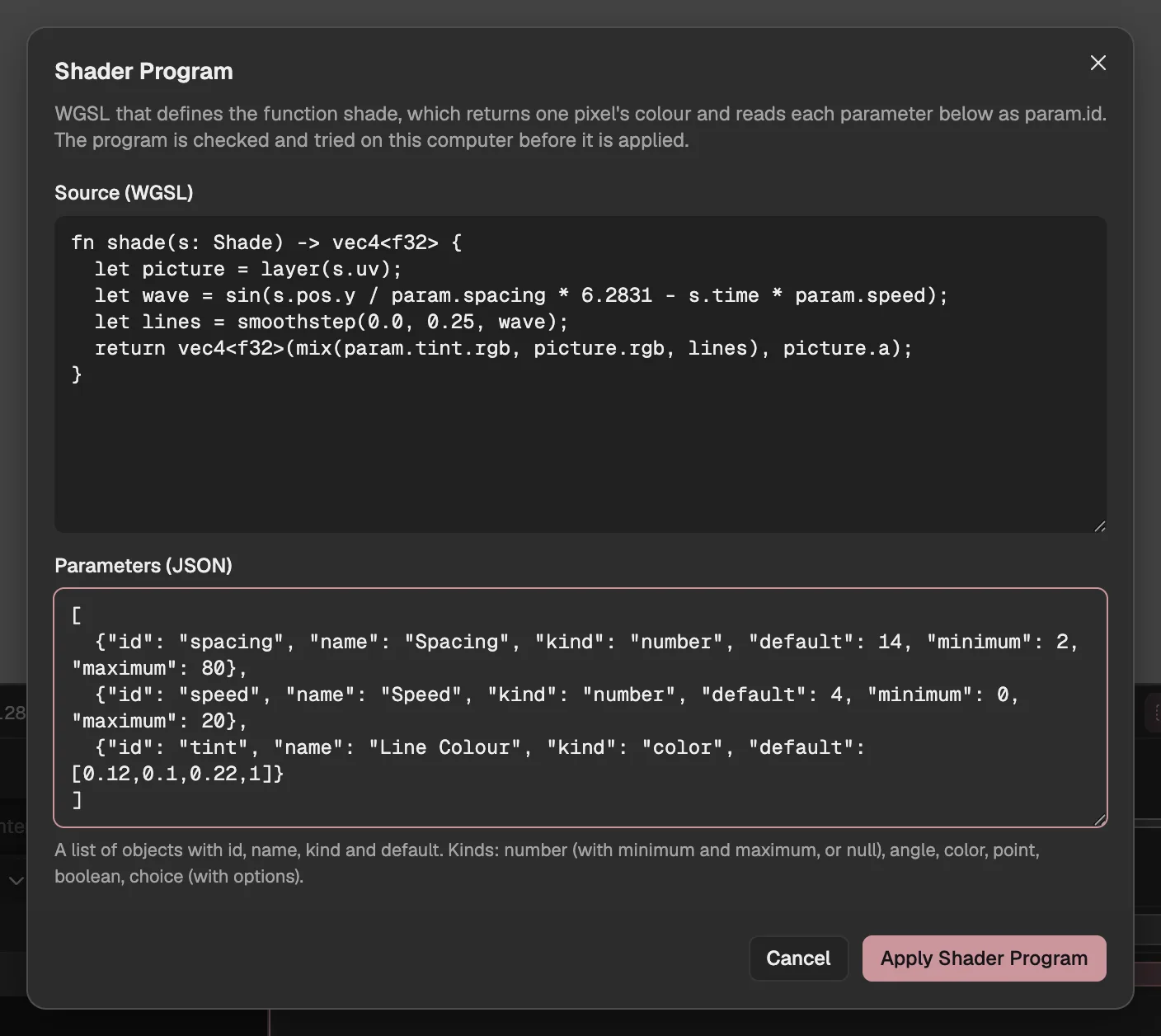
- The program’s source.
- The settings it reads, one per line.
- Checks and tries the program, then applies it.
- When a program is not accepted, the dialog says why, with line numbers in your own source where it can: a refused source, a compiler error, a program too slow to edit with, a simulation whose numbers run away, or a picture program that failed at a named stage, drew nothing, or drew a frame differently the second time.
- Replacing a program keeps the settings whose id and kind stay the same, with their values and keyframes. New ones start at their defaults, and the ones you took out are removed.
Settings you can animate
Each parameter a program declares becomes a property of the effect in Effect Controls, under the name you gave it. You drag it, keyframe it and drive it with an expression like any other property, and the program reads its value at every frame.
A parameter is one of these kinds: number, angle, color, point, boolean, and choice.
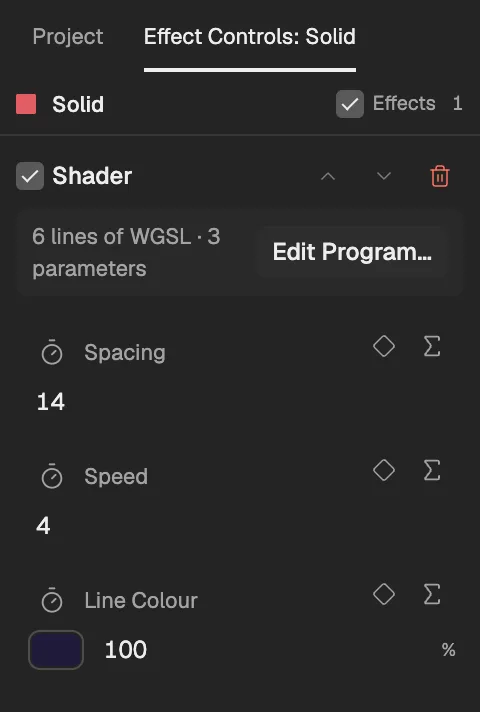
- How many lines and settings the program has.
- Opens the program again.
- A setting the program declares.
- Keyframes the setting, as on any property.
- A number can declare the range its slider offers, a choice lists its options, an angle is set in degrees and a point is a place on the layer.
- A program declares up to 32 parameters.
Shader effects
A Shader effect runs once for every pixel of its layer and returns that pixel’s colour. It is one pass, and its output is the layer’s own size: nothing is drawn outside the layer.
The program defines fn shade(s: Shade) -> vec4<f32>. It reads the layer’s own picture with layer and each setting as param.id.
What the program is told about the pixel, in s:
s.pos- where the pixel is, in layer pixels from the top left
s.uv- the same place, from 0 to 1 across the layer
s.size- the layer’s size in pixels
s.time- seconds since the layer starts
s.frame- frames since the layer starts
s.pixel- layer pixels per rendered pixel (2 at half preview resolution), for smooth edges
Besides WGSL’s own functions, a program can call the standard library of its interface version:
| Group | Functions |
|---|---|
| The layer’s picture | layer and layerAt |
| Noise | kfHash3, kfValueNoise, kfNoise, kfFbm, and kfVoronoi |
| Shapes | kfCircle, kfBox, kfRoundBox, kfSegment, kfCoverage, and kfRotate |
| Colour | kfLuma, kfRgbToHsl, kfHslToRgb, kfHueRotate, and kfPalette |
| Blending | kfOver, kfScreen, kfOverlay, and kfSoftLight |
| Blur | kfBlur and kfDirectionalBlur |
| Numbers | kfMod and kfAtan2 |
- A source is up to 32,768 characters. Loops have a fixed number of turns, and a program cannot declare bindings or entry points of its own.
- There is no clock and no chance: time comes only from
s.timeands.frame, and randomness from the library’s noise, so a frame always comes out the same.
Simulation effects
A Simulation effect is a grid of elements, up to 262,144, each of which remembers a few values from one frame to the next, such as a position and a speed (up to 8 of them). The graphics card keeps that state between frames, so each element carries on from where it was.
The program fills in three functions, and the editor runs them and owns everything else:
start- an element’s state on the layer’s first frame
step- its next state. It runs over every element up to 64 times a frame, and each pass reads the others as the pass before left them.
drawPoint- draws each element as a soft round dot
drawSurface- joins neighbouring elements into a sheet that carries the layer’s picture, like cloth
A simulation can call the Shader effect’s standard library, except the functions that read the layer’s picture:
| Group | Functions |
|---|---|
| Noise | kfHash3, kfValueNoise, kfNoise, kfFbm, and kfVoronoi |
| Shapes | kfCircle, kfBox, kfRoundBox, kfSegment, kfCoverage, and kfRotate |
| Colour | kfLuma, kfRgbToHsl, kfHslToRgb, kfHueRotate, and kfPalette |
| Blending | kfOver, kfScreen, kfOverlay, and kfSoftLight |
| Numbers | kfMod and kfAtan2 |
- The state is not saved in the project: it follows from the settings since the layer’s start, so jumping to a frame gives the same result as playing up to it.
- Before a simulation is applied, its first frames are run to check that its numbers stay sensible.
Picture programs
A picture program is a JavaScript module that draws the layer’s whole picture with WebGPU, in place of what the layer showed. It is the widest of the three, for what neither a shader nor a simulation can make.
It runs in a sandbox: a page on another origin, with no access to the editor, your projects, the browser’s storage or the network. The editor tells it which frame to draw, and it keeps no clock of its own. Its module’s default export has these functions:
setup- runs once: makes the program’s pipelines and asks for the buffers and textures to keep between frames
start- writes frame 0’s state into what is kept
step- moves the kept state on by one frame
drawRequired- draws the frame
- Settings arrive in
at.params, by parameter id. - A frame must come out the same however it is reached: whatever carries over from frame to frame lives only in what the editor keeps for the program (up to 64 MB), never in JavaScript variables.
- There is no clock, no chance and no imports:
Math.random,Date.nowand timers throw, and the module is the whole program (up to 196,608 characters). - Before it is applied, the program must load, draw its first frames in time, draw something, and draw the same frame again identically.
Preview and export
- The Viewer and an export run the same program and give the same frames on the same computer. Another computer’s graphics card may round a little differently.
- Frames with a picture program are rendered on the editor’s own page rather than in parallel export workers, because only the page can reach the sandbox.
- A program that fails while rendering is reported in Problems.
- The sandbox cannot stop a program that overloads the graphics card itself: a very heavy one can slow the whole browser.
Let the Agent write it
Describe the effect to the Agent (opens in a new tab) and it can write any of the three. It reads the same interface described here, tries each version on your computer, looks at the frames it draws, and revises the program before it proposes it.
The program arrives as a draft (opens in a new tab), like any other change from the Agent: preview it, then apply or discard it. Once applied it is yours to edit with Edit Program.