Layers and properties
Layer types
Every layer in a composition has a type, which decides what it draws and which properties it has. Most are added from one menu; pictures, video, sound and 3D models come in as files.
Add a layer
Select New layer at the bottom of the Project panel.
Choose a type. The layer is added to the open composition, at the top of the stack, and selected.
Edit it in Properties and the Timeline.
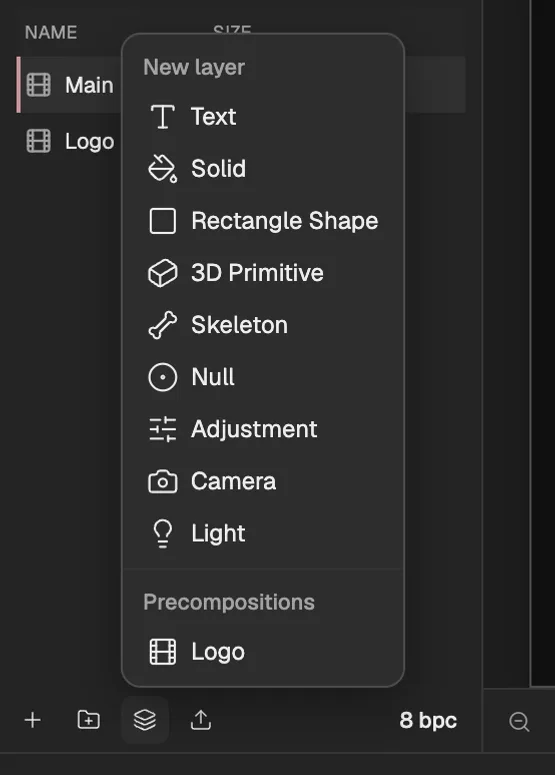
- Opens the menu.
- Layers made from nothing: type them, draw them, light them.
- Bones to rig artwork with.
- Other compositions, to nest in this one.
Files you import become layers in the open composition (see Importing (opens in a new tab)), and the + beside a file in the Project panel adds another layer that shows it. The Text tool (T) and the Rectangle tool (Q) on the toolbar also make layers, by clicking or dragging in the Viewer.
Every layer type
| Layer | What it is for | How to add it |
|---|---|---|
| Image | A still picture, such as a drawing or a photo. Separated artwork arrives as image layers. | Import the file. |
| Video | Moving footage. Its frames play in time with the composition, and it can be trimmed, stretched, reversed or frozen. | Import the file. |
| Audio | Sound, drawn as a waveform in the Timeline. | Import the file. |
| Text | Editable type, with character and paragraph styles and text animators. | New layer → Text, or click in the Viewer with the Text tool (T). |
| Shape | Vector shapes made of paths, with fills, strokes and path operations such as Trim Paths and Repeater. | New layer → Rectangle Shape, or drag in the Viewer with the Rectangle tool (Q). |
| 3D primitive | A box, sphere or cylinder in 3D space, lit by the composition’s lights. | New layer → 3D Primitive. |
| Solid | A rectangle of one colour, the size of the composition: a background, or something to hold an effect or a mask. | New layer → Solid. |
| Null | An invisible layer with a transform. Parent other layers to it to move them together. | New layer → Null. |
| Composition | Another composition placed in this one, showing its frames. | New layer → Precompositions, or pre-compose (opens in a new tab) layers. |
| Adjustment | Applies its effects to everything below it instead of to a picture of its own. | New layer → Adjustment. |
| Camera | A point of view on the composition’s 3D layers, with one node or two. | New layer → Camera. |
| Light | Lights 3D layers: parallel, spot, point or ambient, or an environment lit from an HDRI picture. | New layer → Light. An HDRI file you import becomes an environment light. |
| Skeleton | Bones that bend the layers bound to them, posed with FK and IK. | New layer → Skeleton; see Rigging (opens in a new tab). |
| 3D model | A 3D model from a glTF, GLB or OBJ file. | Import the file. |
Good to know
- The Timeline’s name column can show each layer’s source instead of its name: select Show source names, the arrows in its heading.
- A layer that another layer, a behavior or a composition still needs cannot be deleted until nothing uses it.