Animation
Rigging
A rig lets you pose a character by moving a few bones instead of every part. Rigs in Keyframe work as in other animation tools: bones in a skeleton, parts that follow them, and IK to pose a limb from its end.
Words you’ll meet
- Skeleton
- A layer that holds bones. It draws nothing in the picture.
- Bone
- One segment, from a joint to the next. A bone’s parts move with it.
- FK
- Forward kinematics: you turn each bone yourself, and the bones after it follow.
- IK
- Inverse kinematics: you move the end of a chain, and the bones before it turn to reach it.
- Mesh
- A fine grid over a picture, so that it can bend instead of moving in one piece.
- Weights
- How strongly each bone or handle moves each part of a mesh.
Build a skeleton
Start from parts. Import the character as separate layers, one per limb, so that each can move on its own (see Importing layered artwork (opens in a new tab)).
Add a skeleton. At the foot of the Project panel, select New layer and choose Skeleton.
Draw the bones. Choose the Bone tool (J; every tool’s key is under Tools shortcuts (opens in a new tab)) and drag from one joint to the next, say from the hip to the knee. To go on down the limb, start the next drag on the tip of the last bone.
Attach the parts. Select a bone, then click in the viewer the parts that should follow it: the thigh for the upper bone, the shin and foot for the lower one.
Pose it. With the Selection tool (V), select a bone and turn it with the ring around its joint; the bones after it follow. Animate a bone’s Rotation with its stopwatch, like any other property (opens in a new tab).
Chains and parents
A skeleton can hold several chains of bones, each starting from its own root bone. A body, a tail and a prop can be separate chains of one skeleton, each with its own IK.
Start a new chain. With the Bone tool, a new bone hangs from the selected bone, even one drawn in empty space. Select New chain in the bone’s options to clear the bone selection: with the skeleton selected and no bone, the next drag draws a root bone.
Change a bone’s parent. Select the bone, then Set parent. Click the bone it should hang from, or empty space to make it the root of a chain of its own; Esc cancels. The bone keeps its pose at the current frame, and the bones after it come along.
A bone can’t hang from itself or from a bone further down its own chain, and a bone in the middle of an IK chain keeps its parent until that IK is removed.
Pose a limb with IK
Add IK. With the Bone tool, select the last bone of the limb. Its options appear in the top row of the viewer: select Add IK. A target appears at the bone’s tip.
Drag the target. With the Selection tool, drag the target: the bones before it turn to reach it, and the knee bends. Animate the target’s position to animate the whole leg.
Keep a part level. Keep angle keeps a bone at its own angle instead of turning with the bone before it, like a foot that stays flat.
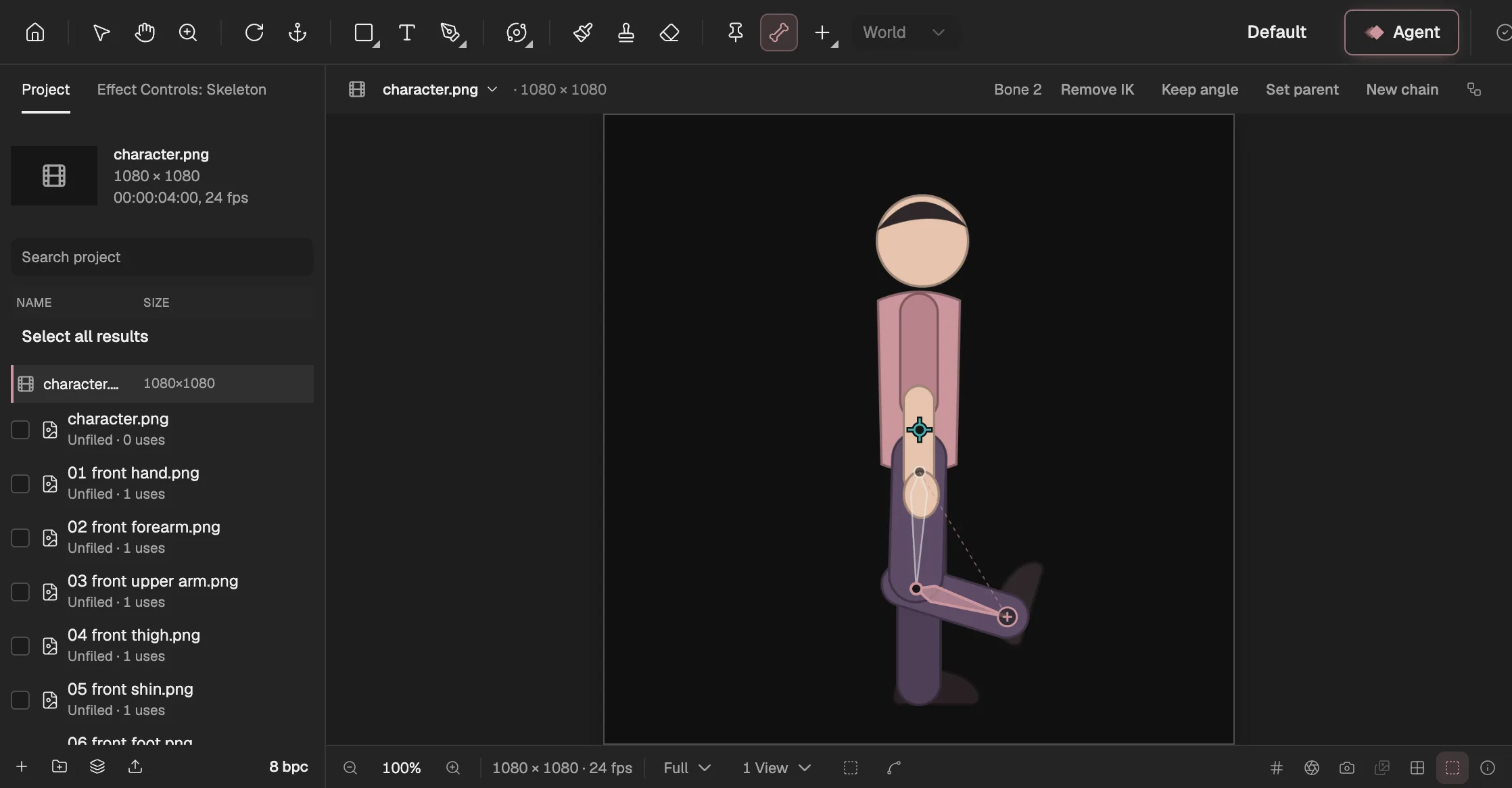
- The Bone tool.
- The selected bone’s options.
- The selected bone.
- The IK target: drag it to pose the leg.
Bend a picture with a mesh
Parts that should bend smoothly, like a tail, a sleeve or a whole leg drawn in one piece, can be one picture with a mesh instead of many pieces.
Choose the Mesh tool (P) and select the layer. In Handles, click the picture to add handles, and drag one to bend it.
Skin it to the skeleton. In the layer’s Mesh settings in Properties, choose the skeleton under Skin to skeleton. At first every bone of the skeleton bends the picture; the pose at the current frame is its rest pose.
Choose the bones. Bones that bend it lists every bone of the skeleton, indented by chain. Untick the bones that should leave the picture alone; at least one stays ticked. Each change binds the picture again, with the current frame’s pose as its rest pose.
Paint the weights. Switch the tool to Weights, choose a bone or handle under Paint weights for, and paint with Add or Remove to change how strongly it moves each part of the picture.
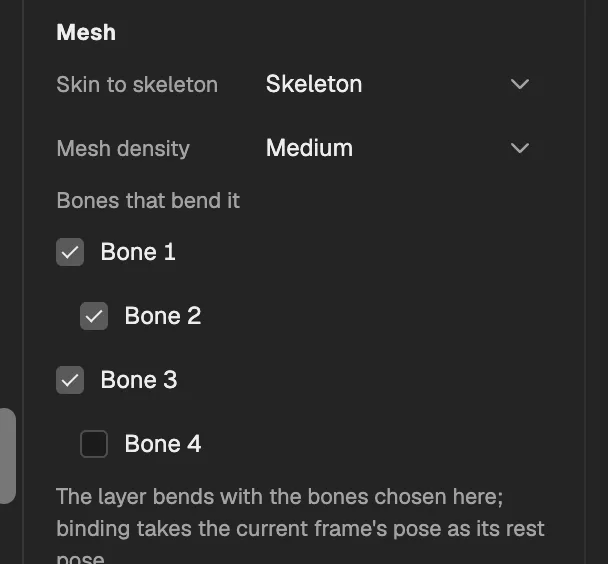
- The skeleton the picture is skinned to.
- The first bone of a chain; the bones under it are indented.
- The root of a second chain in the same skeleton.
- A bone left out: it no longer bends the picture.
- A layer is skinned to one skeleton, though to bones from any of its chains. Bones of two skeletons would have no rest pose in common, so keep everything that should bend one picture in one skeleton, as Spine and Moho do.