Expressions
Expression basics
An expression is a short script that works out a property’s value at every frame: to follow another layer, wiggle, loop, or keep two settings in step. Expressions use the After Effects expression language, so most of what you know from After Effects works here.
Add an expression
Every property with a Σ button beside it, in Properties or Effect Controls, can have an expression.
Select the layer and find the property.
Select its Σ button, or hold Alt (⌥ on a Mac) and select its stopwatch. The Expression field opens under the property, starting with
value: the property’s own value.Write the expression. The value of its last line is the result, and it must suit the property: a number, an array such as
[x, y], a colour or text.Select Preview. The expression runs at the current frame. A mistake shows under the field, with its line and column.
Select Apply. It is available once a preview of exactly that text has succeeded; if the project has changed since, preview again.
- With an expression on, the property shows the value the expression gives at the current frame, and its Σ button is lit.
- Enabled turns the expression off without deleting it (preview and apply to keep that); Remove deletes it.
- Convert to Keyframes sets a keyframe on every frame of the layer with the expression’s value, and turns the expression off, as After Effects does.
Link one property to another
The property linker writes an expression for you, as After Effects’ pick whip does: it makes one property follow another.
Open the expression of the property that should follow.
Drag the linker (Link, beside Expression) onto the property it should follow, in Properties, Effect Controls or the Timeline. Or select the linker, then select that property. Esc cancels.
The link is applied at once, as one step you can undo, and the field shows the expression it wrote.
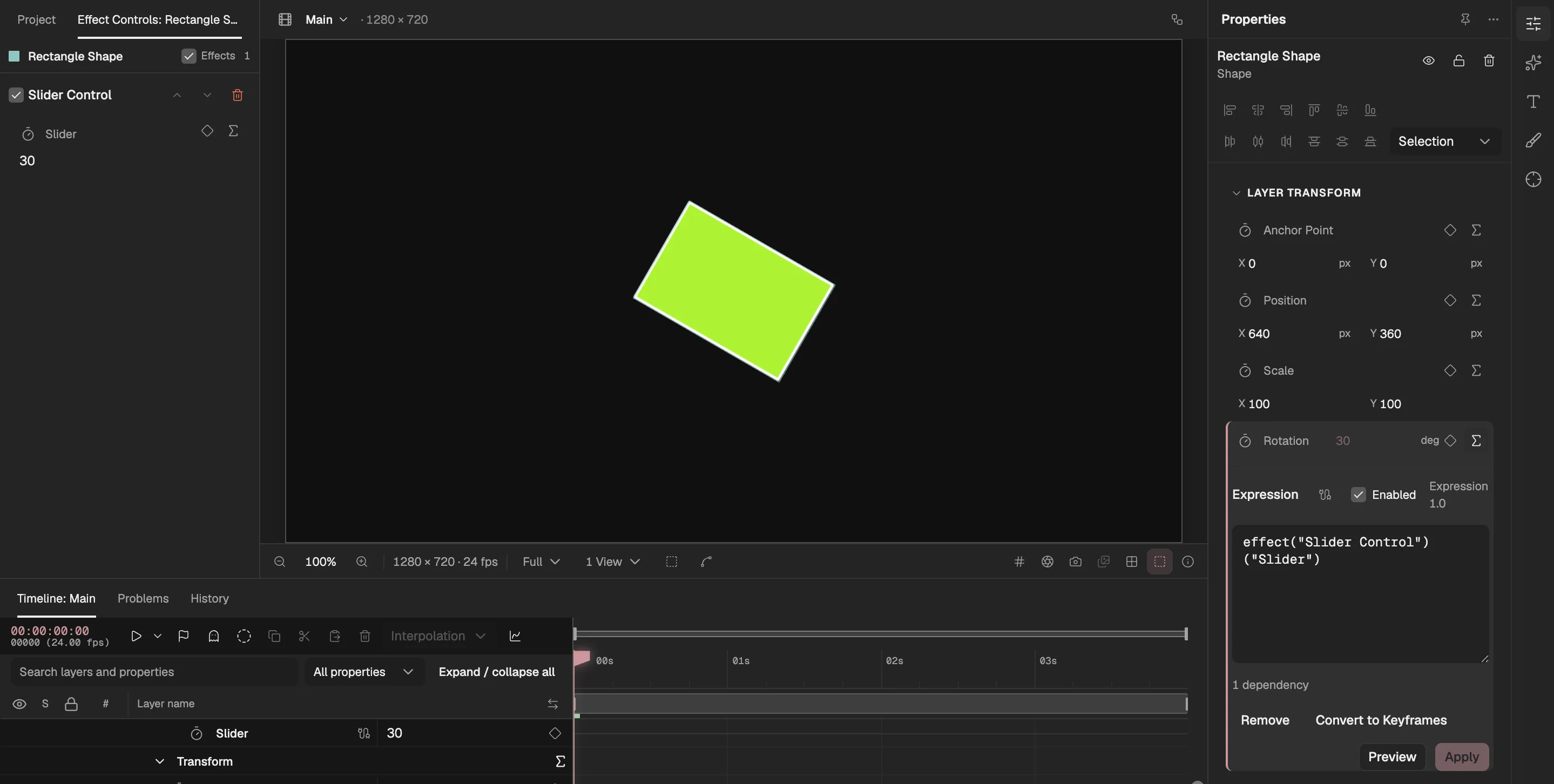
- The property it follows: here, a Slider Control’s Slider.
- The linker.
- The expression it wrote, which you can edit like any other.
- How many other properties the expression reads.
- The value it gives at this frame.
- The linker names the other layer and effect by name, or by id when two share a name.
- Properties of different sizes are matched up: a single number linked to a position fills both of its values, and a position linked to a single number gives its first value.
- A property cannot link to itself, or to a property whose kind of value it cannot use; the editor says so and writes nothing.
Read other layers and properties
An expression can read any property in the project. Write the way to it as in After Effects:
thisComp.layer("Ball").transform.position- the Position of the layer called Ball, in this composition
thisComp.layer(1)- the top layer of this composition: layers are numbered from 1 at the top
thisLayer- the layer the expression is on. Its names also work on their own:
positionis its Position. comp("Title").layer("Logo")- a layer of another composition, by name
effect("Slider Control")("Slider")- a setting of one of this layer’s effects, by the effect’s name and the setting’s name
- Names are looked up each time the expression runs. When you rename a layer or a composition, expressions that name it are changed to the new name. A name the expression builds while it runs, such as
"Ball " + i, is not changed: that expression stops working until you fix it, and Problems says so. - Numbers follow the layer order: moving layers up or down changes which layer
thisComp.layer(1)is. - Every name an expression can use is in the expression reference (opens in a new tab), from the property’s own value and keyframes (opens in a new tab) to vector math (opens in a new tab) and random numbers and noise (opens in a new tab).
Expression controls
An expression control is an effect that holds a value for expressions to read and leaves the picture alone. Put one on a layer and link several properties to it, and one slider, dial or colour drives them all. Add one from Effects & Presets, in Expression Controls:
- Slider Control (opens in a new tab)
- Angle Control (opens in a new tab)
- Checkbox Control (opens in a new tab)
- Color Control (opens in a new tab)
- Point Control (opens in a new tab)
- Layer Control (opens in a new tab)
- Dropdown Menu Control (opens in a new tab)
- Face Track Points (opens in a new tab)
Read a control by its name and its setting’s name, such as effect("Slider Control")("Slider"), or link to it with the linker. What each one gives is in the expression reference (opens in a new tab).
When an expression fails
Preview catches most mistakes before they reach the project: a typing error, a name that does not exist, a result of the wrong kind. The message under the field gives the line and column.
An expression can also fail later, after the project changes; for instance when a layer it names is deleted, or is renamed while the expression builds its name at run time. Then Problems lists it, with the property it is on.
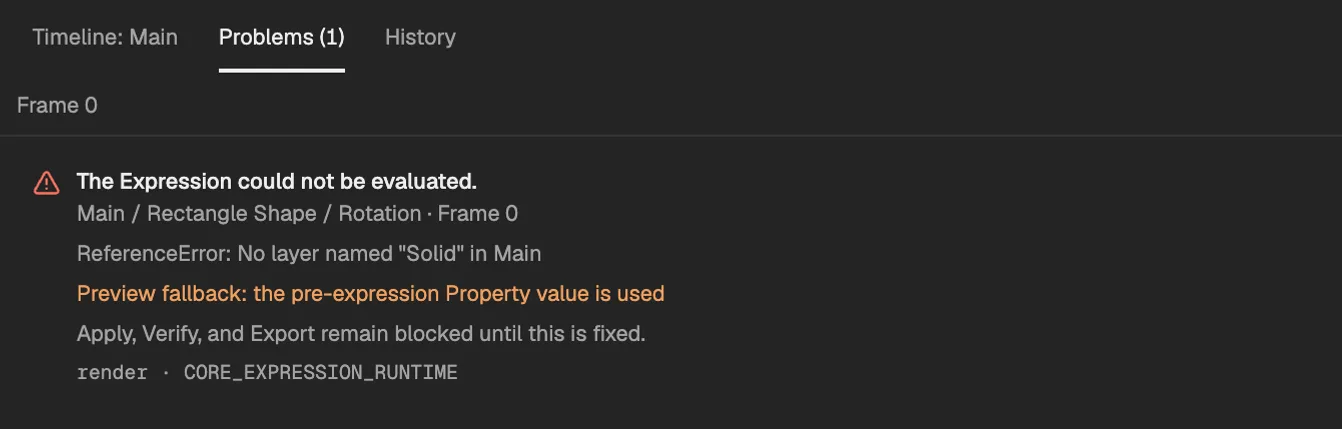
- The number of problems on this frame.
- What failed and where, with the expression’s own error.
- Meanwhile the property uses its value without the expression.
- Exporting stays blocked until it is fixed.
- A failing expression does not break the rest of the project: only that property falls back to its value without the expression.
- Fix the expression, preview it and apply it again, or remove it; the problem goes as soon as the frame works out.
Dependencies and loops
- Under the field the editor counts the other properties an expression reads. At every frame it works those out first.
- Two properties that read each other, directly or through others, make a loop. A loop the editor can see in the text is refused when you preview; one that only shows up while running is reported with the chain of properties in it.
- Reading the property’s own value (
value,valueAtTime) is not a dependency: it gives the value before the expression, so an expression can build on its own keyframes.
Good to know
- Expressions run walled off from the editor and the network: they cannot read files, the clock or the page, and a frame gives the same value in the Viewer, in an export and on every computer.
- Each expression runs in its own sandbox at every frame, so a composition with very many expressions previews more slowly.
- The names follow Adobe’s After Effects expression language (external website, opens in a new tab). What is not supported (opens in a new tab) is listed in the reference.
- The Agent can propose expressions too. They arrive as a draft for you to review, like its other changes.