Render and export
Export
Exporting renders a composition into a file on this device. Nothing is uploaded: your browser renders it with the same renderer as the viewer.
Export a video
Open Export at the top right of the editor.
Choose a Format. The table below says what each one gives you.
Check the size and frames. Output preset sets the size. Start frame and End frame (exclusive) say which frames are rendered; the end frame itself is left out.
Choose the Background. Transparent keeps empty parts of the picture see-through, in formats that can store it.
Select Export now. Rendering starts, and your browser downloads the file when it is done. Add to Render Queue instead keeps it in the Render Queue, to render later with others (see Render queue and output modules (opens in a new tab)).
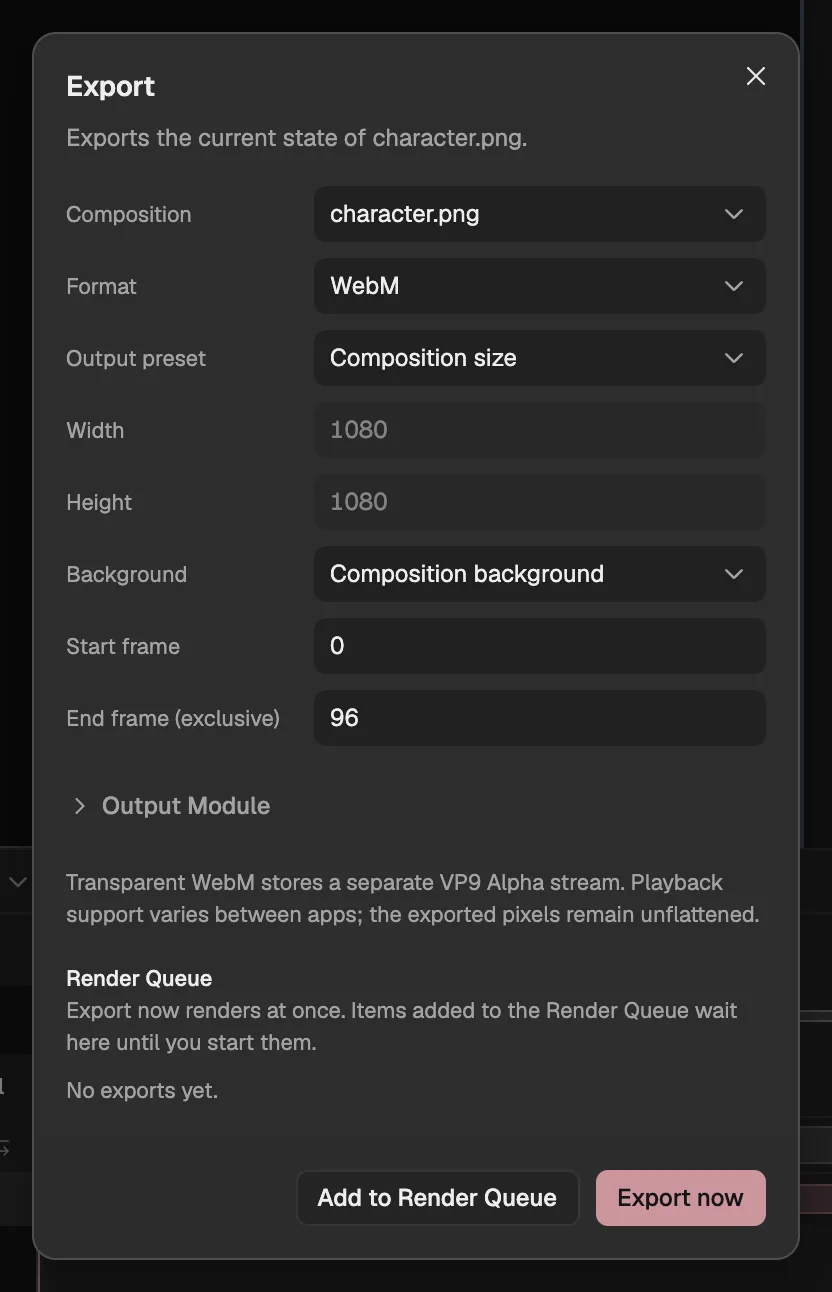
- What kind of file.
- The composition’s background, or transparent.
- Which frames.
- Keeps the export to render later.
- Renders and downloads now.
Formats
| Format | What you get | Transparency |
|---|---|---|
| PNG | One picture, of the start frame. | Yes |
| PNG sequence | One picture per frame, in a ZIP file (up to 1000 frames). | Yes |
| JPEG | One picture, of the start frame. | No |
| JPEG sequence | One picture per frame, in a ZIP file (up to 1000 frames). | No |
| WebP | One picture, of the start frame. | Yes |
| WebP sequence | One picture per frame, in a ZIP file (up to 1000 frames). | Yes |
| AVIF | One picture, of the start frame. | Yes |
| Animated GIF | An animated image of up to 255 colours (up to 600 frames). | Each pixel is shown or not |
| WebM | A video file. | Yes, though not every player shows it |
| MP4 | A video file. | No |
Good to know
- Exports always render at full quality, whatever the viewer’s preview settings.
- Videos need your browser’s encoder. If it cannot make WebM or MP4 at the size you chose, the dialog says so before you start.
- If the frames are outside the composition, or more than an animated GIF or an image sequence can hold, the export buttons are off and the dialog says why.
- Output Module holds more settings: frame rate, image quality, cropping and the file name. Save them as a template (opens in a new tab) to use again.
- To keep or share the editable project rather than a video, export a project file: see Saving and backup (opens in a new tab).