Reference
Problems and common errors
When part of a project can’t be worked out, a layer can’t be drawn or a file is missing, the editor keeps going and tells you. The Problems panel lists each problem, where it is and what the preview does instead.
Open Problems
The Problems button in the header shows how many problems there are, or a tick when there are none. Select it to open the panel, a tab beside Timeline and History. In ⌘K, Show Problems opens it too.
Problems checks the active composition at the frame you are on, shown as Frame N at the top, and checks again when you move or edit; during playback it waits for the frame you stop on. Recheck problems checks again at once.
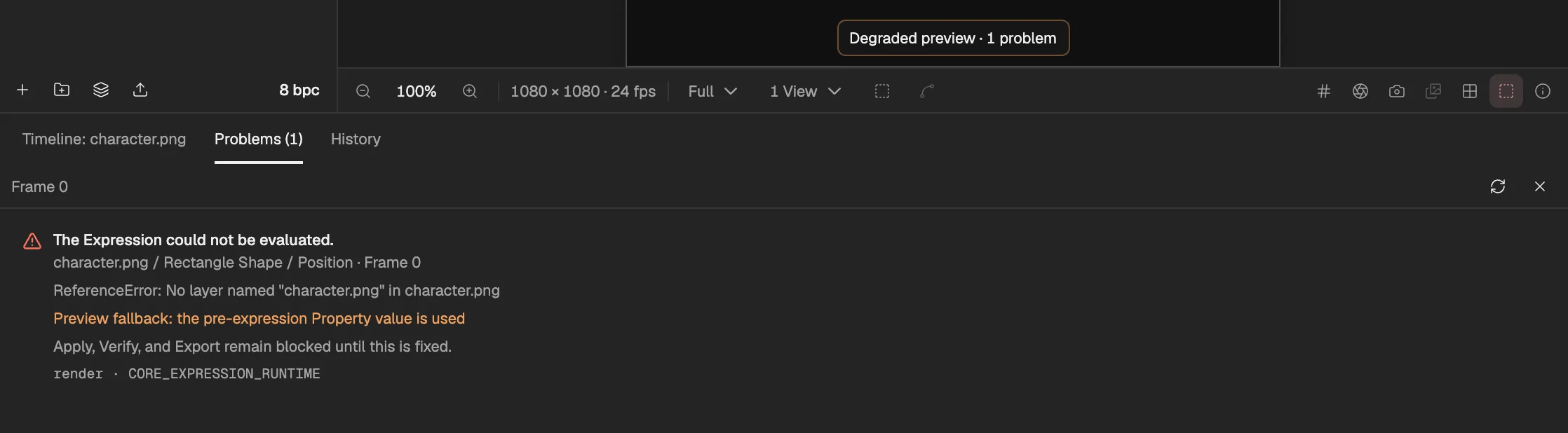
- The Viewer says the preview is degraded.
- The frame being checked.
- What is wrong.
- Where: composition, layer, property and frame.
- What the preview does instead.
- Export waits until it is fixed.
- Checks again.
What it lists
Each entry says what is wrong, where it is (composition, layer, property) and on which frame. Under that come the details the editor has: an expression’s error message, what the preview does instead, and whether export has to wait.
- Expressions that can’t be evaluated: a mistake in the code, a layer or effect it reads that no longer exists, expressions that read each other in a loop, a result of the wrong kind, or one that takes too long.
- Missing or unreadable files: a source whose data is no longer in this browser’s storage, or one that can’t be decoded.
- Layers and effects that can’t be drawn, such as a mesh with no opaque pixels to build from, a time effect that would read too many frames, or a frame the renderer can’t finish.
- Broken links: something a layer depends on that no longer exists, or dependencies in a loop that can’t be worked out.
- Settings the wrong way round, such as Levels with Input White below Input Black, or a camera whose Far is closer than its Near.
Go to the cause
Select an entry and the editor takes you there: it opens the composition, selects the layer or property, moves to the frame, and shows the panel the problem lives in: Properties, Effect Controls for an effect, or the Project panel for a file.
While a problem stays
The editor doesn’t stop for one bad part. The preview carries on without it, and the entry says how: an expression falls back to the property’s own value, a failing effect is skipped, a missing file shows a Missing Media stand-in, a failing layer is left out, or, when nothing else is safe, that frame of the composition is stopped. Meanwhile the Viewer says Degraded preview.
The preview never shows an earlier frame in place of the one you are on.
Relink a missing file
Imported files are kept in this browser’s storage. If a file’s data is missing there, its entry has Relink original file: choose the very same file again. It must be identical to the original, so a different file is refused, and relinking changes nothing in the project or its history.
To use a different file instead, open the file’s actions in the Project panel and choose Replace Footage.
Suggested fixes
For a setting the wrong way round, the entry shows the change that would fix it, with Review repair. That opens the fix as a draft (opens in a new tab) in the Agent panel, to preview and apply like any other.
The Agent can look at the list too: in its panel, start from Help resolve current problems.
Problems and export
Export doesn’t use stand-ins. An entry that reads “Apply, Verify, and Export remain blocked until this is fixed.” means that exporting a frame with this problem fails, and so does applying an Agent draft that produces it.
Problems checks only the frame you are on, but an export renders every frame in its range: a problem on another frame stops the export when it gets there, and the item in the Render Queue shows that it failed. Fix the problem, then export again.