Agent
Generating pictures
The Agent can paint new artwork for your composition and change the picture of a layer you already have. Each picture is a call to an image model, which waits for you to confirm, and nothing reaches the project until you adopt the result.
Ask for a new picture
Open Agent in the composition the picture is for.
Describe the picture. Say what is in it and how it should look: subject, style, mood, colours. The Agent writes the image model’s description from everything you said.
Confirm. The Agent prepares an image step. Its card names the new layer and shows the description it will send; select Confirm cost and generate to make the picture.
Review and import. When the picture is ready, Review generated layers opens the same review as importing files (opens in a new tab), and Import 1 adds it to the composition as an image layer.
The picture is made to the composition’s proportions and comes back as one flat, opaque image.
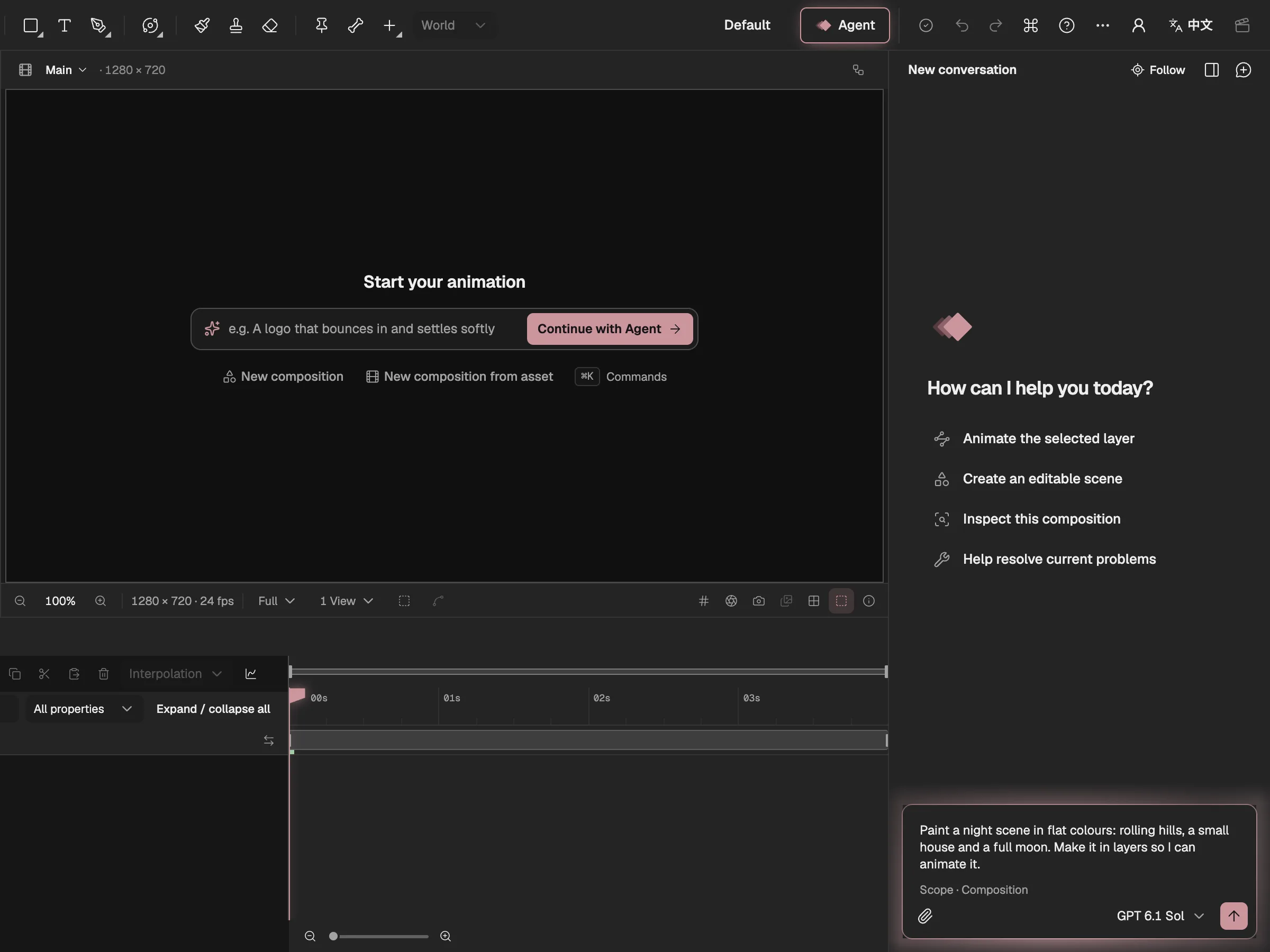
- What the picture should show.
- The picture is for this composition.
- Sends the request; the Agent asks before it paints.
Artwork in layers
Ask for artwork in layers, ready to animate, and the Agent does it in one task: it makes the picture whole, then separates (opens in a new tab) the layer you adopted. Each of the two steps waits for its own confirmation, and the task can go on to animate the result.
It separates once: it never goes on to separate the layers a separation gave back.
A picture that will be animated or separated is asked for as a wide shot, with every subject whole and clear of the edges, because a part the frame cuts off can’t be separated whole. Ask for a close-up or a picture that fills the frame and you get one; its cut-off parts then can’t be separated whole.
Change a layer’s picture
Select an image layer and say what to change in its picture: add something, take something out, repaint or restyle a part. A layer that a separation in the same task produced can be changed too.
The card says why a free tool can’t do it, under Why not free, and which part of the picture will be redrawn, under Redraws only. After Confirm cost and generate, the result opens in Review the redone layer, and Replace layer puts it in.
The layer keeps its place, transform, animation and rig. Its picture changes everywhere the layer is used, and ⌘Z brings the original back. Only what really changed inside that part is taken from the new picture; everything else stays exactly as it was.
Moving, scaling, fading, colour-correcting or masking a layer isn’t a picture edit: the Agent does those with properties, effects and masks, without an image call.
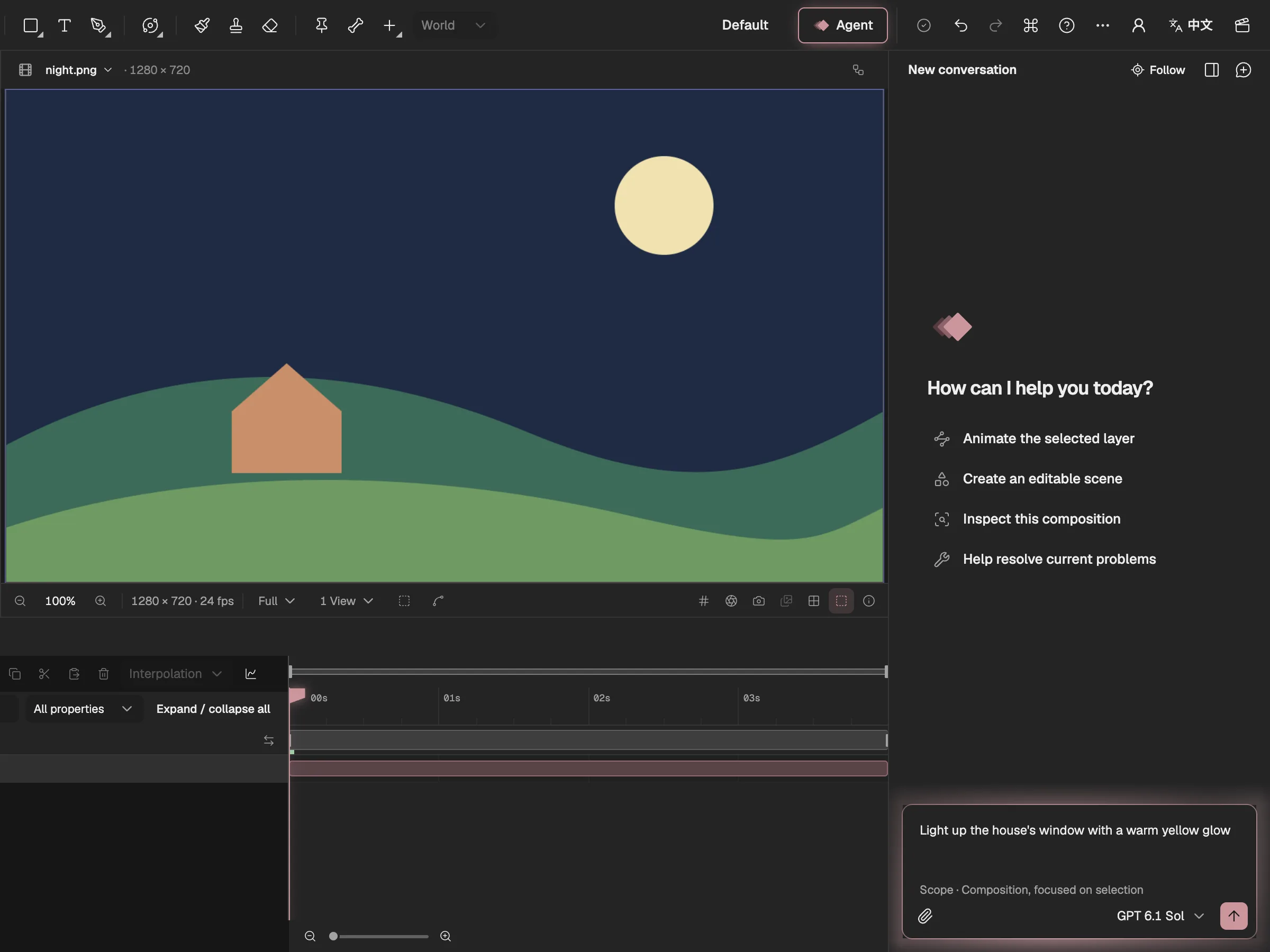
- The selected picture: the one to change.
- What to change in it.
- The task is focused on the selection.
Fixes before redraws
When a picture is close but not right, the Agent’s rule is to fix before it redraws. It first tries what costs nothing: the order of the layers, parents, visibility, the rig, timing or masks.
Next come repairs made on your computer from the picture’s own pixels: erasing stray bits, feathering an edge, cleaning a fringe. Their card lists each repair, and its button reads Repair on this computer.
Only when the fix needs something the picture doesn’t have does it ask for a paid redraw, and then of just the broken part. The whole picture is made again only when its composition or style is wrong.
Good to know
- One image call gives back one opaque picture. It can’t return separate layers or a transparent background; that is what separating is for.
- Image models redraw the whole picture even to change one thing. Keyframe keeps only the area that really changed, so a very faint or very fine change may not come through.
- A new or changed picture that you haven’t adopted isn’t kept when you leave the page; the browser asks before you go.
- Steps that use an image model are part of the Agent subscription (opens in a new tab).