Projects and assets
Saving and backup
Keyframe keeps your project in this browser, on this device. Nothing is uploaded, so keep a copy as a file when it matters.
Where your project lives
- Saved as you work. Every change is kept in this browser’s storage at once. Close the tab, come back later: the project is still there.
- On this device, in this browser. Another browser, another computer or a private window starts with an empty project.
- Not in your account. Signing in does not upload or sync your projects.
- Cleared with the site’s data. Clearing this site’s data in the browser’s settings deletes the project, and a browser short of space can clear it too. Export a project file first.
Back up with a project file
Open Project file: the … button at the top right of the editor.
Select Export project. Your browser downloads a .keyframe file with the whole project: compositions, layers, keyframes, imported files and the undo history. It is the editable project, not a video: for a video, use Export (opens in a new tab).
Keep it somewhere safe, such as a cloud drive or another disk.
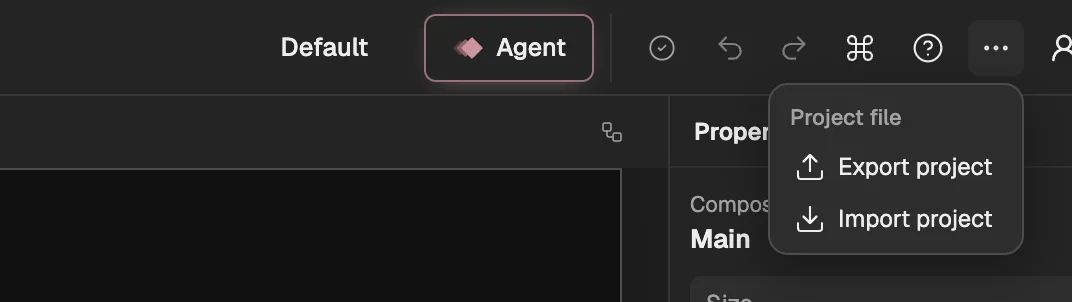
- The Project file menu.
- Saves the project as a file.
- Opens a project file.
Open a project file
Open Project file, select Import project and choose the .keyframe file.
Confirm with Replace project. The file replaces the project that is open, with its history, files and export tasks, and no copy of it is kept. Export the open project first if you want it.
Do the same to move a project to another computer or browser, or to send it to someone. When a project contains effect code (opens in a new tab) (a Shader, Simulation or Picture Program effect), the editor tells you as you open it.