Agent
Drafts and review
Nothing the Agent does changes your project behind your back. Its work comes to you first: edits as a draft you can preview, steps that make artwork or export as a card you confirm. What you apply is ordinary editing, with ordinary undo.
Tasks and their steps
Each request you send starts a task. The Agent plans it as a list of named steps and works through them one at a time; the steps and their state are listed under Steps in the reply’s Details.
A step that changes the project stops for you before anything is written: a draft for edits to layers, keyframes and effects, a card for artwork, files and export. After you apply a draft, select Continue for the next step; after you adopt artwork, the task carries on by itself.
- Pause or cancel. While the Agent is planning, Pause stops it and Cancel ends the task. A paused, cancelled or failed task offers Continue, which carries on from the project as it is now.
- Follow. With Follow on, the editor goes to what the Agent changed: its composition, its layers and its frame. Selecting, typing, dragging or moving the playhead turns it off; the task carries on.
- Conversations. Each conversation keeps its own tasks. The title at the top of the panel switches between them, and the button beside it starts a new one.
Review a draft
A draft is a set of edits the Agent proposes. Its card says what it does and lists each change; until you apply it, the project stays as it was.
Select Preview. The draft is shown in the Viewer, the Timeline and Properties, labelled Agent Draft · Pending · Read-only. While it is shown those panels are read-only, so what you see is exactly what would change. Apply becomes available once you have previewed.
Check it if you like. Recheck confirms, on your computer and without the AI, that the draft still fits the project as it is now. If the preview finds frames that would fail, the card says so and Apply stays off.
Apply or discard. Apply writes the draft into the project. Discard Draft throws it away and the step waits: Continue makes a new draft from the project as it is.
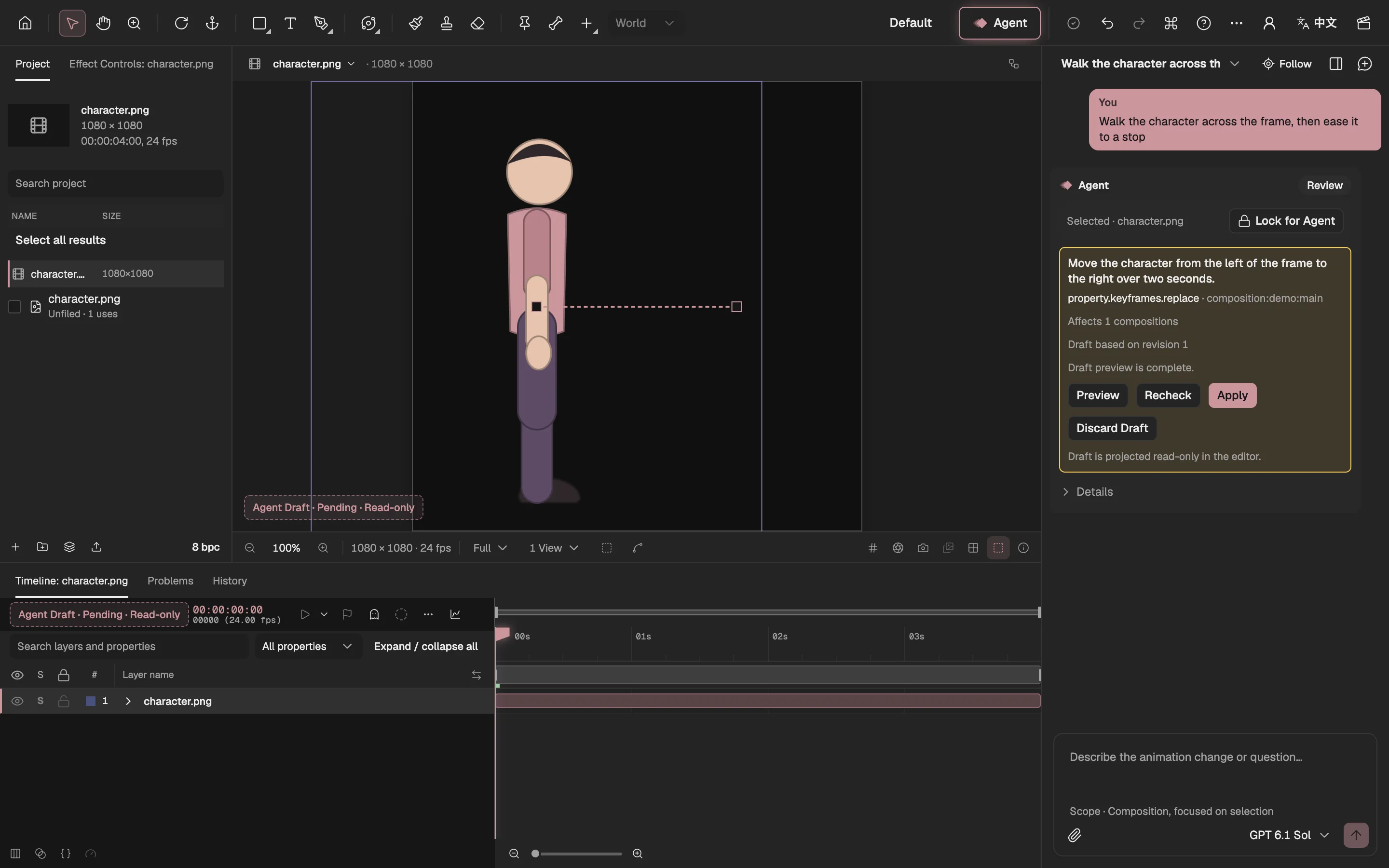
- The Viewer shows the draft, read-only.
- The motion the draft adds.
- The Timeline shows it too.
- What the draft does, and each change.
- Shows the draft in the editor.
- Writes it into the project.
- Throws it away.
After you apply
Applied work is ordinary layers, keyframes and effects. For a few seconds the Viewer, the Timeline and Properties outline what changed, labelled Agent changes; after that it is like anything you made yourself. Edit it by hand, or undo the whole step with ⌘Z.
In History the step is one entry, marked Made by Agent. Undo and redo are yours alone: to correct something it applied, the Agent makes a new step instead of undoing.
What the Agent may change
A task’s scope comes from what is selected when you send it, and the line under the message box shows it: Composition, focused on selection when a layer or property is selected, Composition when nothing is, Project when a file in the Project panel is. How you word the request can’t widen it.
The selection is where the task is focused, not a fence: the Agent may still change the other layers of the composition. When a task needs more than its scope, a card titled The Agent needs Project scope asks, and you choose Allow Project scope or Keep current scope.
To keep the Agent off a layer or property while a task is open, select it and choose Lock for Agent in the reply. The Timeline marks it Locked for Agent; you can still edit it yourself.
When you edit too
You can keep working while the Agent works. Edits that don’t touch what it is changing don’t stop it.
If you edit something the Agent is about to change, your version wins: the task stops, and the reply says Project changed and lists where your edits and its plan meet. Select Continue from current project when you are ready, and the Agent plans again from your version.
A waiting draft goes out of date when the project changes under it. Its card says so, and Preview and Apply turn off: discard it and continue, and the Agent drafts again from the current project.
Steps that ask first
Some steps wait for your go-ahead in a card of their own, which says what the step will make or change and where. Nothing is sent or rendered until you confirm, and Discard request drops the step.
Steps that use an image model, for new or changed pictures (opens in a new tab) and for separating layers (opens in a new tab), each ask on their own: select Confirm cost and generate. Free steps that run on your computer, such as Repair on this computer, have a button of their own.
A final render waits for Confirm export; the card shows the composition, format and frames it will use.
Checkpoints and recovery
- Checkpoints. Every step you apply or adopt is saved with the project at once, as a checkpoint. Details lists them under Committed checkpoints, beside the task’s steps and background jobs.
- Closing the page. Tasks are kept with the project in this browser. If you close the page while the Agent is planning, it picks up the result when you open the project again.
- An uncertain call. If the result of a call can’t be recovered, the reply says so, and nothing is sent again on its own: Continue starts a new attempt when you choose.
- When something fails. The reply says whether you can fix it yourself, whether it is usually temporary, or whether it looks like a problem on our side, with a failure ID to copy or to email to the developer.