Agent
Separating a picture into layers
When all you have is one flat picture, Keyframe can split it into layers: an AI model plans the parts and an image model takes them off one at a time, front to back. You review the layers before anything changes.
What you need
- An Agent subscription. Separating uses AI models, so it is part of the Agent subscription (opens in a new tab). Subscriptions open soon.
- One image layer. Keyframe separates the selected layer into 2 to 6 layers.
- Flat colour is cheaper. Pictures made of a few flat colours, like vector illustrations and icons, are cut by Keyframe itself without image calls; only the planning uses AI.
Separate a layer
Select the picture’s layer in the Timeline.
Open Layer Settings in Properties and select Separate layer.
Say what the layers are. In Separate selected layer, write what to separate, for example “the sky, the moon, the hills and the house”. The dialog says what will be sent and used, and notes when a picture is flat colour.
Select Generate layers. That is your go-ahead. Keyframe plans the layers, then makes them one at a time and shows each one’s progress. If you stop it, Resume saved task picks it up again.
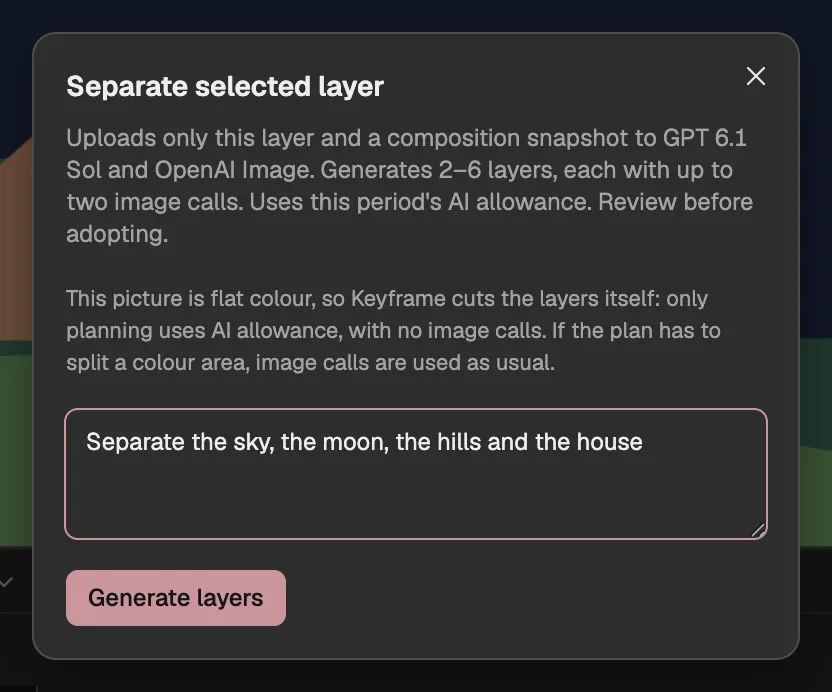
- Shown for flat-colour pictures: cut without image calls.
- What the layers should be.
- Starts the separation.
Review the layers
The layers arrive in the same review as importing a folder (opens in a new tab), front to back, each with the result of an automatic check. Untick a layer you don’t want. A layer that isn’t right can be made again with Redo this layer, which asks you to confirm before it uses another image call.
Select the import button to keep them; it counts the ticked layers, so with four it reads Import 4. As with finer parts (opens in a new tab), the picture’s layer now holds the new layers, the original is kept hidden inside, and Representation switches between them.
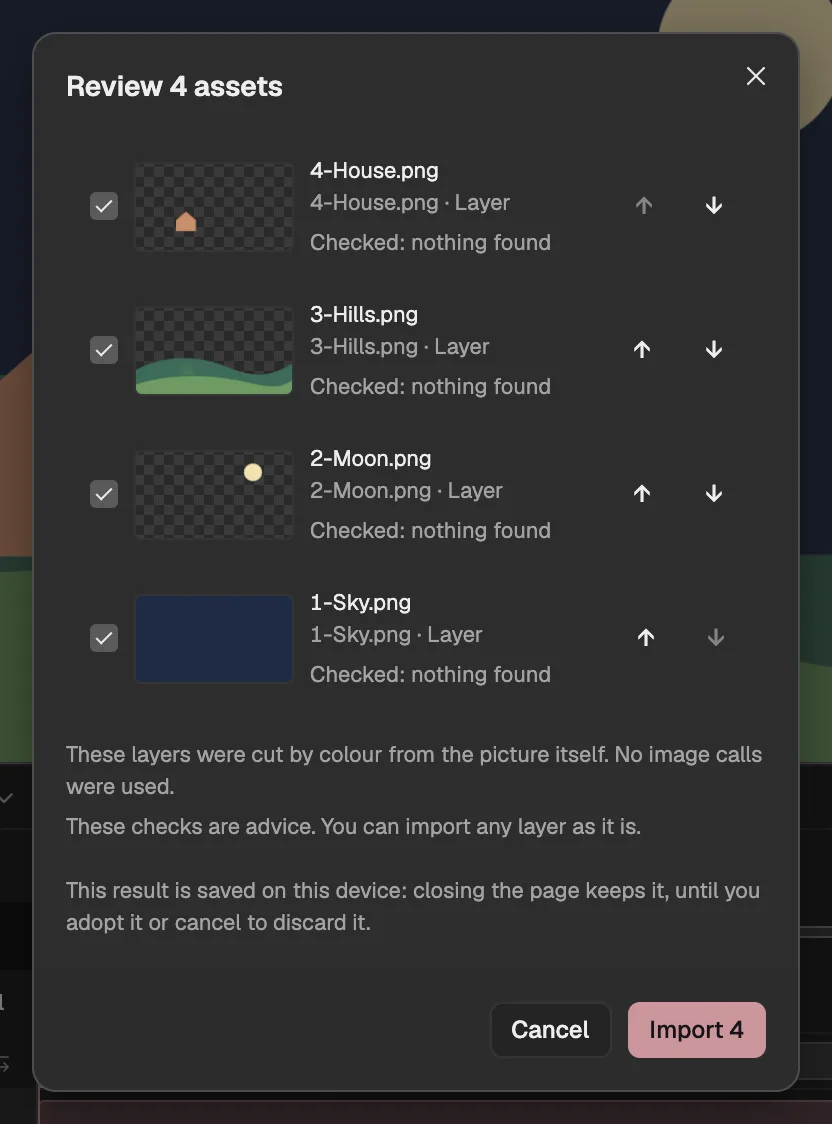
- Each layer, with what the check found.
- This picture was cut from its own pixels.
- Keeps the layers.
The whole separation:
Split a picture into its pieces
When the pieces of a picture already stand apart, such as falling leaves or scattered stars on a transparent background, no model is needed: right-click the image layer and choose Split into pieces. Each separate piece becomes a layer of its own, cut to its own box.
The original layer is hidden and becomes the pieces’ parent, so moving it moves them all. At most 15 pieces are made at a time, and smaller extra pieces join the nearest one; the new layers don’t take the original’s effects, masks or opacity. The Agent can do the same as a step of its task.
It works on an unlocked 2D image layer. When the whole picture is one piece, nothing is split.
Ask the Agent instead
You can also ask in the Agent panel (opens in a new tab), for example “separate this picture into layers”. The Agent prepares the same separation as a step of its task and shows what it will use; select Confirm cost and generate to go ahead, then Review generated layers.
When you ask for new artwork in layers (opens in a new tab), the Agent can make the picture and then separate it, asking you to confirm each step. It never goes on to separate the layers a separation gave back.
Good to know
- If the model’s cut misses part of a piece, what it missed stays in the layer behind. The automatic check marks it, but nothing fixes it for you: paint it out, or redo that layer.
- The check finds mechanical faults, such as hard edges, outlines left behind, parts drawn anew and holes. It doesn’t judge whether the result looks good.
- Pictures with gradients aren’t cut by colour. In a cut by colour, the shapes hidden behind others are guessed.
- Separated layers waiting for review are kept in this browser: if you close the page first, the review opens again when you come back, with no new call. On another device, or after clearing the browser’s data, they are gone.