Masks, mattes and keying
Masks
A mask cuts a layer to a shape: what is inside it shows, the rest is hidden. A layer can have several masks, each with a mode, a feather and an expansion, and a mask’s path can be animated, as in After Effects.
Draw a mask
Select the layer to mask, such as a picture, a video, a solid, text or a pre-comp.
Choose a shape tool, such as the Ellipse tool under the Rectangle tool (Q), and drag over the layer in the viewer. Or choose the Pen tool (G) and click points round what should show, closing the path on the first point.
That is the mask. It appears in Properties under Layer › Masks, and under the layer in the Timeline, with its path selected.
Add mask, the + beside Masks, adds a mask as big as the whole layer, to reshape from there. Masks also come from text, with Create → Create Masks from Text (see Shapes and masks from text (opens in a new tab)).
Change the path
- With the mask’s path selected, the Pen tool (G) drags its points and handles, adds points, and deletes the selected point with Delete, as it edits a shape’s path (see Draw a path with the Pen (opens in a new tab)). The Convert Vertex tool turns corners into curves.
- Mask Path in Properties lists every point, to type its position and handles exactly.
- RotoBezier on the mask works its curves out from the points alone.
- The arrows beside the mask’s name move it up or down the list, and the bin removes it.
Mask modes
Masks apply from the top of the list down. Each mask’s mode, in the menu under its name, says how it combines with the masks above it, and Inverted uses the outside of its shape instead of the inside. There are 7 modes:
- None
- Does nothing to the picture: the mask is only a path, for example for text on a path.
- Add
- Adds the inside of the mask to what the masks above show.
- Subtract
- Takes the inside of the mask away.
- Intersect
- Keeps only what is both inside the mask and shown by the masks above.
- Lighten
- Where masks overlap, keeps the more opaque of them.
- Darken
- Where masks overlap, keeps the less opaque of them.
- Difference
- Shows where this mask and the masks above do not overlap.
A layer whose first mask is Subtract starts out fully shown, so that mask alone cuts a hole in it.
Feather, opacity and expansion
- Mask Feather softens the mask’s edge, in pixels. Its two values feather the left and right and the top and bottom separately.
- Mask Opacity lets the masked area show only partly.
- Mask Expansion grows the mask outwards, or shrinks it with a negative value, without changing its path.
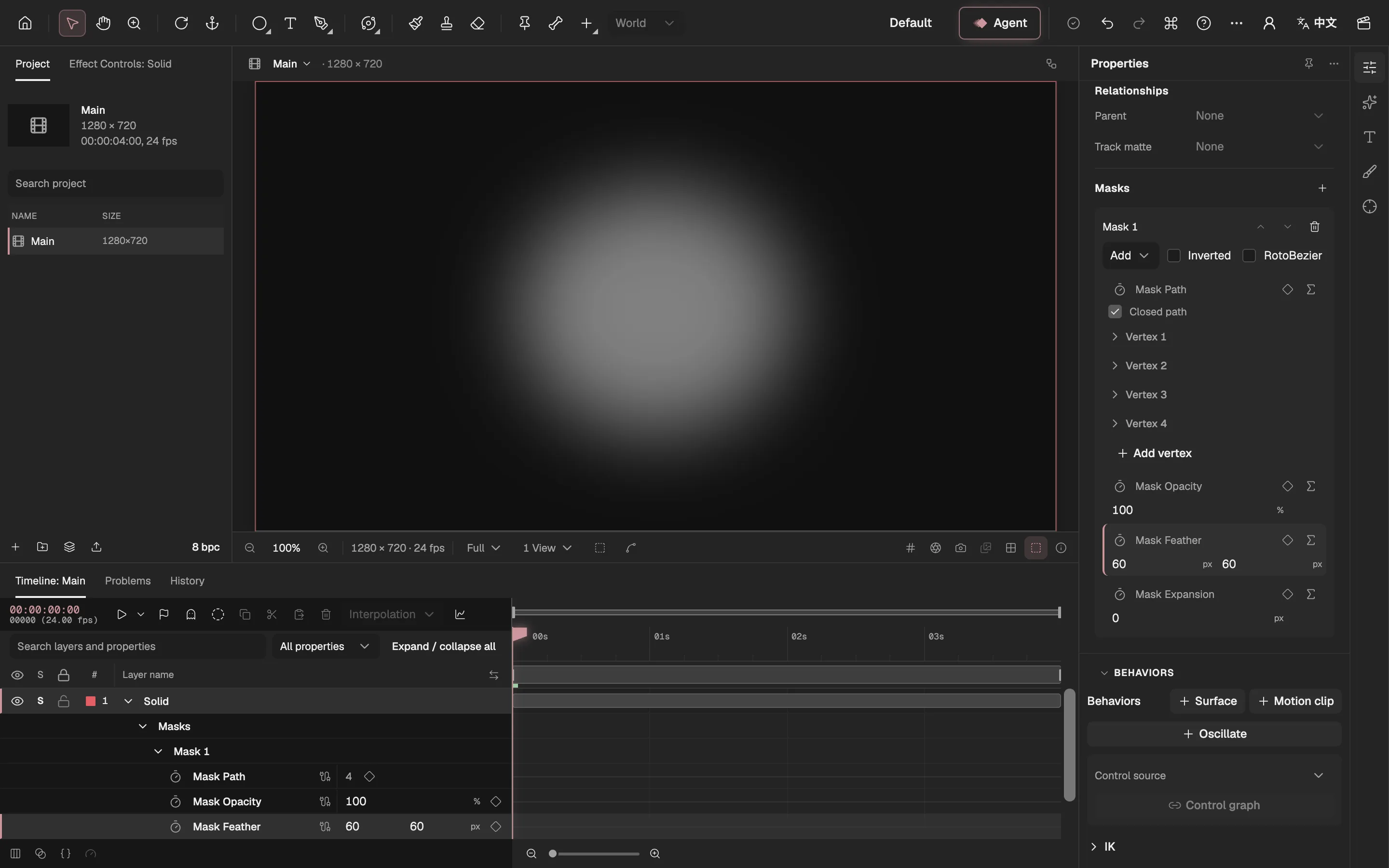
- The masked layer: only the inside of the ellipse shows, with a soft edge.
- Add mask.
- The mask’s mode.
- Inverted keeps the outside instead.
- Mask Path: its stopwatch animates the shape.
- Mask Feather, here 60 pixels each way.
Feather one part of the edge
Select the mask’s path (a mask you have just drawn is selected already) and choose the Mask Feather tool under the Pen tool (G).
Click the path where the edge should change, to add a feather point.
Drag the point out of the shape to feather outwards there, or into it to feather inwards; the feather blends into the next points along the path. Select a point and press Delete to remove it.
Animate a mask
Mask Path, Mask Opacity, Mask Feather and Mask Expansion all have stopwatches. Turn on the stopwatch of Mask Path, go to another frame and move the points: the mask changes shape between the keyframes, so it can follow something that moves or reveal the layer bit by bit (see Set keyframes (opens in a new tab)).
To follow something in a video without reshaping the mask on every frame, the Mask Tracker in the Tracker panel keys the mask’s path frame by frame for you (see Track a mask or a face (opens in a new tab)).
Good to know
- Masks apply before the layer’s effects, so an effect such as a blur works on the picture already masked.
- A mask belongs to its layer: it moves, scales and turns with the layer.