From one picture to layers you can animate: why splitting lives in the editor
In After Effects, layers are split in Photoshop first; Keyframe splits a picture into layers you can animate, in the editor, and keeps the original.
See it first
A picture split into a few layers in the editor, then animated together.
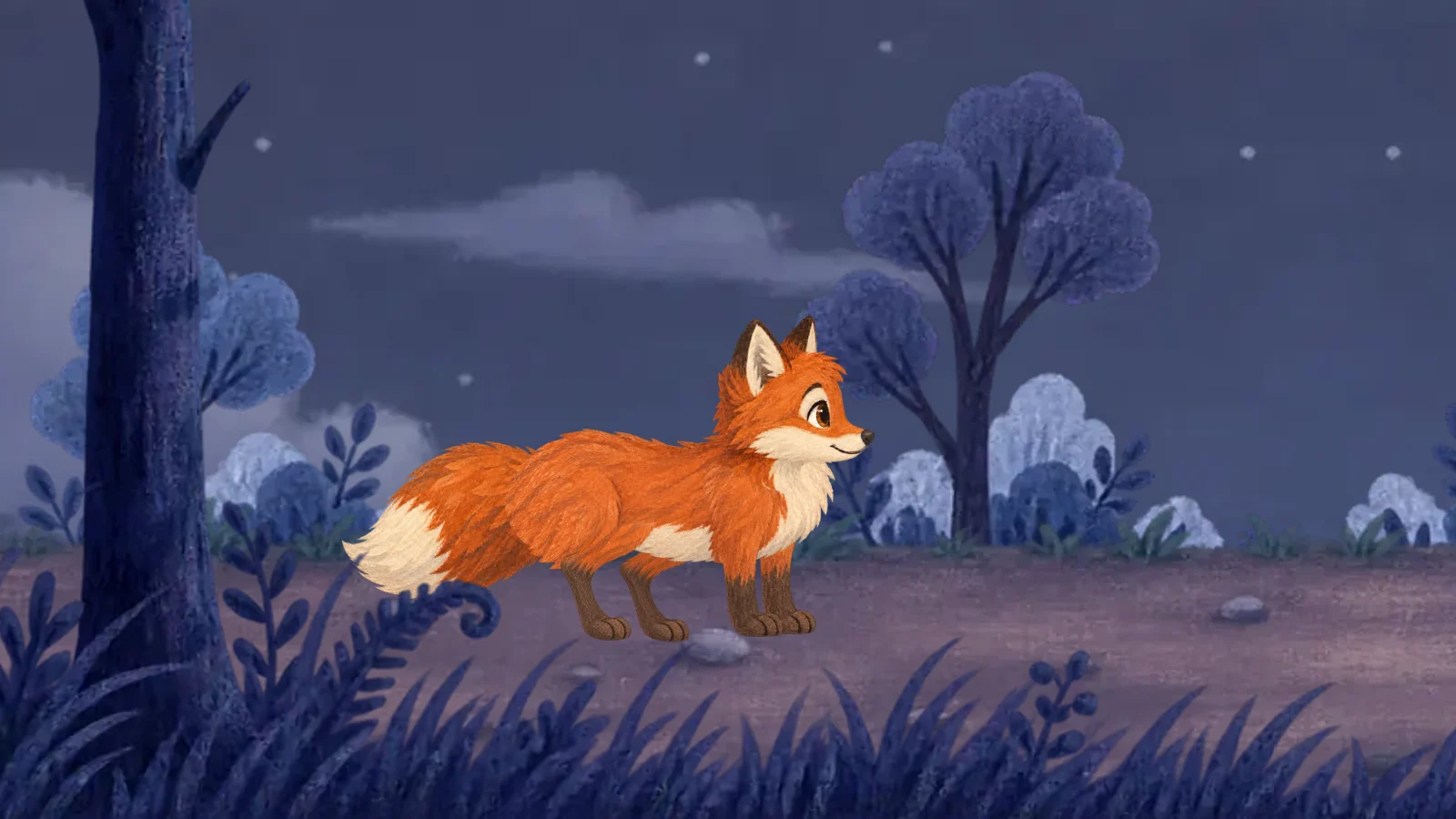
Candidates · adopt to apply

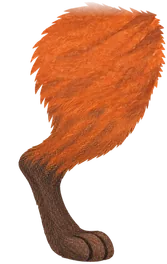
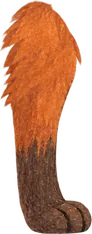
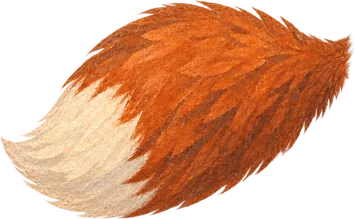
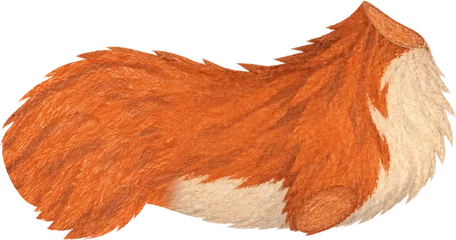
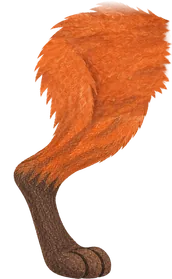
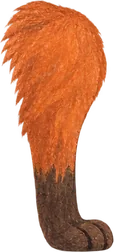

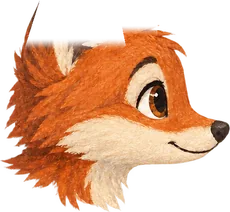
In After Effects, splitting happens in Photoshop
After Effects can’t split a flat picture into layers; that is done by hand in another app first.
- YouCut out parts in Photoshopone layer per moving part
- YouPaint what was hiddenbehind an arm, behind the character
- YouSave a layered PSD
- YouImport into After Effectseach layer becomes a layer
After Effects’ AI features work on footage: Content-Aware Fill removes things from a shot, Roto Brush and Object Matte cut a moving subject out as a matte. None of them turns a still picture into layers with the background filled in, ready to move on their own.
So the usual way is to cut each part out in Photoshop or Illustrator, paint in what was hidden, save a layered file and import it.
Why it works that way
In Adobe’s suite, After Effects composites.
Splitting is Photoshop’s job and editing is Premiere’s; After Effects receives artwork already in layers. Inside the suite that is a sensible division: each app does its part best.
The cost falls on someone animating on their own: going back and forth between two apps, and when an arm should have been its own layer halfway through, cutting, painting and importing again.
In Keyframe: split it free on your device first
Click the subject and get three layers: the subject, its shadow and the filled-in background.
- Originalfrom an image model
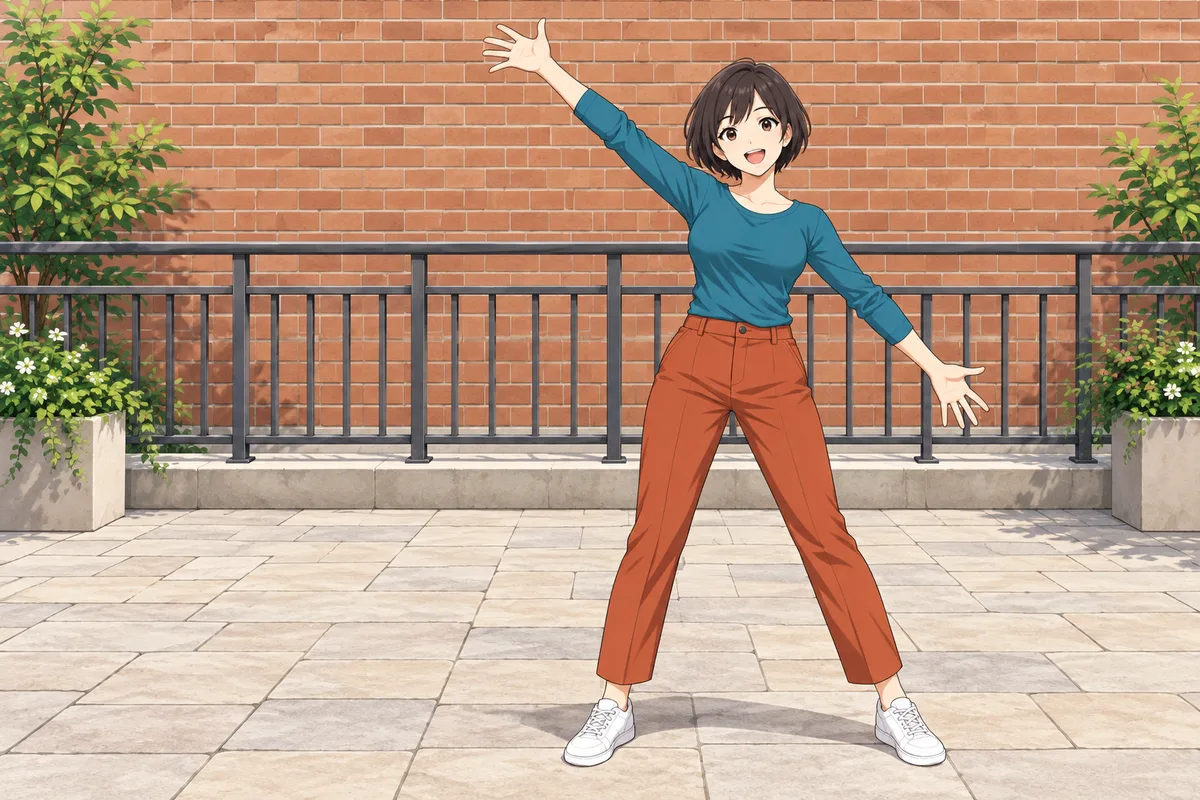
- Subjectcut from the picture’s own pixels
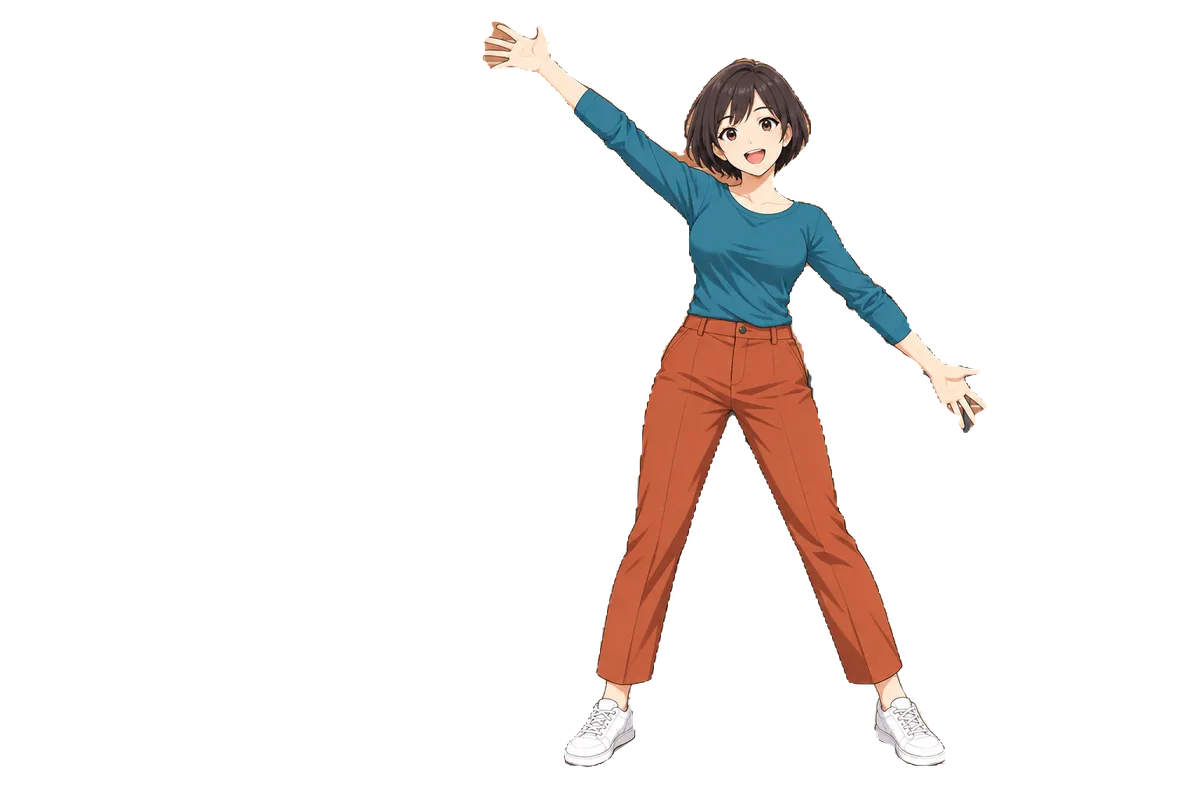
- Shadowits own layer, shown here over the background


- Backgroundfilled in behind her by LaMa
A segmentation model finds the subject from where you clicked, the editor finds its shadow, and LaMa paints the background behind it. All of it runs in your browser, nothing is uploaded or paid for, and you review the result like any other.
More layers, with AI
A language model plans 2–6 layers and an image model peels them front to back, but the pixels still come from the original.
- AI modelPlan the layers2–6, from your picture and request
- AI modelPeel layer by layera mask and an erase each
- The editorCut from the originalits own pixels, nothing redrawn
- YouReview and adoptchecks flag leftovers
- Nothing is redrawn. The image model only draws masks and erases; each layer’s pixels are cut from the original by trusted code, so hands and faces don’t come back a different size.
- Flat art needs no image model. Flat-colour illustrations are cut by colour, by code alone.
- It asks first. AI separation calls a paid model, so it belongs to the Agent subscription (opening soon) and waits for your yes each time; the Agent (opens in a new tab) can also make a picture and then split it in one task, each step confirmed with its cost.
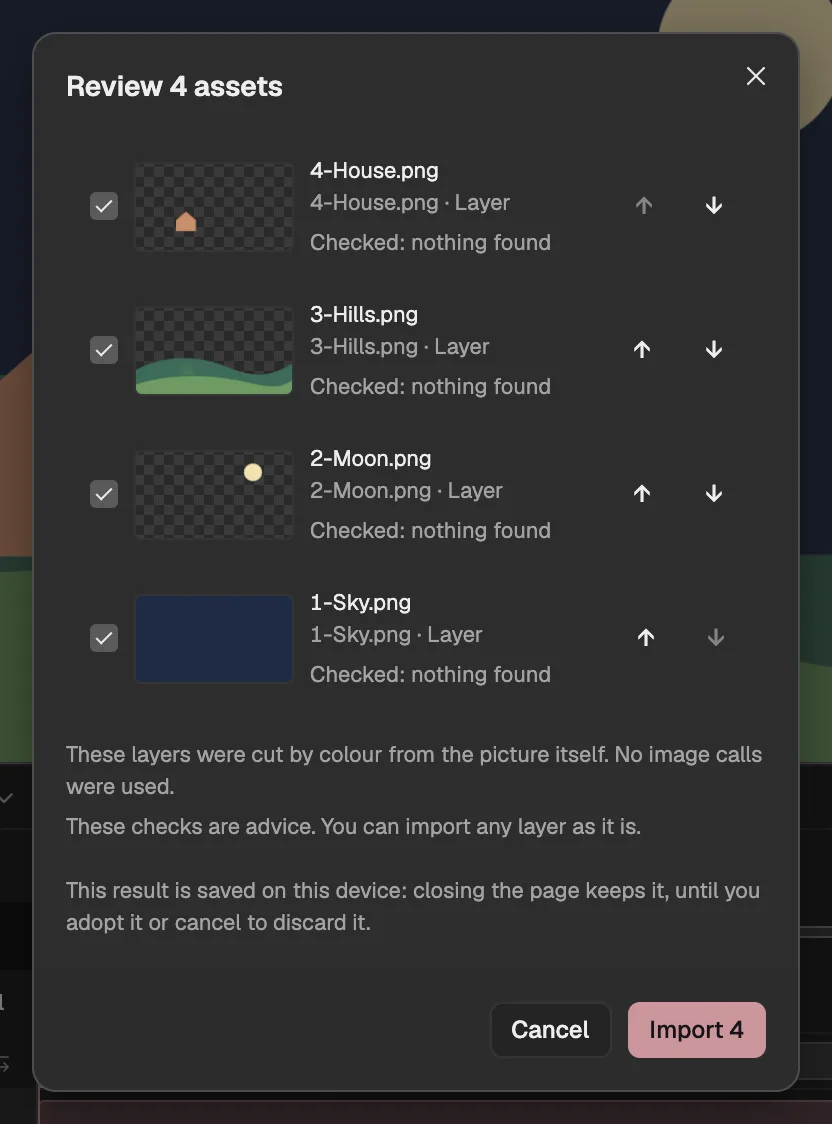
- Each layer on its own row; uncheck to leave it out.
- Checks flag leftovers and other problems.
- Imports the checked layers.
The original stays
The layers sit under the layer they came from, the original kept as a hidden master you can switch back to.
Timeline
- Woman by the streetthe same layer
- Subject
- Shadow
- Background
- Originalhidden · locked · recoverable
In After Effects, another split means another PSD, and keeping the old one is up to you. In Keyframe, the parts replace the content of the layer they came from, keeping its position and animation; the original stays as a hidden master.
When a part needs to be finer, split it again in an outside AI tool and import the folder it returns under that layer; its original is kept too.
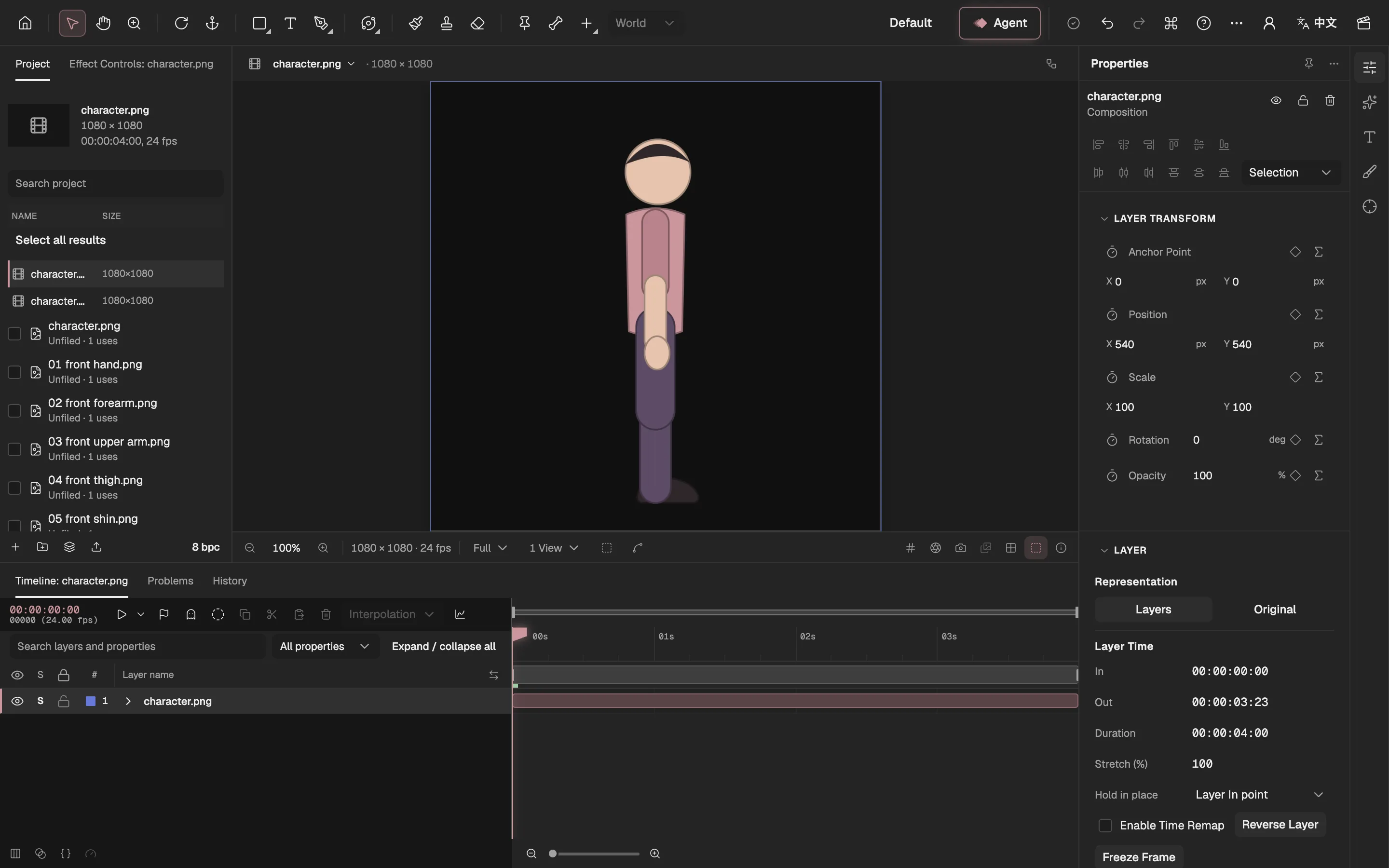
- Shows the parts, or the original picture.
- The same layer, now holding the parts.
- The parts’ own composition.
Then it moves
The parts are ordinary image layers: rig them, keyframe them, or hand them to the Agent.
 Animate an AI illustration, step by stepCut the character out of an AI picture for free, give it a hop with keyframes and export a GIF.
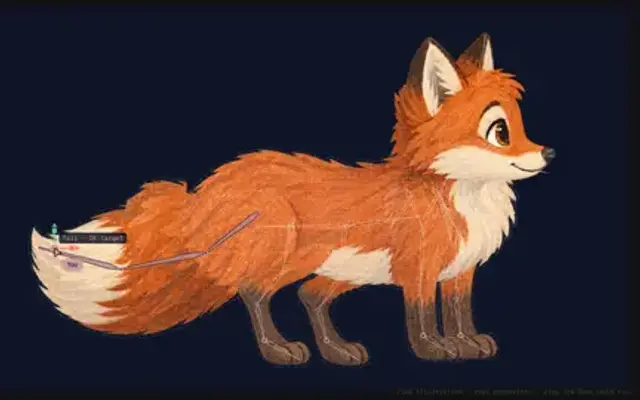 Bones without expressions: how Keyframe rigs a characterIn After Effects, bones are pieced together from layers and expressions; in Keyframe a skeleton is a layer, solved by the editor itself.