Animate an AI illustration, step by step
Take one picture from an image generator, cut the character out of its background for free, give it a little hop with keyframes and export a GIF or a video. Everything happens in your browser; nothing here needs an account.
What you need
- A picture with a clear character in front of a background: PNG, JPEG or WebP. This guide uses an anime-style picture from an image generator.
- A browser with WebGPU (external website, opens in a new tab), such as a current Chrome, Edge or Safari.
1. Bring the picture in
Open the editor. A new project starts with an empty composition.
Drop the picture on its start card, or choose New composition from asset. The composition takes the picture’s size.
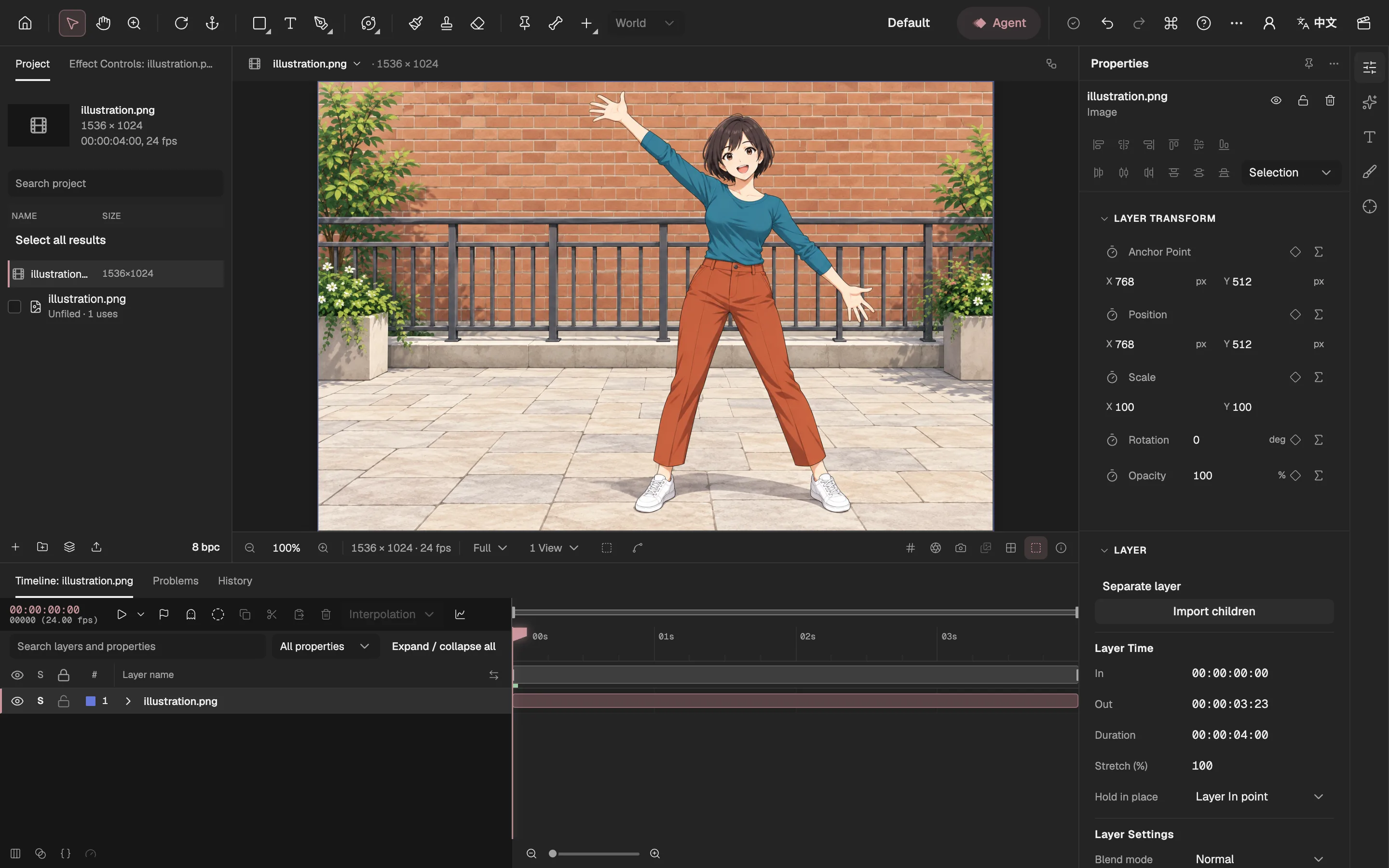
- The picture in the Viewer.
- Its layer in the Timeline.
- Properties of the selected layer.
2. Cut out the character
With the layer selected, open Layer Settings in Properties and choose Separate layer.
Click the character on the picture. One point is usually enough; add up to four if a part is missed.
Choose Cut out subject. It runs on your device and is free.
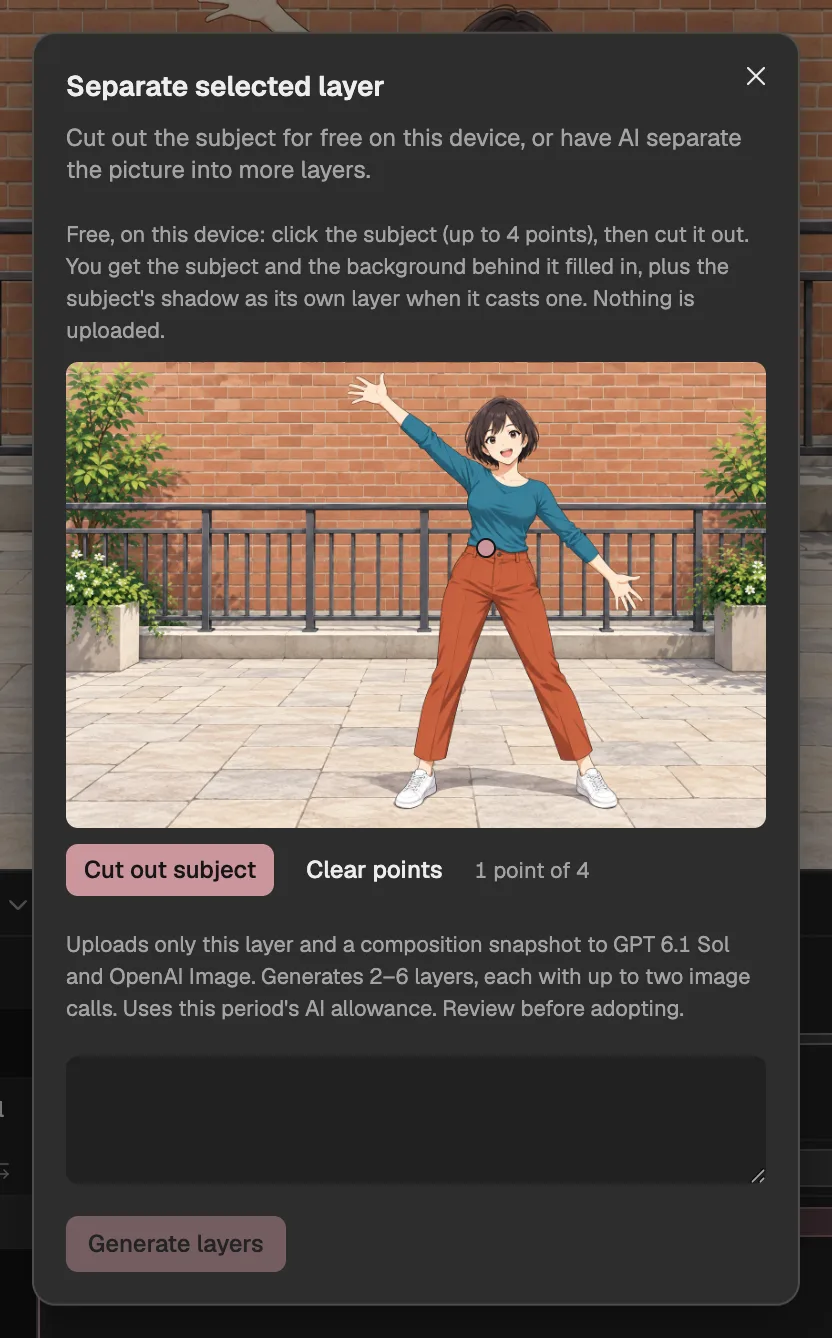
- The point you clicked on the character.
- Cut out subject: free, on this device.
- The AI separation, for more layers; not needed here.
3. Review the three layers
The review lists the subject, its shadow and the background, each with an automatic check.
Choose Import 3. The layers replace the picture inside its own composition, and the original stays recoverable.
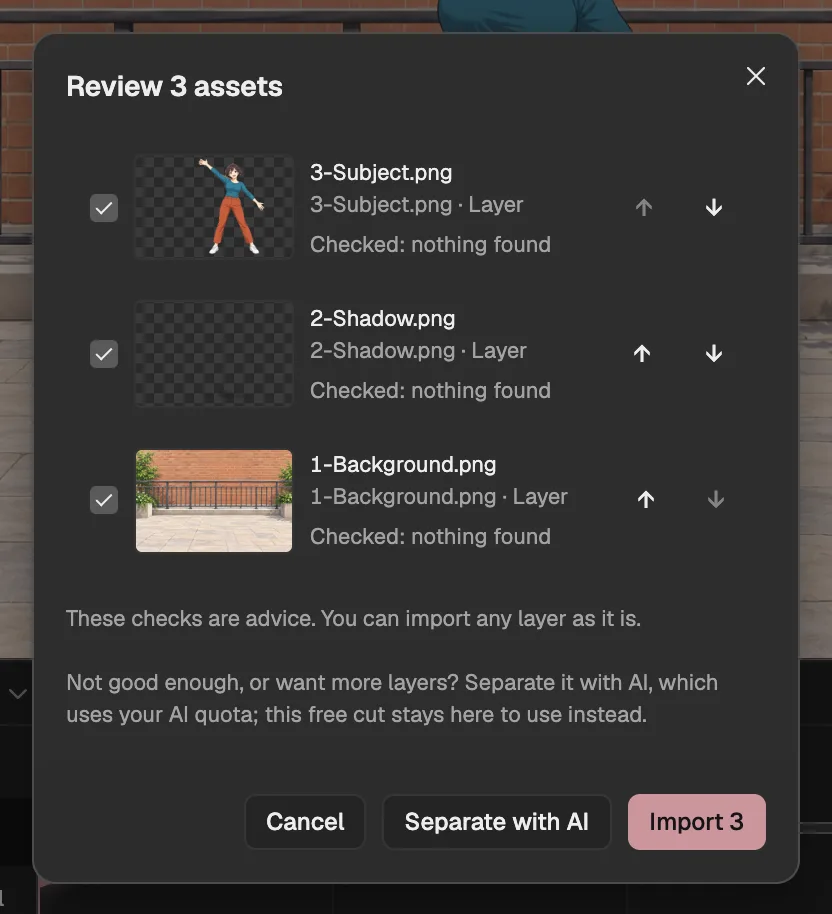
- The character, cut from the picture’s own pixels.
- Her shadow, as its own layer.
- The background, filled in where she stood.
- Separate with AI, if you want more layers.
- Import the three layers.
4. Give her a hop
Open the picture’s composition from the Project panel and select the Subject layer.
At frame 0, turn on the stopwatches of Position and Rotation.
Every 12 frames, alternate: lift her (Position Y 400) and tilt her a few degrees, then set her back down (Y 512, rotation 0). Each change sets a keyframe.
Select the keyframes and press F9 for Easy Ease, so she slows at the top of each hop.
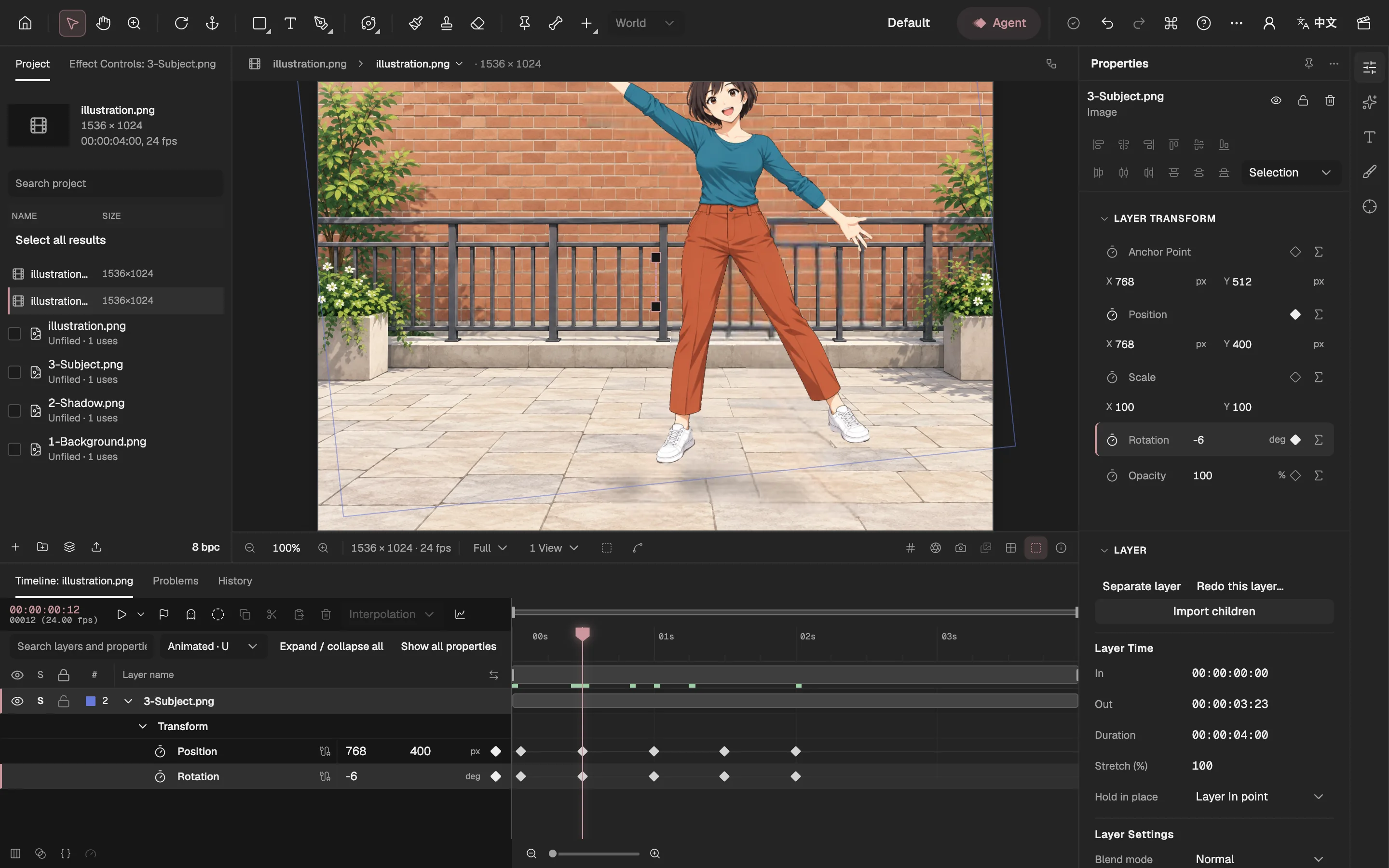
- The Subject layer.
- The stopwatch that turns on keyframes.
- A keyframe: she is at the top of a hop.
- The frame at the playhead.
The shadow is a separate layer, so it stays on the paving while she jumps. For arms and legs that move, give her bones and IK (opens in a new tab) instead.
5. Play it back
Press Space to play. Frames are rendered once and kept, so the second loop plays in real time.
Adjust a keyframe and play again until the timing feels right.
6. Export a GIF or a video
Choose Export video or images at the top right.
Set Format to Animated GIF for a loop to share, or WebM or MP4 for a video.
Choose Export now. The file is rendered in your browser and downloaded.
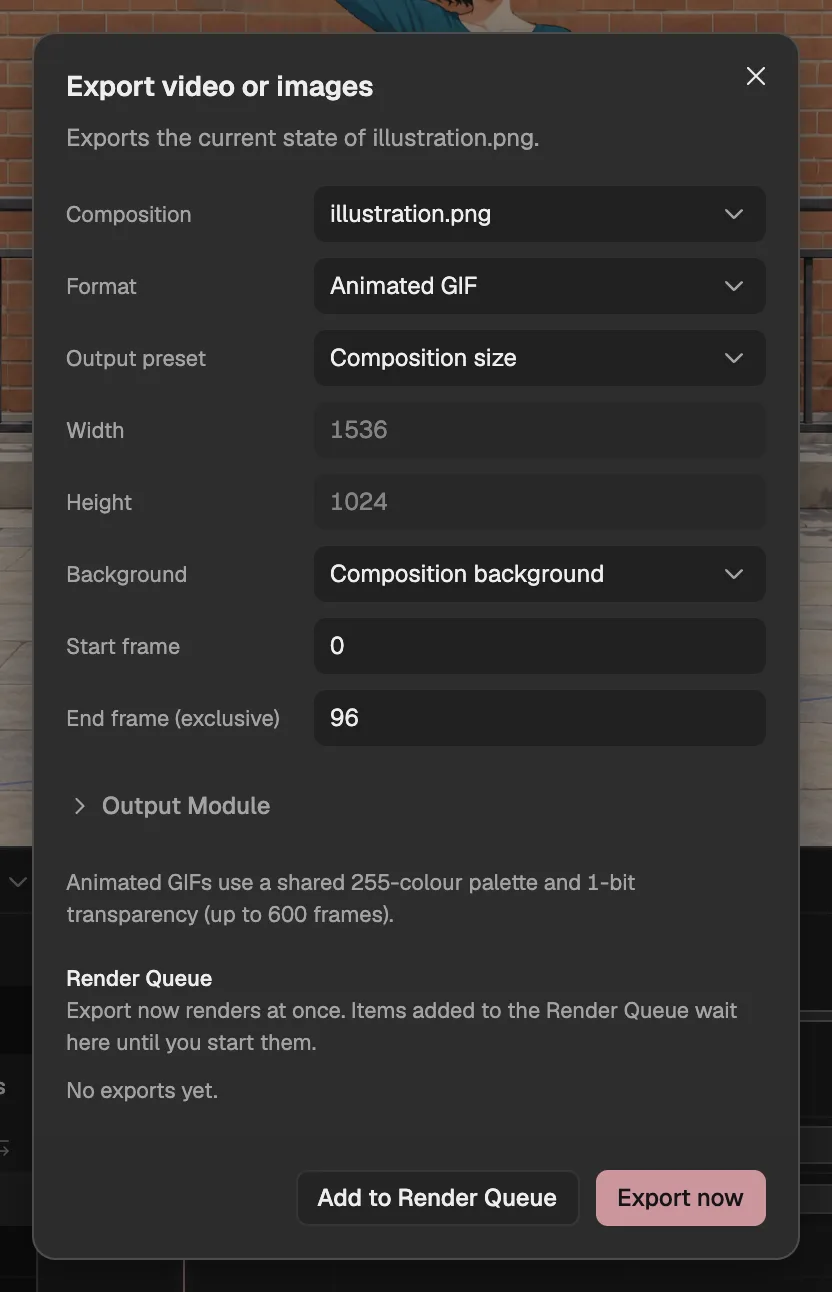
- The format: Animated GIF here.
- The frames to export.
- Export now renders and downloads the file.
Where to go from here
- More layers. Separate the picture into 2–6 layers with AI, so the arms, hair or background move on their own. Layer separation
- A rig. Bones, IK and meshes make limbs bend instead of the whole body tilting. Character rigging
- Ask the Agent. Describe the motion in a sentence and review the draft it builds. AI Agent