Turn a character with drawings that switch
A few layered drawings, one Slider, and parts that slide or bend from one drawing to the next.
A character turning round
Eight views drawn as layered parts, switched by one Slider, with every part carried from one view to the next.
Exported from the Keyframe editor as it is. Six seconds, no sound.
More detail
The character is eight drawings, one every 45 degrees, each a folder of parts: neck, body, head, ears, hair, eyes, nose and mouth. A drawing set switches every part to its drawing for the view the Slider picks, and fills the gap between views by moving or bending each part.
From folders of parts
One folder per drawing, one file per part: the dialog reads them and you check what it read.
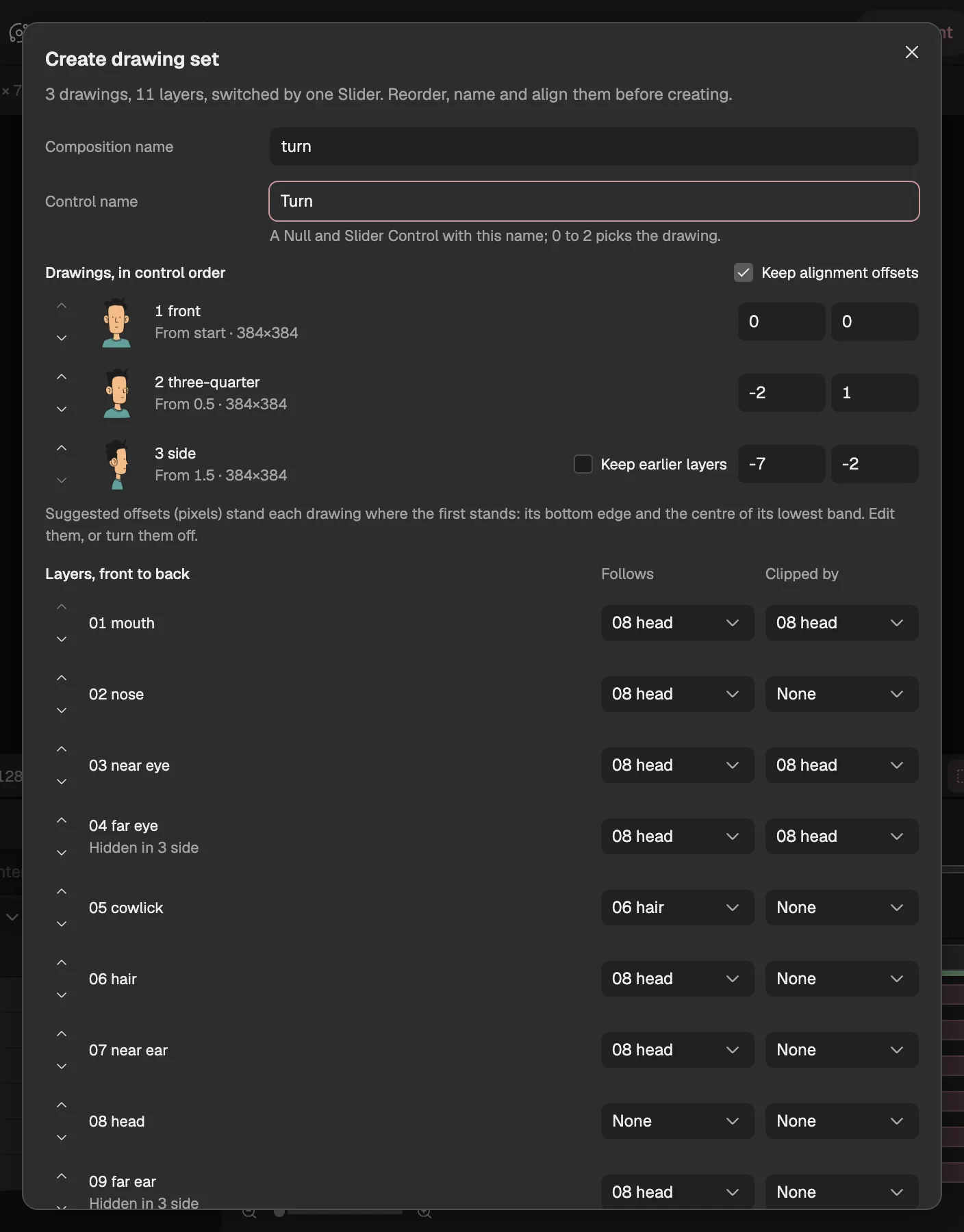
- The drawings, in control order.
- One layer per part, front to back.
- What the part moves with and shows inside.
- The Slider that picks the drawing.
More detail
- Drawing substitution. Each part is a layer whose drawing changes with the control, as in cut-out animation tools.
- Parts that follow and clip. An eye can follow the head and show only inside it. Folders named after a part say so; otherwise the dialog suggests it from the pictures, and you change it.
- In-betweens only where needed. A drawing can keep the one before it for the parts it lacks, so you draw extra views only of the parts whose outline changes.
- Checked first. Drawings must share a canvas size, and colours that drift from the first drawing are flagged.
Deform between drawings
One button measures how every part moves between neighbouring drawings and fills the jump.
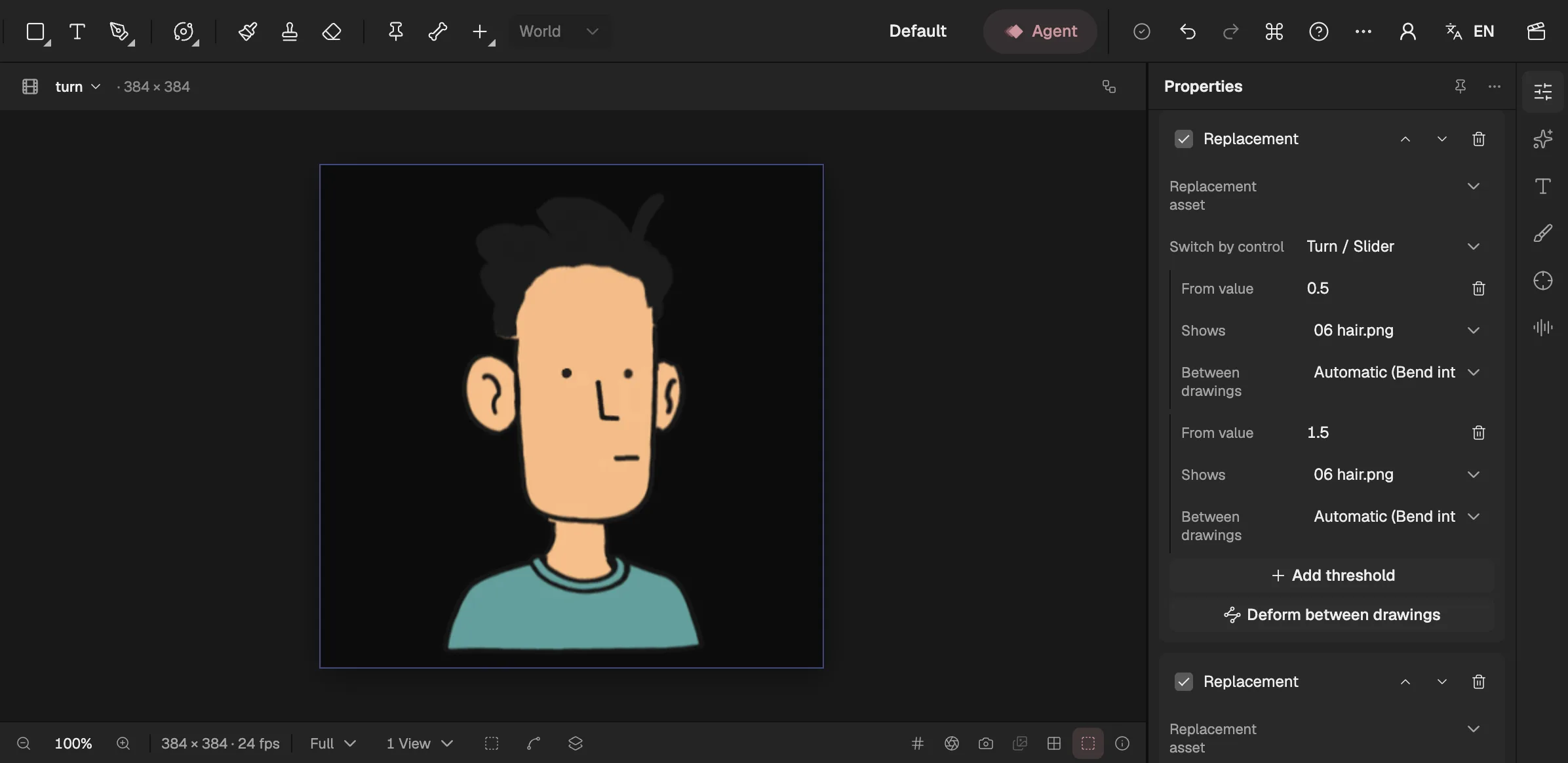
- Halfway between two drawings.
- Measure every part's way between drawings.
- Slide, bend or switch in place.
More detail
- Slide. A part moves towards where it sits in the next drawing, half before the switch and half after, along with the part it follows.
- Bend into the next. A part whose outline changes too much to slide is shape-tweened from one outline to the other, its ink line kept the same width.
- Switch in place. The part simply changes at the switch.
- Your call, per switch. The rules choose for each part and each switch; Properties shows the choice and lets you pick another, rebuilt in one undo step.
- No ghosts. Parts never fade: a part the next drawing lacks tucks behind the part it follows and goes at the switch.
Animate the control
Keyframe the Slider like any property; its timing decides how the turn feels.
More detail
The Slider's value picks the drawing, each taking over halfway between whole values. Ease and hold its keyframes in the Graph Editor: a turn that holds each view and moves quickly between them reads like a cartoon, a steady one like a turntable. The post below shows the difference.
Pose Driver and Replacement
Under a drawing set are two behaviors you can also use on their own.
More detail
Replacement swaps an image or video layer's source by a control, from thresholds you set. Pose Driver lets one number control move many properties through poses you record, with linear, smooth or hold steps between them, the way a smart bone or a parameter does. One control can drive both, for a mouth that changes shape while the jaw drops.
With bones
For parts that turn about joints rather than switch drawings, rig them with bones, IK and meshes.