Animation
Drawing sets
A drawing set switches between drawings of the same thing, like the views of a character turning, its mouth shapes or the states of a prop, by one Slider. It is drawing substitution as cut-out animation tools have it: each part of a character is its own layer, and one control picks the drawing every part shows.
Make a drawing set
Draw every view on the same canvas size, with each part in place rather than cropped. Put each drawing's parts in a folder of its own, one file per part, and give a part the same file name in every folder.
Import the folders. Keep the drawings' folders side by side in one folder and import it (see Importing (opens in a new tab)). Several images that are each a whole drawing also work: select them in the Project panel and choose Create drawing set.
Create the set. On the folder that holds the drawings' folders, choose Create drawing set from …. A dialog lists the drawings, in control order, and the layers, front to back.
Review it. Reorder the drawings and layers, check what each layer Follows and is Clipped by, and name the control under Control name. With Keep alignment offsets on, each drawing is moved so it stands where the first one stands.
Create. Create makes one composition in one undo step: a layer per part, a Null with a Slider control of that name, and the behaviors that switch the drawings.
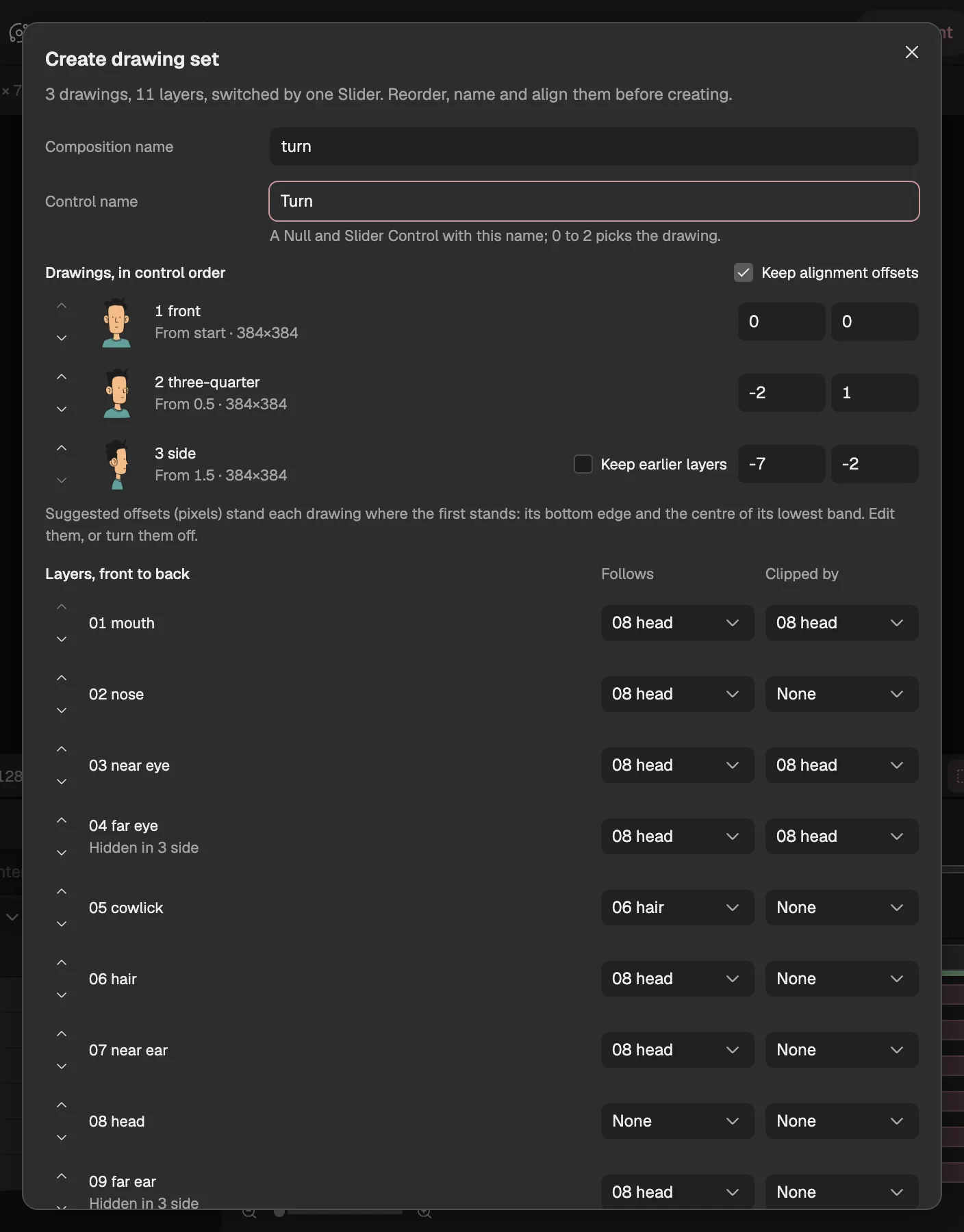
- The drawings, in control order: 0, 1, 2.
- One layer per file name the folders share, front to back.
- The layer this part moves with, and the one it shows inside.
- The name of the Null and its Slider control.
Drawings and parts
The dialog reads the folders, and you check what it read before anything is made.
- One drawing per folder. When the images sit in sibling folders and file names repeat across them, each folder is a drawing and each file name a layer. Otherwise each image is a drawing of one layer.
- Order. Drawings and layers come in the natural order of their names; the first layer is the front. Move either up or down in the dialog.
- Following and clipping. A part can follow another, as an eye follows the head, and show only inside another. A file in a folder named after a part follows that part. Without folders, the dialog suggests from the pictures: each part follows the larger part it overlaps most, and is clipped by it when it lies inside it in every drawing. Change any of them.
- A part a drawing lacks. It is hidden in that drawing. A drawing can instead keep the drawing before it for the parts it lacks, under Keep earlier layers: draw an in-between only for the parts whose outline changes, and the rest carry on. A fully clear file is a blank: the part is not there in that drawing.
- Checks. Every drawing must have the same canvas size, or creating is blocked. Drawings whose colours drift from the first are flagged, but can still be used.
Switch with the Slider
The control's value picks the drawing: 0 shows the first, 1 the second, and so on. Each drawing takes over halfway between whole values, so a drawing is never shown for less than its share of the control.
Animate the control, never the layers: give the Slider keyframes (opens in a new tab). With eased keyframes the drawings change where the value crosses each halfway point; with Hold keyframes they change exactly at the key. Holding a drawing for a while and moving quickly to the next one reads better than turning at a steady speed.
Deform between drawings
Switching drawings alone jumps. Deform between drawings, on a part's Replacement in Properties › Behaviors, measures how every part moves from one drawing to the next and fills in the gap, for all the parts on the same control in one undo step. Each part goes through each switch one of three ways:
- Slide. The part moves halfway towards where it sits in the next drawing before the switch and the rest of the way after it, along with the part it follows.
- Bend into the next. A part whose outline changes too much to slide, like hair moving from the edge of the face to the back of the head, is shape-tweened from one outline to the other. A drawn ink line keeps its width while the fill inside stretches.
- Switch in place. The part stays put and changes at the switch.
- Parts that leave or arrive. A part the next drawing lacks tucks behind the part it follows, if that can hide it, and goes at the switch. Nothing fades in or out.
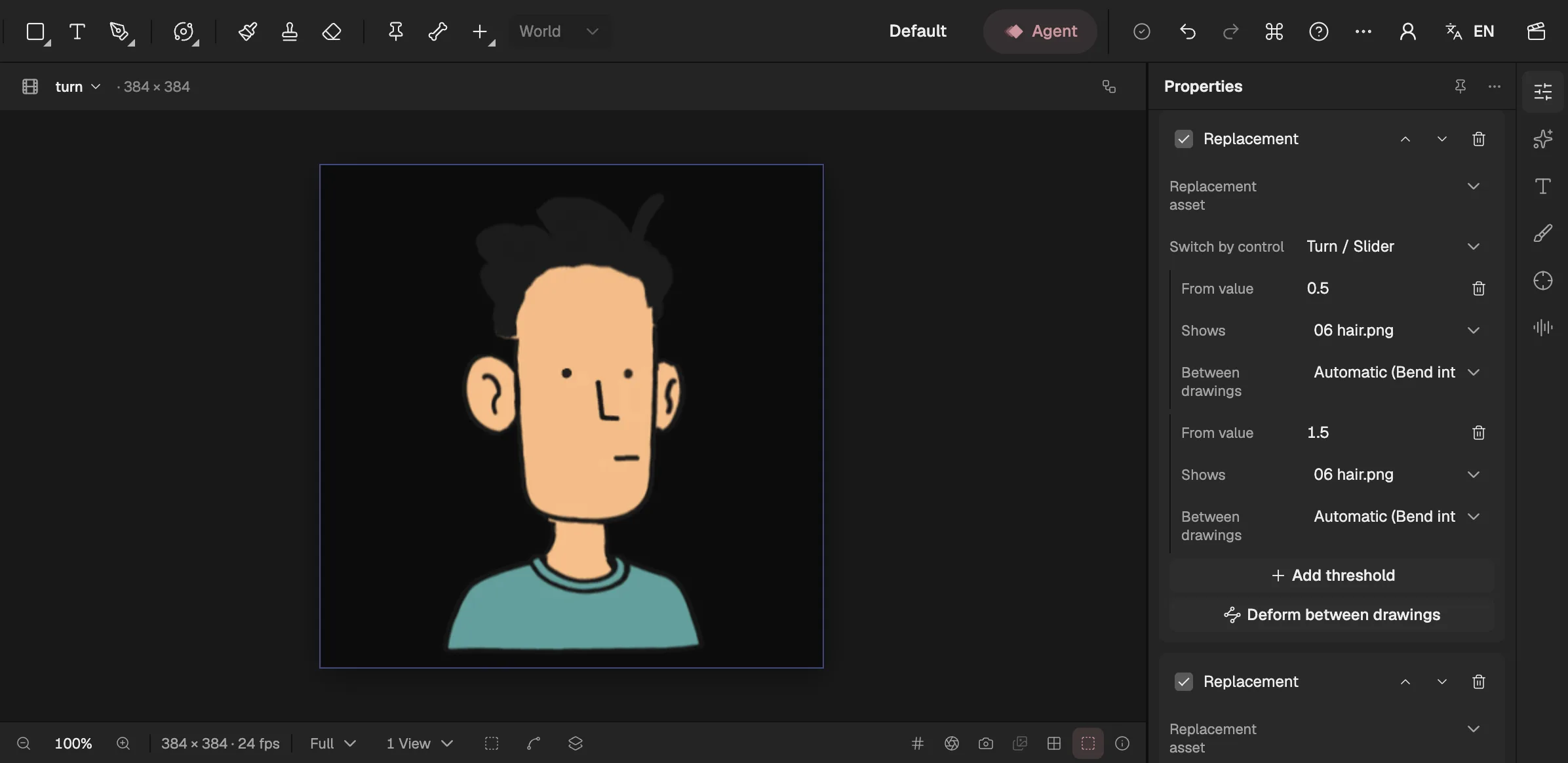
- Halfway from the front to the three-quarter view.
- Measure every part's way between the drawings.
- How this part goes through this switch.
Under Between drawings, each switch of a part says what the rules chose, Automatic with the way in brackets, and lets you choose another. A choice that cannot work, such as bending a part drawn as line work, is refused with the reason. A change rebuilds the set's in-betweens in one undo step, and pressing Deform between drawings again keeps your choices.
A part with mesh handles (opens in a new tab) also bends: each handle moves halfway towards where the same detail sits in the next drawing.
Replacement
Each part of a drawing set switches its picture with a Replacement behavior. You can add one to any image or video layer, without a drawing set, to swap its source by a control.
Add it. Select the layer and, in Properties › Behaviors, choose Replacement and the asset it shows first.
Switch by a control. Under Switch by control, pick a number property, usually a Slider. Add threshold adds a value from which another asset Shows; thresholds rise in order.
Animate the control. The layer shows the asset of the highest threshold the control has reached, and its first asset below them all.
Pose Driver
A Pose Driver lets one number control move many properties through poses you record, the way a smart bone or a parameter does in other tools. A drawing set uses one to keep each drawing's offsets and to carry its parts between drawings.
Add it. Select the property to drive in the Timeline, then in Properties › Behaviors choose Pose Driver and its Control. Drive selected property adds more properties to the same driver.
Record poses. Turn the driver off, set the control to a value, pose the driven properties, and select Record pose. Recording turns the driver back on. Record the rest pose and one pose for each extreme.
Choose the way between. After each pose, Linear, Smooth or Hold. Below the first pose and above the last, the properties keep that pose.
While it is on, the driver replaces the driven properties' own values and keyframes: animate the control instead. One control can drive several Pose Drivers and Replacements.
Good to know
- Bending needs each of the two drawings of a part to be one solid shape; thin line work and scattered dots slide or switch instead.
- Shapes narrower than about three line widths stretch their line with the fill.
- A whole picture deformed into the next only covers small differences. For a character turning round, draw a few views as layered parts rather than many whole pictures.
- Layer and drawing names come only from your files, folders and edits.
- The Agent (opens in a new tab) can create a drawing set from imported drawings and run Deform between drawings, as a draft you review.