Animation
Behaviors
A behavior is a rule that sets a property or a layer for you on every frame: it swings a value back and forth, turns a layer towards another, keeps a layer on a line or lets a chain of bones trail behind. You give it its inputs and its numbers; the editor works out the result, the same way in the Viewer and in an export.
What a behavior is
A behavior has a target, the property or layer it sets; inputs it reads, such as another layer’s Position or a slider; and settings of its own. While it is on, it sets its target on every frame: most replace the target’s own animation, a few, such as Secondary Motion, add to it. Turn it off and the target plays its own keyframes again.
Behaviors belong to the composition. The editor works them out in the order their inputs need, so one can read another’s result: aim a layer at one that oscillates, say. A change that would make a behavior read, through others, the very value it sets is refused.
A property’s expression (opens in a new tab) sees what its behavior set as the property’s value, so an expression can build on a behavior.
Each kind of behavior is built into the editor and has a version, and the project keeps every behavior with its kind’s version and its settings. Nothing in them is random: a frame looks the same whether you jump to it or play up to it.
Add a behavior
Select what it should set. For a behavior that sets a property, select the property, in Properties or in the Timeline. For one that works on a whole layer, select the layer.
Open the Behaviors group in Properties, below the layer’s settings. At its top is a button for each behavior that fits the selection. Those that need no selection, Surface, IK and Physics World, are folded under their names.
Choose its inputs. A behavior that reads something else, such as the layer Aim 2D points at, has a list for it above its button. The button is ready once every list is filled.
Select the button. The behavior is added in one step, and its card appears below with starting settings. An Oscillate, for example, starts centred on the property’s current value with an Amplitude of 0, so nothing moves until you change it.
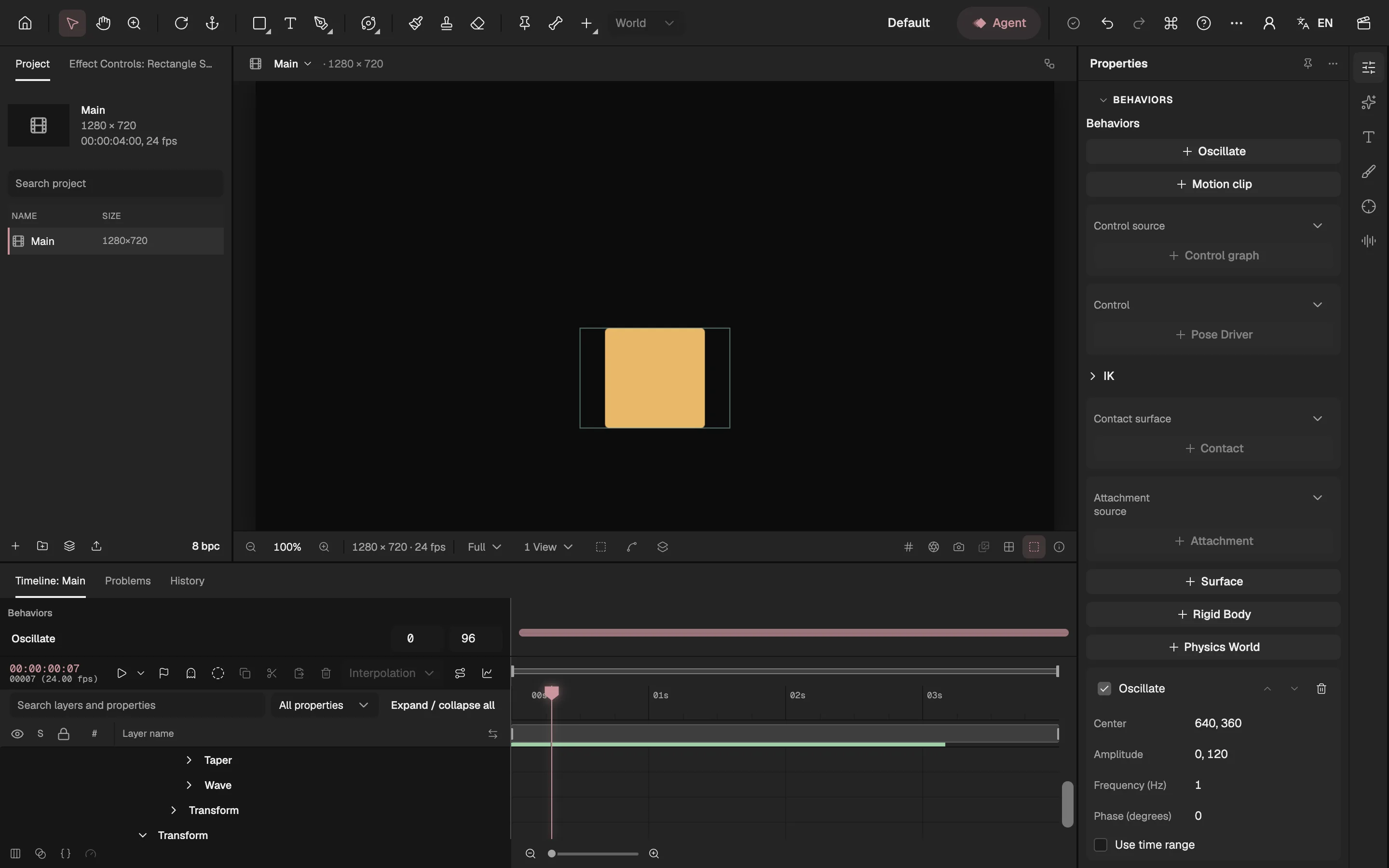
- Adds a behavior to the selected property.
- The behavior’s card: the tick box turns it off.
- One of its settings.
- Limits it to part of the composition.
- Its row in the Timeline, with where it starts and ends.
Behavior cards
Each behavior is a card in the Behaviors group, with its settings under its name. The group lists every behavior of the composition, whichever layer is selected.
- On and off. The tick box beside the name turns the behavior off without removing it; its target goes back to its own value and keyframes.
- Order and removal. The arrows move a card up or down the list, and the bin removes it. Each change is one step you can undo.
- Time range. Oscillate and Aim 2D have Use time range: the behavior then acts from Start frame up to End frame (exclusive). Oscillate also has Source start frame, Source end frame and Loop source, which choose the stretch of its swing that plays in that range and whether it repeats.
- Bake. The Rigid Body and Physics World cards have a diamond that turns the simulation into keyframes (see Bake to keyframes (opens in a new tab)). Every other behavior stays a live rule.
- When a change can’t be made, the group says This Behavior could not be applied. and the project stays as it was.
Behaviors in the Timeline
When a composition has behaviors, the top of the Timeline has a Behaviors area with one row per behavior. A bar shows the frames it acts on, and a behavior that is off is dimmed. Select its name or its bar to move the playhead to where it starts.
The two boxes beside the name set where it starts and ends, which gives it a time range. Rigid Body and Physics World take none: a body joins and leaves with its layer’s In and Out points.
A Motion clip’s keyframes show on its bar as diamonds; select one to go to it.
The area keeps a short height and scrolls on its own, so many behaviors, such as one per part of a drawing set, never push the layers out of the panel.
Behaviors that set a property
Apart from IK, which needs no selection, these are offered when you select a property that holds a number or a point and can be animated.
- Oscillate
- Swings the property around Center by Amplitude, as a sine wave of Frequency (Hz) that starts at Phase (degrees). For a point, give each axis its own amplitude:
0, 40bobs a layer up and down. The whole swing has to stay inside the values the property allows. - Aim 2D
- Turns a layer towards another. Select its Rotation, choose the Aim target, another layer’s Position, and select Aim 2D. At a Rotation of 0 a layer points right, so set Aim offset (degrees) for a drawing that faces another way. Both layers must be 2D with no parent.
- Motion clip
- Keyframes kept in the behavior instead of on the property. It starts with two, on the first and the last frame, both at the property’s current value; its card has a value box for each, and its keyframes show in the Behaviors area. While it is on, it replaces the property’s own animation.
- Control graph
- Makes the property follow another: choose the Control source, a property that holds the same kind of value. The result is the source times Multiplier plus Offset, so it starts as an exact copy.
- IK
- Two-segment IK between layers, for a limb built from parented layers rather than bones: from a Root position and a Target position it works out an Upper rotation and a Lower rotation for segments of Upper length and Lower length, bending as Bend direction says. Choose the four properties in its lists. For a skeleton, use the bone’s own IK (opens in a new tab).
Behaviors that follow another layer
These set a layer’s Position from another layer or a line. Select the Position to add one; a camera’s Position for Camera track.
- Attachment
- Keeps the layer on another: choose the Attachment source. Its X and Y follow the source’s Position plus Position offset, which starts at 0, 0, so the layer moves onto the source; its Z stays its own.
- Surface
- A straight line for Contact to keep layers on, from Start point to End point; it draws nothing. Extension says whether the line ends at its two points (Clamp to segment) or goes on (Infinite line). A new surface lies across the lower part of the composition.
- Contact
- Keeps the layer on a Surface: choose the Contact surface. The layer moves to the point of the line nearest to where its own animation puts it, and Normal offset lifts it off the line at a right angle, by a ball’s radius, say. While the surface is off, the layer moves freely.
- Camera track
- Keeps a camera with a subject: choose the Camera track target. The camera stays Camera offset away from the target’s Position. The offset starts as the distance between them, so the camera stays where it was and then follows; it moves the camera without turning it.
Drawings and poses
A drawing set (opens in a new tab) is built from these two, and you can add them yourself as well.
- Replacement
- Shows another picture or video in an image or video layer in place of its own: select the layer and choose the Replacement asset. With Switch by control, a control value picks which drawing shows (see Replacement (opens in a new tab)).
- Pose Driver
- Lets one control, usually a slider, move many properties through poses you record: select a property to drive and choose the Control, a number property (see Pose Driver (opens in a new tab)). Deform between drawings (opens in a new tab) builds one for a whole drawing set.
Bones and physics
These simulate motion rather than compute it from a formula, and have pages of their own.
- Secondary Motion
- Lets a chain of bones trail, overshoot and settle after what moves it. Select a skeleton layer and choose From bone, or turn it on from a bone’s options in the Viewer (see Secondary motion (opens in a new tab)).
- Rigid Body
- Makes a 2D layer a solid body that falls, collides and bounces. Select the layer (see Rigid-body physics (opens in a new tab)).
- Physics World
- The gravity, start frame and solid edges that every rigid body of the composition shares; a composition has at most one (see The physics world (opens in a new tab)).
Good to know
- Behaviors belong to the composition, not to a layer: copying and pasting a layer leaves its behaviors behind.
- The Agent can add and tune behaviors when you ask it, as a draft you review.