Layers and properties
Sound
Sound files come in as audio layers. Hear them while Preview plays, watch their levels in the Audio panel, shape them with audio effects, and turn their loudness into keyframes that drive any property.
Audio layers
Import an MP3, WAV, OGG or M4A file (see Pictures, video and sound (opens in a new tab)) and it becomes an Audio layer, drawn as its waveform in the Timeline. A video layer whose file has a sound track plays its sound too.
How loud a layer plays is its Audio Levels, in decibels, under Audio in Properties. At 0 dB the sound plays as it is; the property runs from −96 to +24 dB and can be keyframed, for a fade in or out.
Trimming, moving or time-remapping the layer changes what is heard, as it changes what is seen. You hear the composition while Preview plays the work area from memory (see Play the work area (opens in a new tab)), and an exported video carries the same sound.
The Audio panel
Select Audio, the last icon on the right rail, to open the Audio panel. It shows how loud Preview is playing and sets the selected layer’s level.
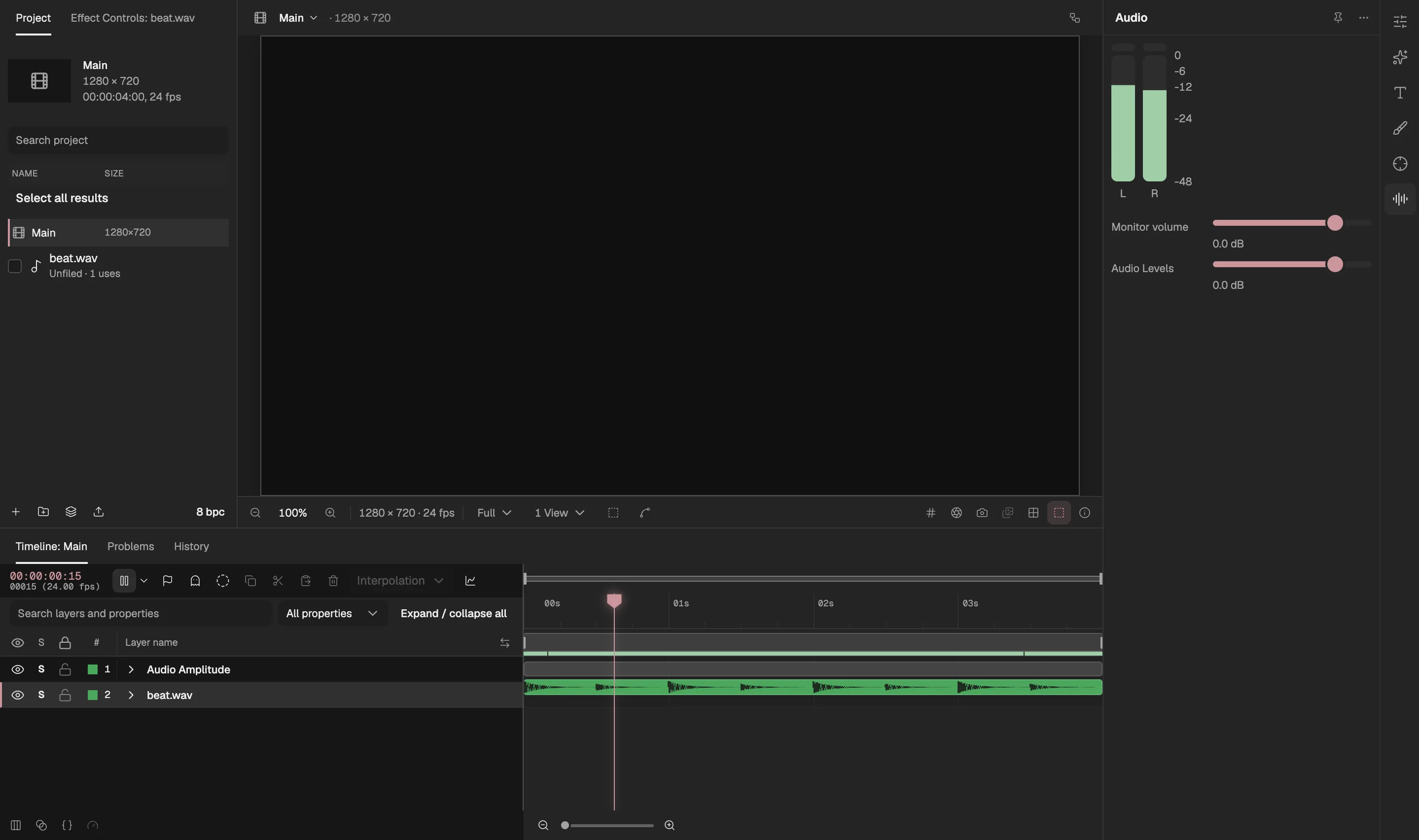
- The left and right levels of what Preview plays.
- Turns red when that channel clips.
- How loud Preview plays on this device.
- The selected layer’s Audio Levels.
- An audio layer, drawn as its waveform.
- The layer Convert Audio to Keyframes adds.
- Meters. The two bars show the left and right levels of what Preview is playing, from 0 dB at the top to −48 dB at the bottom. They move only while Preview plays.
- Clipping. The small box above a meter turns red once that channel reaches full scale, the loudest a file can hold, where the sound distorts. It stays red until you select it.
- Monitor volume sets how loud Preview plays in this browser, from −48 to +12 dB. Like a speaker’s volume knob, it is not saved with the project and never changes an export.
- Audio Levels is the selected layer’s level, the same property as in Properties, shown from −48 to +12 dB. A change is set at the current time, as a keyframe there if the property is animated, and each change is one step you can undo. With no layer with sound selected, the panel says so.
Audio effects
The Audio category of Effects & Presets holds After Effects’ 10 audio effects: Backwards, Bass & Treble, Delay, Flange & Chorus, High-Low Pass, Modulator, Parametric EQ, Reverb, Stereo Mixer, and Tone. Add one to an audio layer, or a video layer with sound, as you add any effect, and set it in Effect Controls. Its settings can be keyframed and driven by expressions.
An audio effect changes the layer’s sound and leaves its picture alone. It works on the sound after the layer’s timing and Time Remap, and before its Audio Levels; Preview and an export hear the same result. What each effect does is in the audio effect reference (opens in a new tab).
Turn sound into keyframes
Convert Audio to Keyframes measures how loud a layer is on every frame and keeps the result as keyframes, so the sound can drive anything: a scale that pulses on the beat, a glow that flares on each hit.
Set the work area to the stretch of time to measure (see The work area (opens in a new tab)). It can be up to 10,000 frames long.
Right-click the layer in the Timeline and choose Keyframe Assistant → Convert Audio to Keyframes. The entry is there only on a layer with sound.
A Null layer named Audio Amplitude appears at the top of the composition, selected. It holds three Slider Control effects, named Left Channel, Right Channel, and Both Channels, each with a keyframe on every frame of the work area. Expressions read the sliders by these names.
Link a property to a slider. Drag the linker of the property that should follow, such as a layer’s Scale, onto one of the sliders (see Link one property to another (opens in a new tab)), then edit the expression to turn the loudness into the range you want.
The measurement is of the sound as heard, with the layer’s Audio Levels and audio effects. Converting is one step you can undo. The keyframes don’t follow later changes to the sound: convert again after you change it.
Good to know
- The keyframes use Keyframe’s own scale: the average size of the samples in each frame, where a sound at full scale for the whole frame measures 100. Adobe doesn’t publish how After Effects measures, so the numbers differ from After Effects’, though louder still reads higher.
- Audio Levels is one value for both channels, where After Effects has a left and a right level. To set the channels apart, use Stereo Mixer (opens in a new tab).
- Sound inside a pre-composition is not heard in the composition it is nested in, in Preview or in an export. Keep audio layers in the composition you export.
- On a layer that starts before frame 0, audio effects start from frame 0 rather than from the layer’s own start: a Delay or Reverb, for instance, has heard nothing from before frame 0.