You only learn what needs to move once you start animating
Design note
Every layered file is a guess about which parts will move, and you find out where it was wrong only once the animation is under way. So we put the splitting next to the timeline, where the guess gets tested.
Why does the missing layer always turn up halfway through?
You have a picture you like: an illustration you drew, or one an image model made for you. To animate it, you open Photoshop, cut the character away from the background, paint in the wall where she stood, save a layered PSD and import it. The setup takes an afternoon, and for the first few seconds of the shot everything works.
Then you key the wave she is supposed to give, and the whole arm swings from the shoulder like a signpost. The forearm needed to be its own layer. So did the hand, probably, and now that you look again, the scarf. Back to Photoshop: cut, paint what was behind, save, import again, and reconnect whatever you had already animated to the new file.
None of this means you prepared badly. Which parts need to move is an animation decision, and animation decisions get made while you animate, not before. A layered file made up front is a prediction, and predictions about motion are usually wrong somewhere. That is the argument of this post: splitting a picture into layers belongs next to the timeline, so that splitting again is a step in the work rather than a trip out of it.
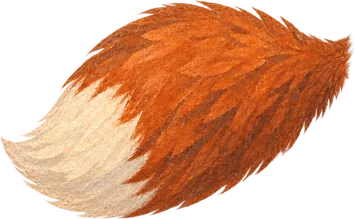
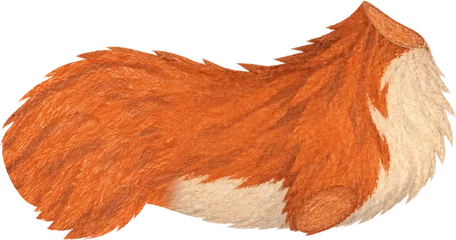
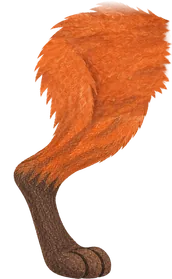
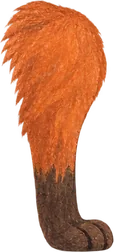
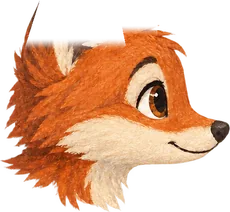
Here is what that looks like in Keyframe, replayed from the editor: a picture of a fox in a wood is separated into layers, the layers are adopted, and every part moves on its own.
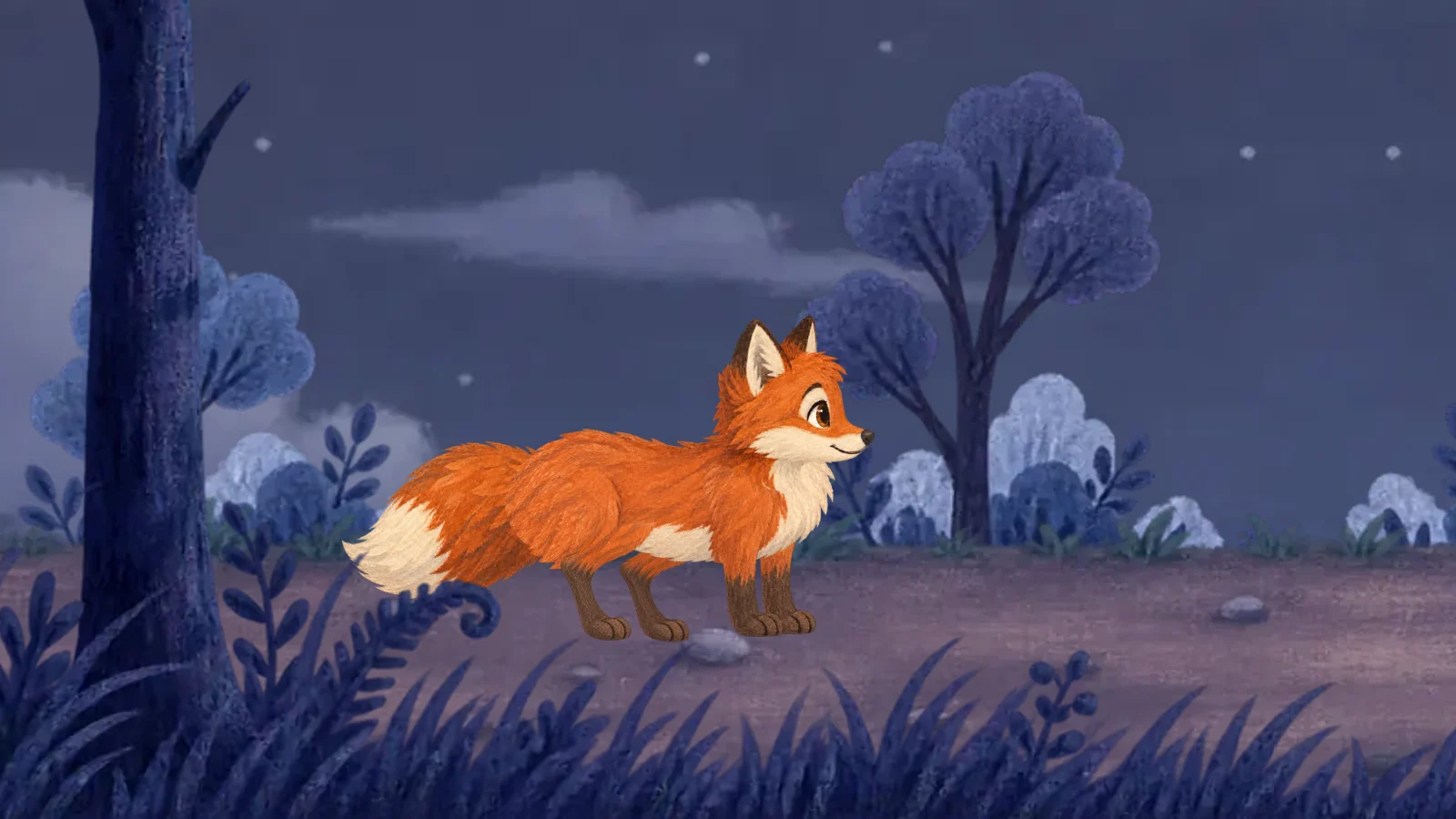
Candidates · adopt to apply
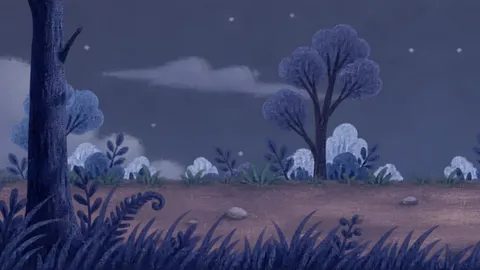
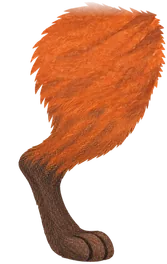
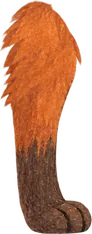

Where does the round trip come from?
It is tempting to read the Photoshop detour as a missing feature. It is closer to a division of labour. In Adobe’s suite each application owns one stage: Photoshop prepares pictures, Premiere edits, and After Effects composites what it is handed. After Effects expects artwork to arrive already in layers, and it was built to be very good at everything that happens after that.
Its newer AI tools follow the same line. Content-Aware Fill removes things from footage, and Roto Brush and Object Matte cut a moving subject out as a matte. They are made for shots, not for turning a still picture into layers with the background filled in behind each one.
In a studio where one person paints and another composites, that split makes sense. The cost lands on the person doing both jobs, who pays for every wrong prediction with another lap of the loop below.
- YouCut out parts in Photoshopone layer per part you expect to move
- YouPaint what was hiddenbehind an arm, behind the character
- YouSave a layered PSDthen import it to animate
- YouFind the part you missedand go back to the first step
The first cut is free, and the picture stays in your browser
Most pictures start with one question: what is in front, and what is behind it? Keyframe answers that one without a paid model. You select the picture’s layer, click the subject and cut it out (opens in a new tab). A segmentation model finds the subject from where you clicked, the editor looks for the shadow it casts, and LaMa, an inpainting model, paints the background where the subject stood. Both models run in your browser: the picture is not uploaded, and the cut needs no account and no subscription.
What comes back is three layers, shown above exactly as the editor made them: the subject, cut from the picture’s own pixels; its shadow, as a layer of its own; and the background, filled in. You review them like any other result before they enter the project. Nothing is adopted on your behalf.
Three layers is a modest result, and the order is deliberate. A free, private cut that handles the common case is a better default than a paid one that tries to do everything. When three layers are not enough, the same review offers the upgrade.
- Originalfrom an image model
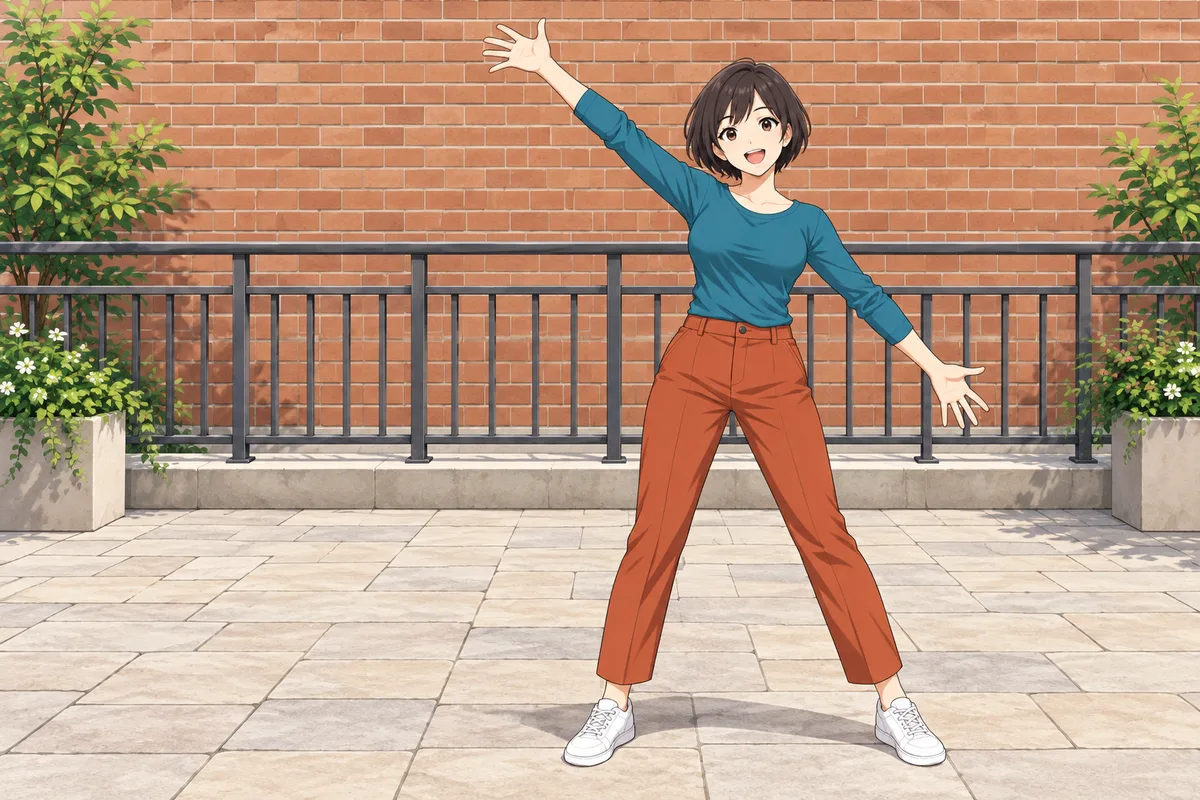
- Subjectcut from the picture’s own pixels
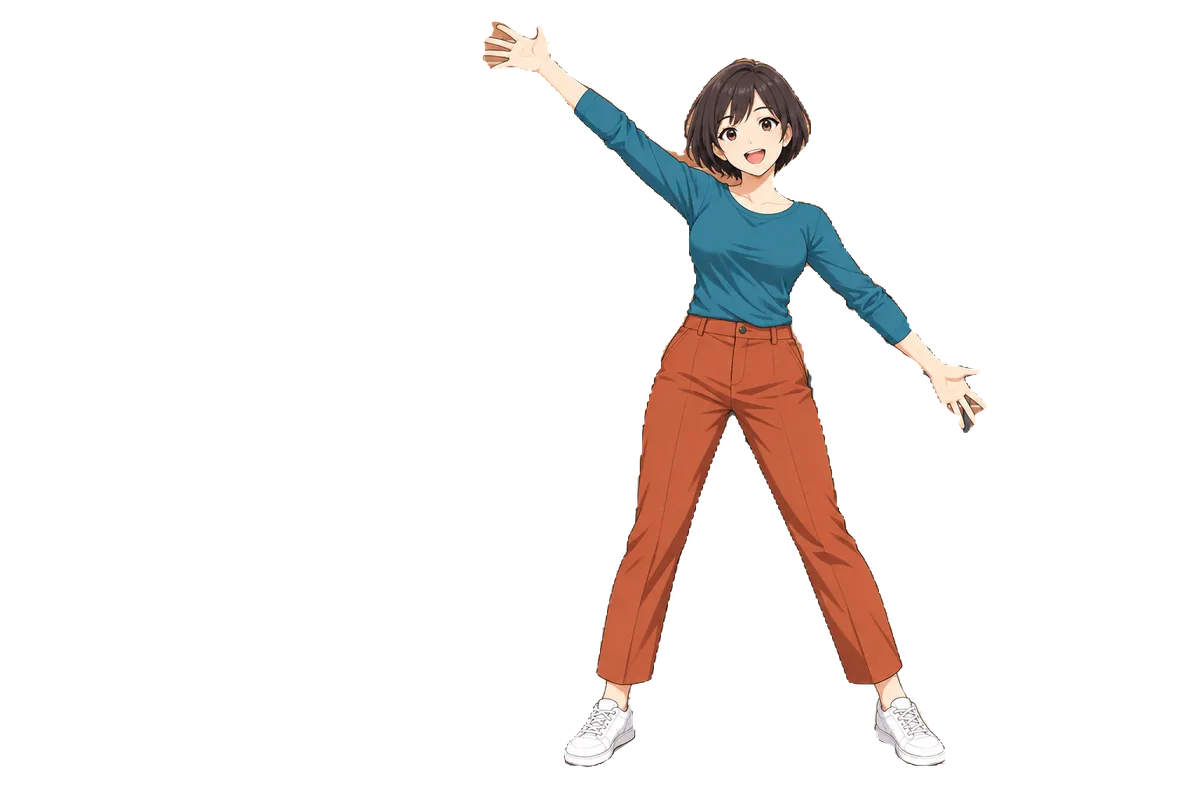
- Shadowits own layer, shown here over the background
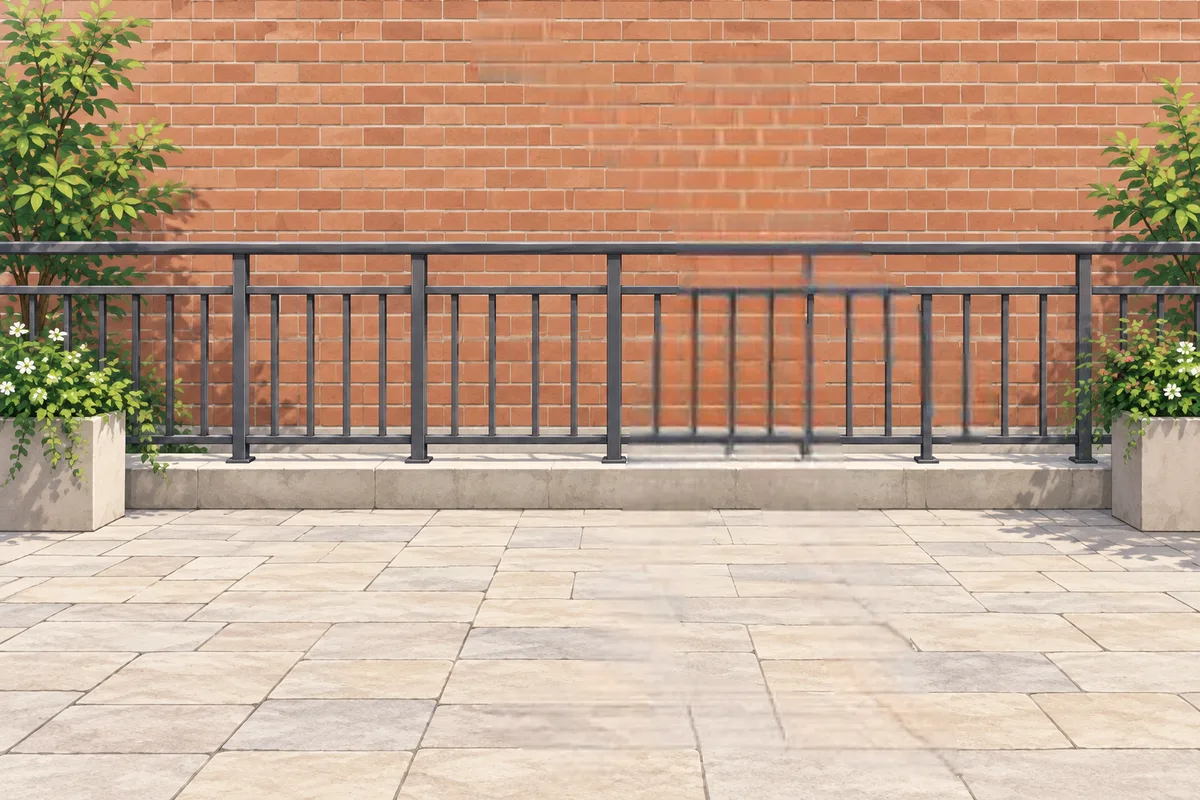
- Backgroundfilled in behind her by LaMa
More layers cost money, so you ask for them
When the arm has to come off the body, the free cut has nothing more to give: it separates a subject from its background, not a subject from itself. That is the job of AI separation. You can switch to it from the free cut’s review, or start it on a selected image layer (opens in a new tab) by saying what the layers should be, such as “the sky, the moon, the hills and the house”.
A language model plans two to six layers, front to back. An image model then takes them off one at a time: for each layer it draws a mask, and it erases that layer to paint in what was behind it. The layer itself is never redrawn. Keyframe’s own code cuts each layer from the picture’s pixels along the mask, so a face or a hand comes back the size and shape it was, and only what the layer was hiding gets painted.
Pictures made of a few flat colours skip the image model: code cuts them by colour, and only the planning uses AI. Before any result reaches you, every layer is checked against the original for hard edges, outlines left behind, parts drawn anew and holes. The checks point things out; they never stop you from adopting a layer.
Because this is the part that costs money, it is never the default and never runs on its own. AI separation is part of the Agent subscription (opens in a new tab), which opens soon. The dialog says what will be sent before you start, nothing runs until you confirm, and redoing a single layer asks again before it makes another image call. If you would rather split a part in an image AI you already use, import the folder it returns under the layer (opens in a new tab): Keyframe needs no special files, only the pictures.
- AI modelPlan the layers2–6, from your picture and request
- AI modelPeel layer by layera mask and an erase each
- The editorCut from the originalits own pixels, nothing redrawn
- YouReview and adoptchecks flag leftovers
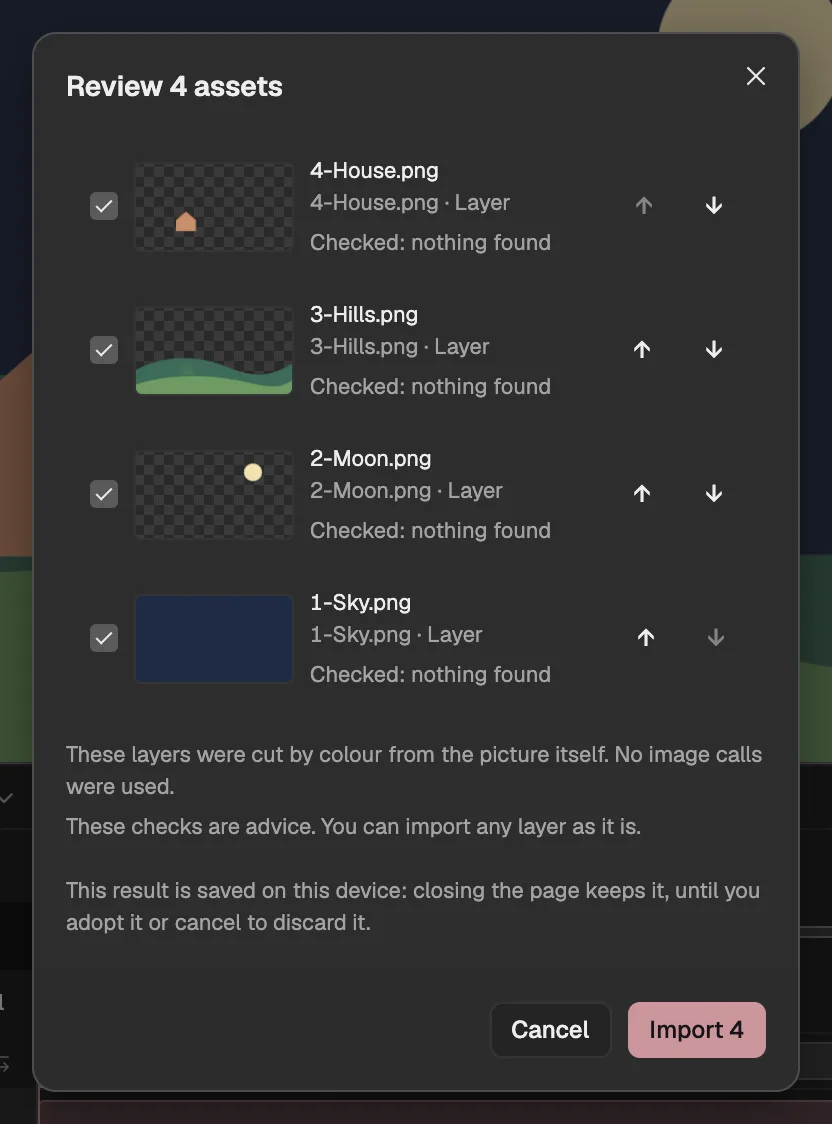
- Each layer on its own row; uncheck to leave it out.
- Checks flag leftovers and other problems.
- Imports the checked layers.
Splitting again should not cost you the animation
Back to the arm. The expensive part of the old round trip was never the cutting. It was the import: a new file arrives in place of the old one, and the animation you built on the old one has to be reconnected by hand.
In Keyframe a split does not hand you a new layer to swap in. The parts become the content of the layer they came from. That layer keeps its place, its name and its animation, and becomes a composition that holds the parts. The original picture stays inside it as a hidden, locked layer: a master you can always go back to.
A switch in the layer’s settings shows either the parts or the original, which is how you check a cut against its source. The choice is saved with the project and, like any edit, can be undone. Splitting a part further later works the same way one level down, and that part keeps its own original too.
Timeline
- Woman by the streetthe same layer
- Subject
- Shadow
- Background
- Originalhidden · locked · recoverable
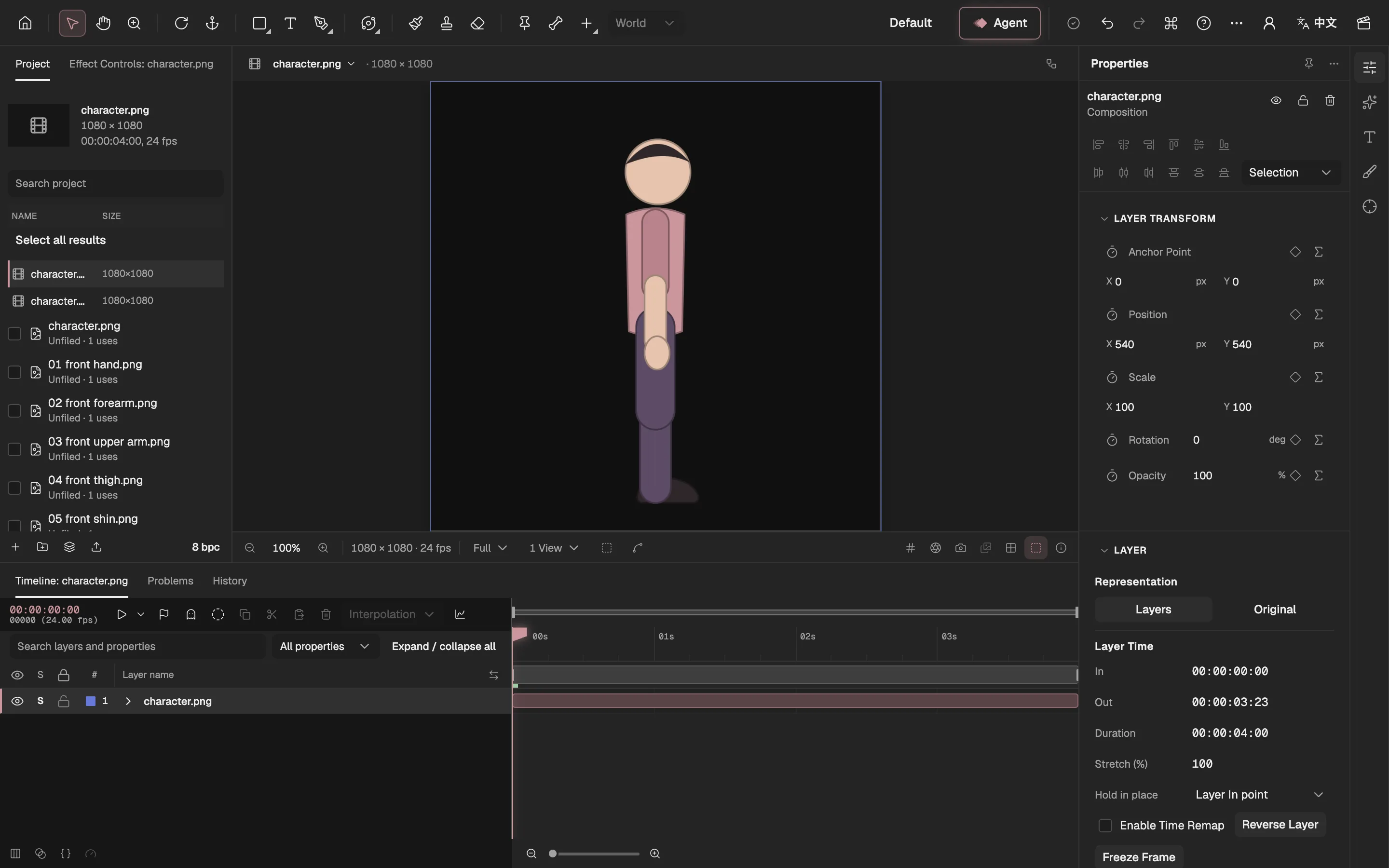
- Shows the parts, or the original picture.
- The same layer, now holding the parts.
- The parts’ own composition.
The layers can move the moment you adopt them
Adopted layers are ordinary image layers in a composition, with nothing to export or convert first. You can keyframe them, give them a skeleton (opens in a new tab), or ask the Agent (opens in a new tab) to animate them, in the same timeline the split happened in.
That is the whole argument in practice. When you notice in the middle of a shot that a part should move on its own, the fix is a split and a review, and you are back on the frame you left with the animation you had still in place. The guide below follows one picture all the way to a finished shot.
What still takes your hands
Moving the split into the editor removes the round trip. It does not remove judgement, and some results still need work.
- The free cut knows three things. Subject, shadow and background, nothing finer. A thin contact shadow right against the subject can be partly missed, and a dark patch of ground joined to the shadow can come along with it.
- Narrow gaps need help. A few pixels of wall between hair and shoulder can stay in the subject until you click a background point, and the thinnest strips don’t come out cleanly even then.
- What was hidden is painted, not recovered. LaMa paints on a reduced copy of the picture, so the area behind a subject is softer than the rest; AI separation paints what each layer was hiding too. It is new content, and it can be wrong.
- Masks miss. If the model’s mask misses part of a piece, what it missed stays in the layer behind. The check marks it but doesn’t fix it: paint it out, or redo that layer.
- The checks are mechanical. They find hard edges, leftovers and holes; they don’t judge whether a layer looks right. In a cut by colour, the shapes hidden behind others are guessed.
- A subject cut by the frame stays cut. If it runs off the edge of the picture, no split can complete it, and moving it will show the cut edge.
And deciding what moves is still yours. Nothing here knows that the forearm should bend at the elbow. You will still choose the parts, and you will still sometimes choose wrong. What changes is the price of being wrong.
Split when you know, not before
A layered file made in advance asks you to know the animation before you have made it. Most people don’t, and a lot of good animation comes from finding out. Put the splitting where you find out, keep the original underneath, make the free path the default and the paid one a choice, and a wrong guess becomes a short detour instead of a lost afternoon.