Animation
Rigid-body physics
A Rigid Body behavior turns a 2D layer into a solid object that falls under gravity, collides with other bodies, stacks, slides and bounces. The editor works the motion out from the start each time, so the Viewer and the export agree, and you can bake it into ordinary keyframes when you want to finish it by hand.
Add rigid bodies
Behaviors are in Properties, in the Behaviors group below a layer’s settings. A rigid body moves its layer through the layer’s own Position and Rotation, so the layer must be 2D, have no parent and keep its Position in one piece rather than as separate dimensions.
Select the layer that should move, in the Viewer or the Timeline.
Open the Behaviors group in Properties and select Rigid Body. The body starts as a dynamic box fitted to the layer.
Give it something to land on: another layer made a rigid body with Body type set to Static, such as a long, flat Rectangle Shape layer for a floor, or solid edges in the physics world (opens in a new tab).
Play. The bodies fall, collide and come to rest. Change a setting and the whole run is worked out again.
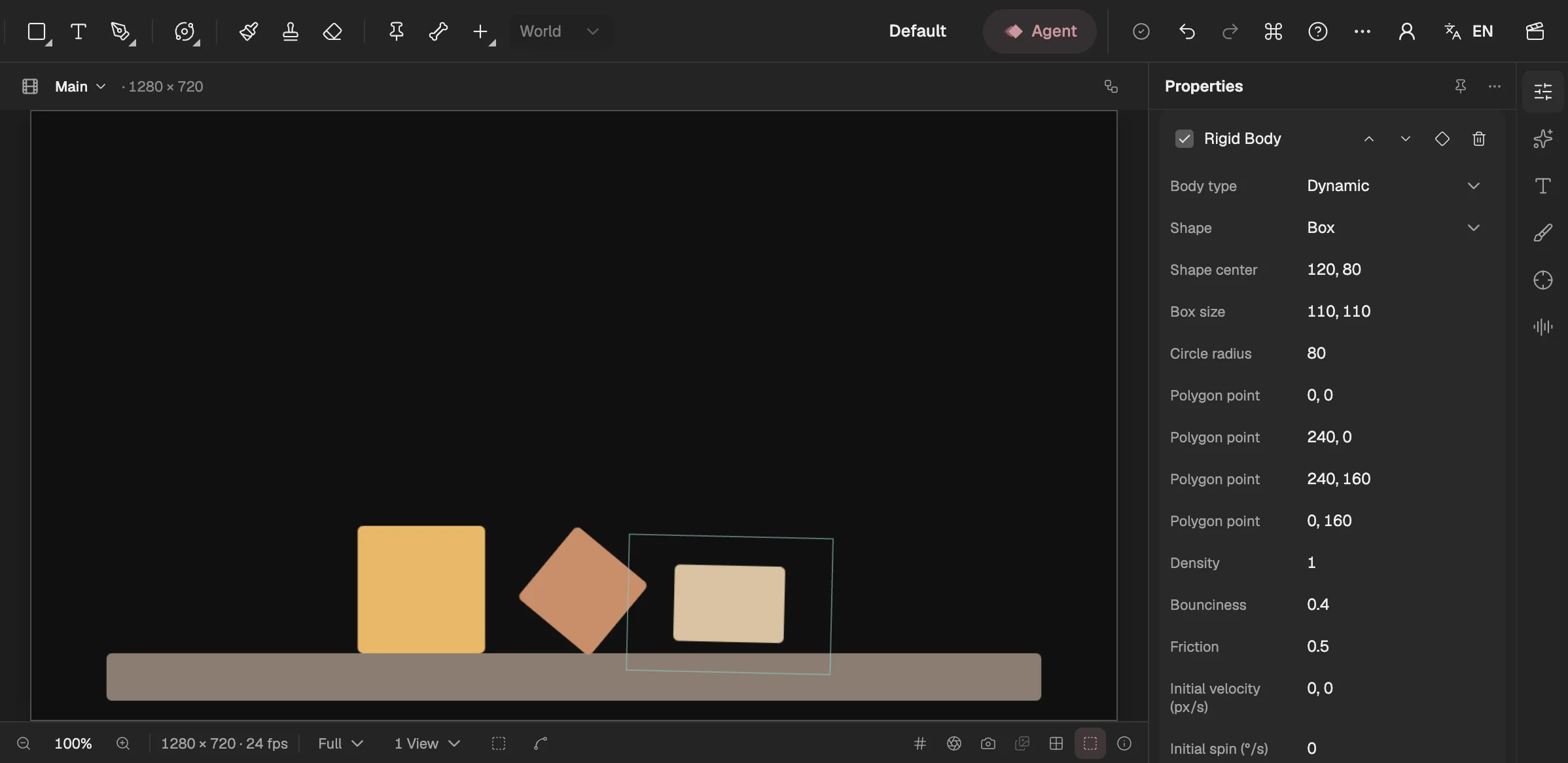
- The boxes where the simulation puts them at this frame.
- Dynamic, static or kinematic.
- The outline the body collides with.
- How much it bounces; density and friction sit beside it.
- Turns the motion into keyframes.
Each body is a card in the group, with a tick box to turn it off, arrows to change the order of the behaviors and a bin to remove it. Every body in a composition shares one world.
Dynamic, static and kinematic bodies
- Dynamic — falls under gravity, is pushed by other bodies, and slides, tumbles and bounces. A new body is dynamic.
- Static — never moves. It holds the Position and Rotation it has when it enters the world, as a floor, a wall or a ramp would; keyframes after that are not followed.
- Kinematic (follows keyframes) — follows its own Position and Rotation keyframes and pushes dynamic bodies out of its way without being pushed back: a paddle, a moving platform, a hand that sweeps things off a table.
The body’s shape
Shape is the outline the body collides with, in the layer’s own pixels, the space its Anchor Point is in. A new body is fitted to what the layer draws at the playhead — a shape layer’s paths with their strokes, a text layer’s letters (a paragraph text’s whole box), any other layer’s whole picture: the box to that rectangle, the circle to its shorter side and the polygon to its four corners.
- Box — a rectangle of Box size, centred on Shape center.
- Circle — a circle of Circle radius round Shape center, for balls, coins and wheels that should roll.
- Polygon (convex hull) — the outline round the Polygon point entries, for shapes a box and a circle don’t fit. Any hollow in it is filled in, as a rubber band stretched round the points would be.
- Refit after reshaping. The fit is made once, when the body is added; if you change the drawing later, set Box size or Circle radius to match it again.
- The layer’s Scale resizes the shape. It is read once, at the frame the body enters the world.
Material and starting motion
- Density — mass per square pixel. Only the ratio between bodies matters: a body twice as dense shoves a lighter one aside.
- Bounciness — from 0, no bounce, to 1, which bounces back to the height it fell from; at 0.8 a body bounces back to about two thirds. When two bodies touch, the bouncier of the two counts.
- Friction — from 0, which slides like ice, to 2.
- Initial velocity (px/s) and Initial spin (°/s) — how fast the body is already moving and turning when it enters the world, for a throw, a kick or a tumble. A positive spin is clockwise.
- When a body joins in. It enters at the later of the world’s Start frame and its layer’s In point, at the Position and Rotation it has there, and leaves at its layer’s Out point. Before it enters, the layer plays its own animation.
The physics world
All the rigid bodies in a composition share one world. Until you add one, gravity pulls straight down at 981 pixels per second squared, the simulation starts at the first frame and the composition’s edges are open. To change that, select Physics World in the Behaviors group; a composition has at most one.
- Gravity (px/s²) — how hard and which way bodies are pulled, with Y pointing down. The default is Earth’s gravity at 100 pixels to a metre, so a body falls the height of a 1080-pixel frame in about a second and a half; 0, 0 lets bodies float. Scale it to change the pace.
- Start frame — where the simulation begins. Before it, every body plays its own animation, so you can keyframe a box into place and drop it from there.
- Solid edges — makes the composition’s edges solid walls just outside the frame: None, Floor, Floor and sides or All four.
- Steps per frame — how many solver steps each frame takes, 4 by default. Raise it when fast or thin bodies pass through each other.
- Turning the world off stops the simulation, and every body plays its own animation.
Bake to keyframes
To finish the motion by hand, select Bake Rigid Body to keyframes, the diamond on any body’s card. The whole world is baked at once: every body gets a linear keyframe on every frame of the composition for its Position and Rotation, the rigid body and physics world behaviors are removed, and the picture stays exactly as it was. It is one step, so one Undo brings the behaviors back.
The baked keyframes are ordinary keyframes: move, delete or ease them in the Timeline or the Graph Editor (opens in a new tab).
Good to know
- A run is worked out from the world’s first frame, the same way every time, so a frame looks the same whether you jump to it or play up to it, in the Viewer and in an export.
- Only the settings on each body count: an expression or another behavior on a body’s Position or Rotation is not read while it is in the world.
- Bodies are flat shapes in the composition’s plane; a 3D layer cannot be a rigid body.
- A polygon’s points are entered one by one; they are not traced from the picture’s transparency.
- With very strong gravity, a fast ball can sink a few pixels into the ground on the frame it lands.
- The Agent can set up rigid bodies when you ask it, as a draft you review.