Rig a paper puppet and make it walk
Draw bones over a puppet’s parts, let IK bend the knees, key four poses and loop them into a walk.
What you’ll make
- A character in parts, one PNG per piece, drawn side on and lined up so that the joints meet. This guide uses a paper puppet facing right in 14 parts: head, torso, and a thigh, shin, foot, upper arm, forearm and hand on each side.
- Names that say front and back, numbered from the front: 01 front hand … 14 back hand. The import orders the layers by name, so the near limbs sit on top.
- A browser with WebGPU (external website, opens in a new tab), such as a current Chrome, Edge or Safari.
1. Bring the parts in
Drop the whole puppet as one picture on the empty composition’s start card. The composition takes its size, 1080 × 1080 here.
Drop the folder of parts on Upload file and choose Import 14. Every part is a layer, in the place it was drawn.
Delete the whole picture’s layer: the parts replace it.
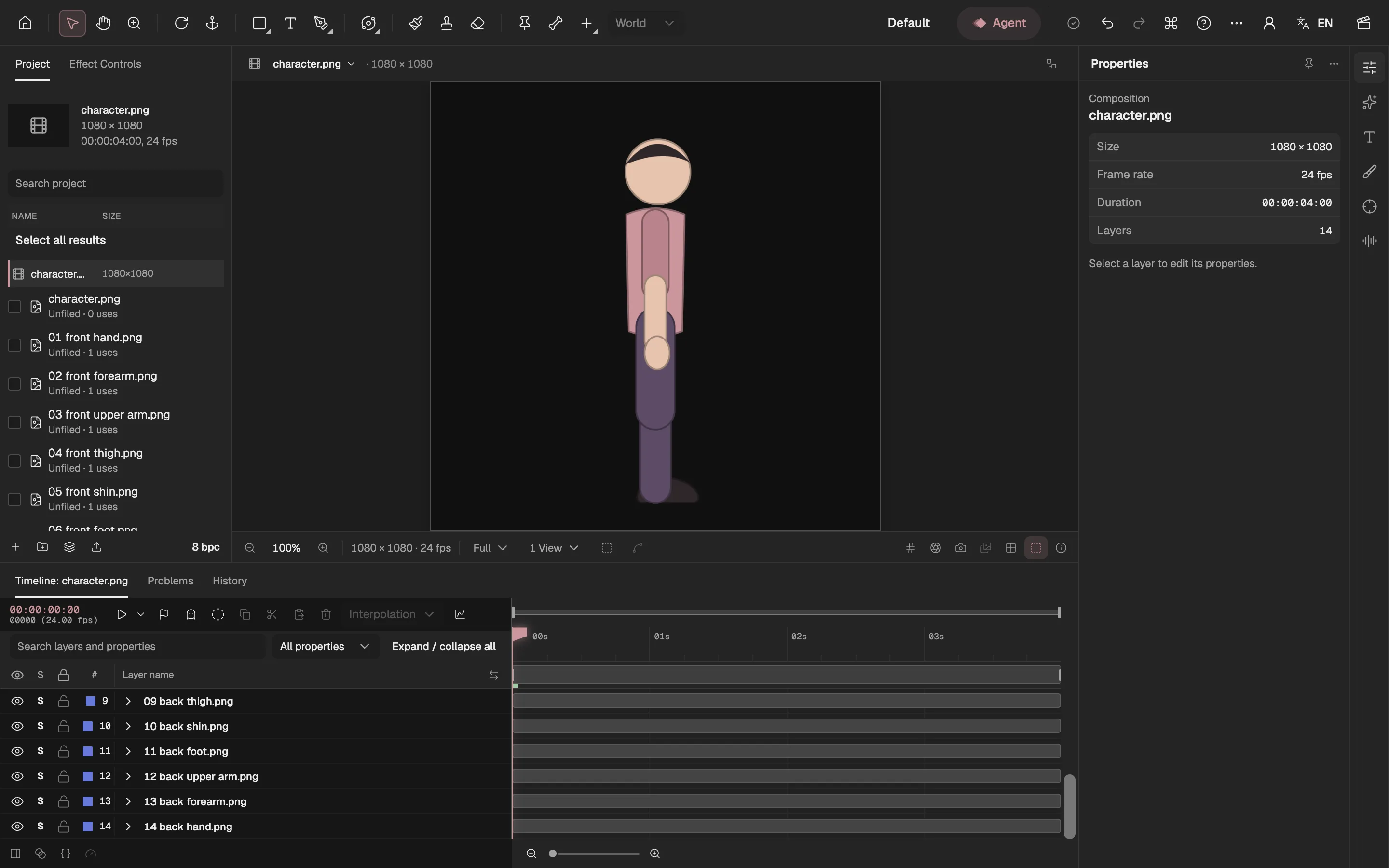
- The parts, lined up into the puppet.
- One layer per part, the front ones on top.
2. Give the body a spine
At the foot of the Project panel, select New layer and choose Skeleton.
Choose the Bone tool (J) and drag from the hip up to the neck. This first bone carries the whole body: moving it moves everything.
Click the torso in the viewer to attach it to the bone.
Drag from the neck to the top of the head for a second bone, then click the head.
Start at the hip, not the head: the hip is where a walking body turns and bobs, so the bone that holds everything should start there. A drag that starts on the selected bone grows a new bone from it.
3. Rig the far limbs first
Hide the six front parts and the torso with their eyes in the Timeline. A click attaches the topmost part under the pointer, and the front parts cover the back ones exactly.
Click the tip of the torso bone to select it, then drag from the hip down to the knee and click the back thigh.
Drag on from the knee to the ankle and click the back shin and the back foot. With this lower bone selected, choose Add IK in the bone’s options.
Hide the back leg’s three parts too, select the torso bone again and draw the back arm the same way: shoulder to elbow for the upper arm, elbow to wrist for the forearm and hand.
Show every part again.
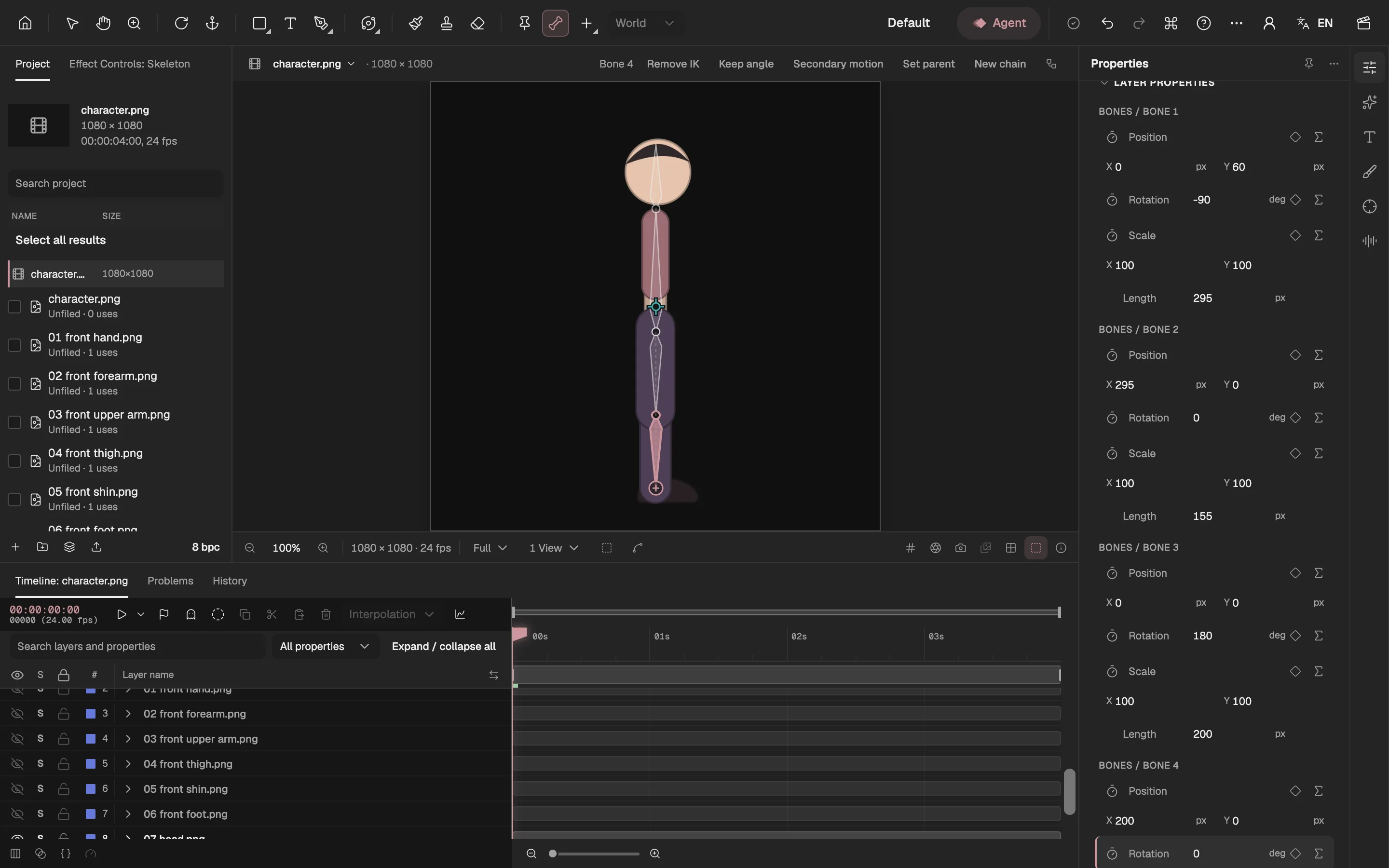
- The front parts’ eyes, off while you rig the back.
- The back leg: hip to knee, knee to ankle.
- The lower bone’s options, with IK added.
4. Rig the near limbs
Select the torso bone and draw the front leg over the back one: hip to knee, then knee to ankle. Attach the front thigh, shin and foot, and add IK to the lower bone.
Draw the front arm the same way and attach the front upper arm, forearm and hand.
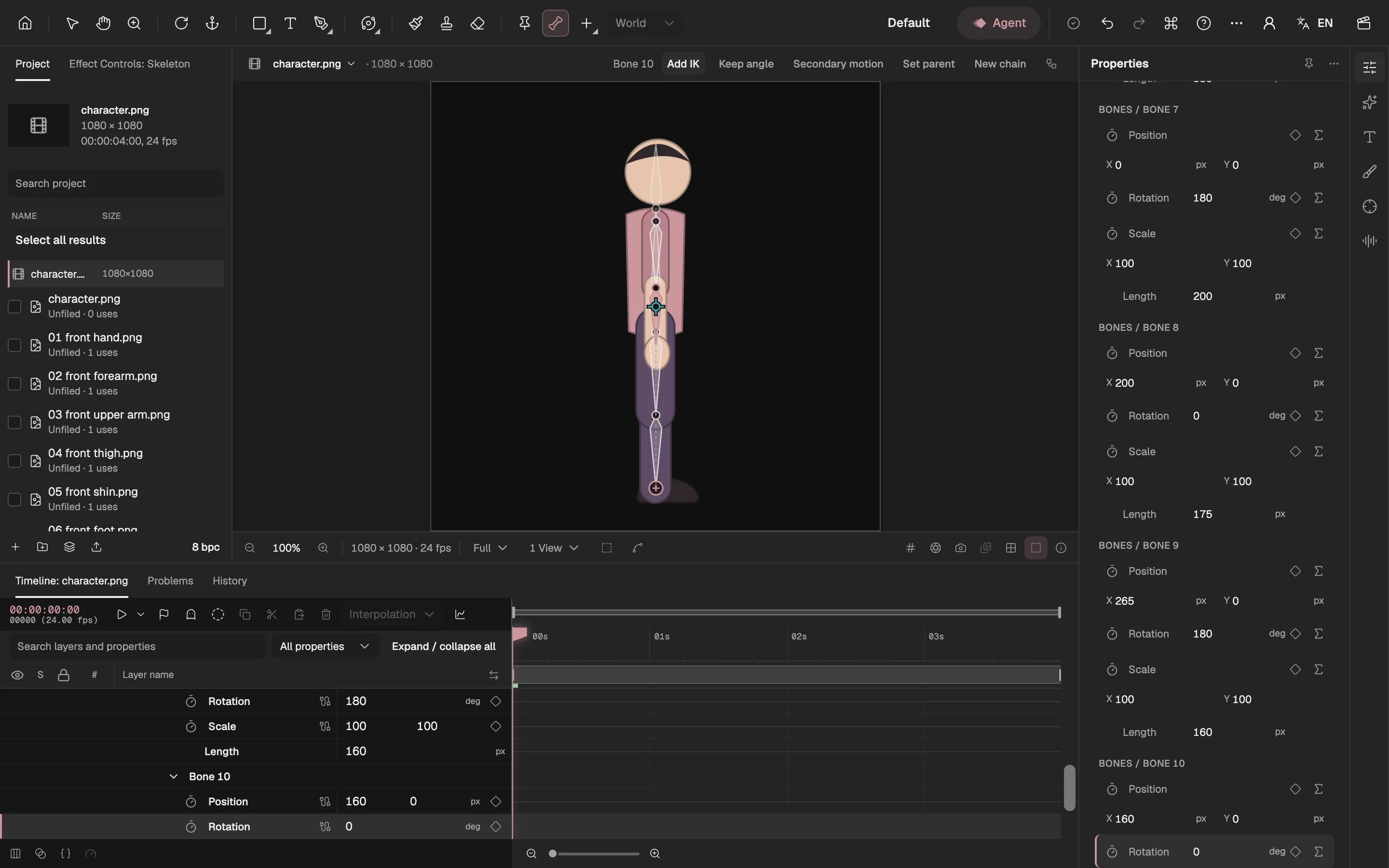
- The Bone tool.
- Ten bones: spine, head, two legs, two arms.
- Each bone’s Position, Rotation, Scale and Length in Properties.
The front bones lie exactly on the back ones, and of two bones under the pointer the one drawn last is picked. Rigging the far side first is what lets a click on a shared joint reach the near limb.
To test a bone, turn it with the Selection tool by the ring at its joint: every part that should follow it moves. A part that stays behind is on the wrong bone; undo the turn afterwards.
5. Make the knees bend forward
In Properties, each IK chain has a Target: where the ankle should be. Change its X and the leg bends to reach it.
A two-bone leg can bend either way. If the knee bends backwards, tick Flip Bend. The puppet faces right, so both knees need it.
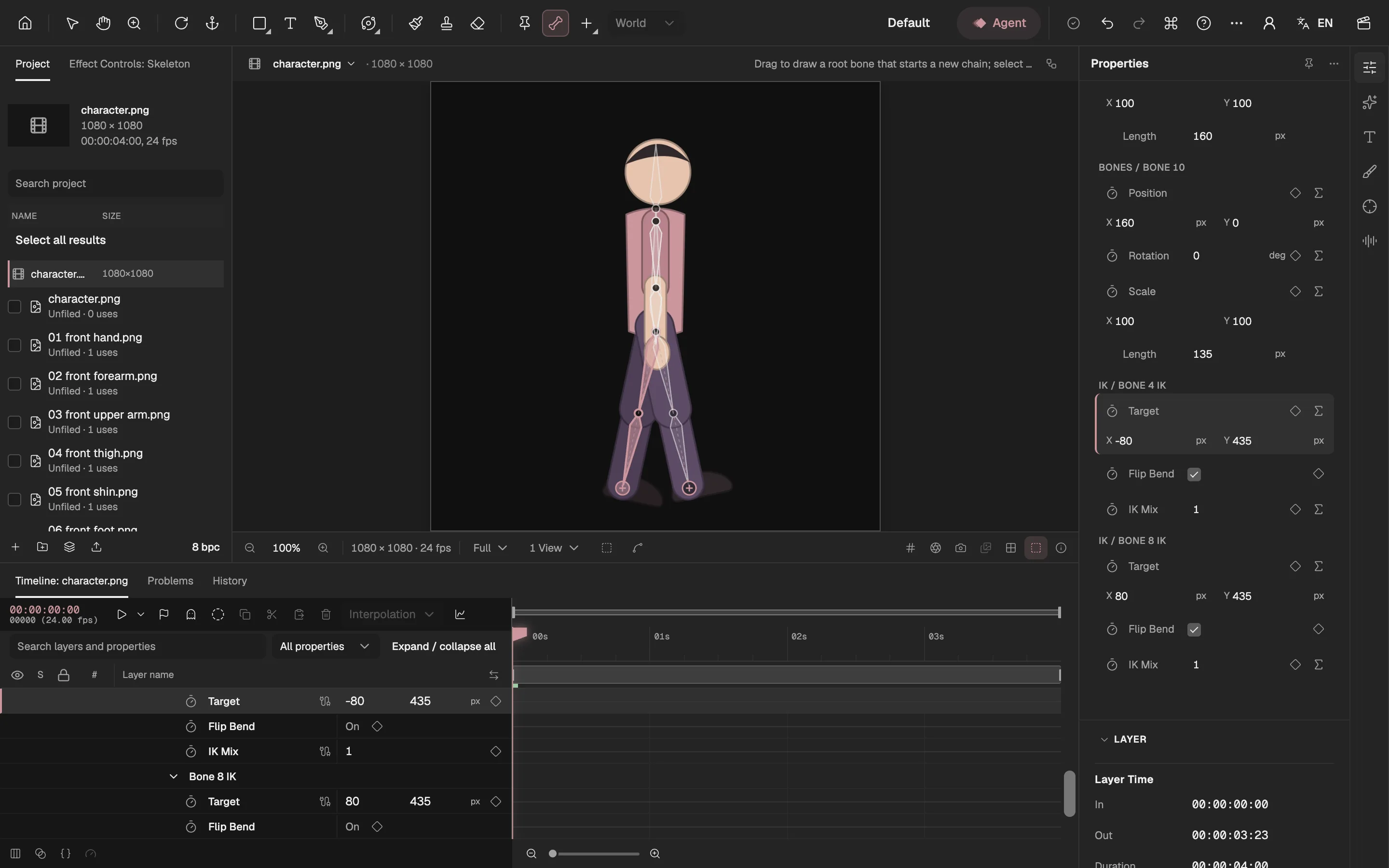
- The front foot’s IK target.
- Flip Bend: the knee bends the other way.
- Both knees bend forward.
6. Key four poses
A walk is two steps, each with two poses: contact, both feet down and apart, and passing, one leg straight under the body while the other swings past it, lifted.
At frame 0, type the first pose’s values below, then turn on each property’s stopwatch. Go to frames 6, 12, 18 and 24 and type each pose; every change sets a keyframe.
Frame 24 is frame 0 again, so the cycle closes. The targets are in the skeleton’s coordinates: X 0 is under the hip and Y 435 is the ground.
Swing the arms against the legs: the front upper arm (Bone 9) 200° at frame 0, 160° at 12 and 200° at 24; the back one (Bone 5) the other way round. 180° hangs straight down. Let the forearms lag by bending them a little more on the forward swing.
| Frame | Pose | Front foot target | Back foot target | Bone 1 Position Y |
|---|---|---|---|---|
| 0 | Contact, front foot forward | 80, 435 | −80, 435 | 72 |
| 6 | Passing, back foot lifted | 0, 435 | 0, 395 | 60 |
| 12 | Contact, back foot forward | −80, 435 | 80, 435 | 72 |
| 18 | Passing, front foot lifted | 0, 395 | 0, 435 | 60 |
| 24 | Contact again | 80, 435 | −80, 435 | 72 |
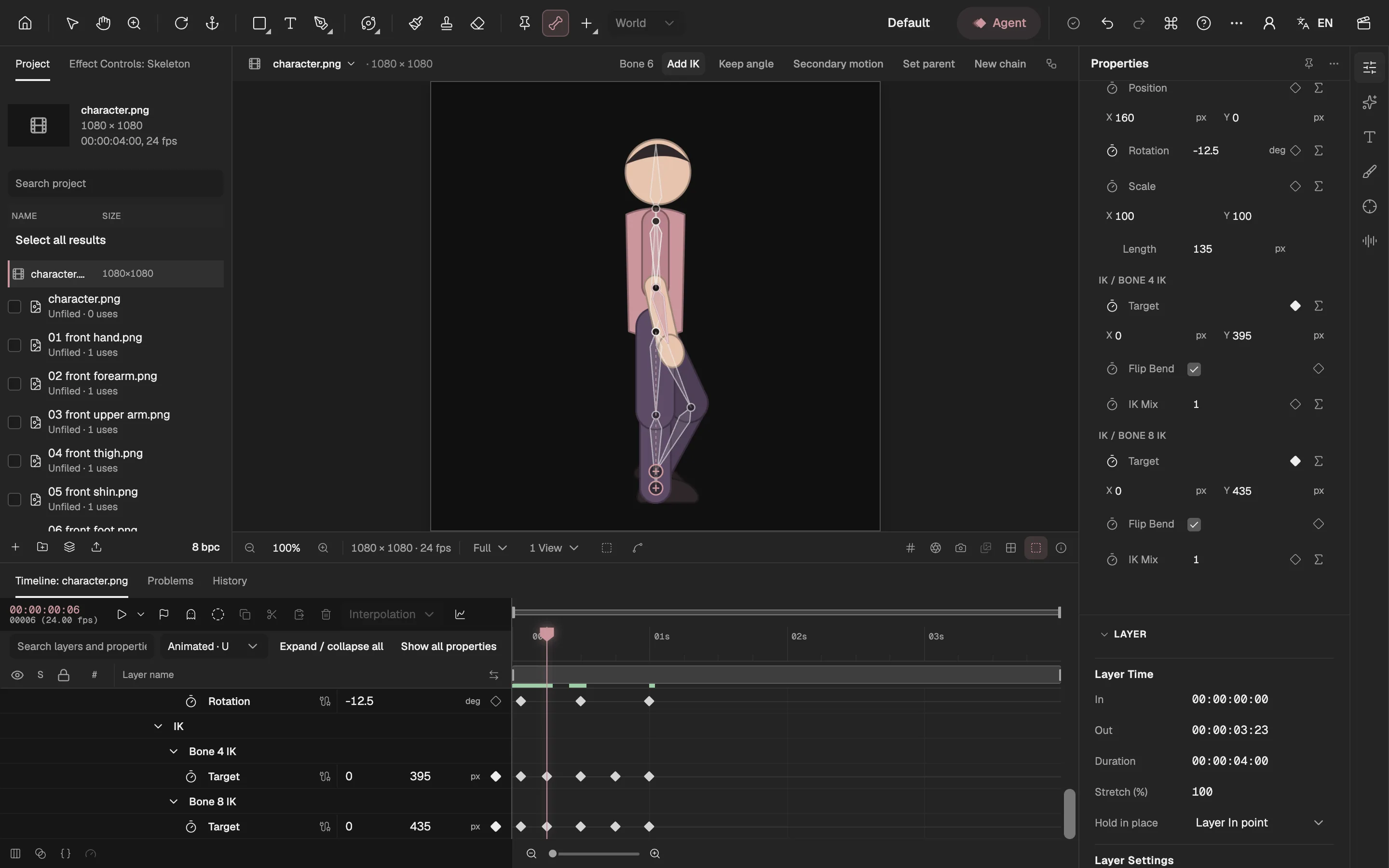
- The front foot’s keys on frames 0, 6, 12, 18 and 24.
- The front foot’s target at frame 6: under the hip.
- The back foot passing, lifted.
Leave these keys linear. The planted foot slides back at the same speed as the body would move forward; an eased key slows it down in the middle of a step and the foot skates.
7. Loop the cycle
On each property with keys, select its Σ button and type
loopOut("cycle").Select Preview, then Apply. After frame 24 the property starts again from frame 0, for as long as the composition runs.
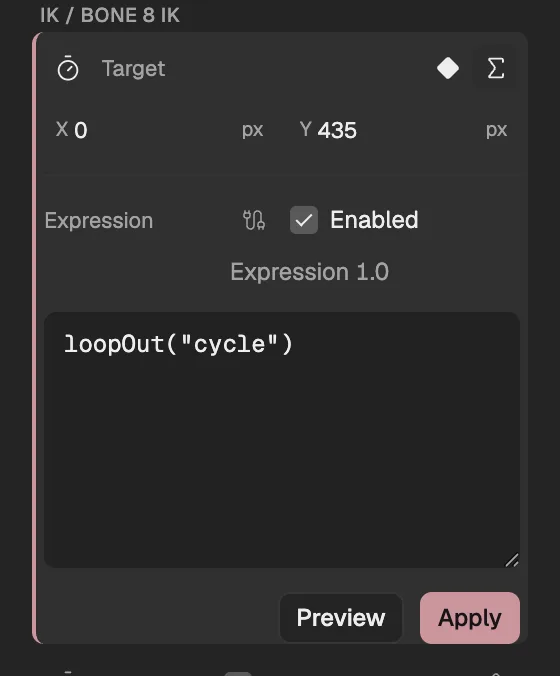
- The expression: repeat the keys.
- Apply, after Preview.
Seven properties carry keys here: the two targets, the hip’s Position and the four arm Rotations. The keys stay editable: change a pose and every loop changes with it. The expression reference (opens in a new tab) lists the other ways to repeat.
8. Play it and judge it
Press Space to play, and step through frames 0 to 24 with the arrow keys.
The planted foot stays put on the ground line and slides back evenly. If it sinks or hovers, its target’s Y is off the ground.
The leg never snaps straight. A target further away than the leg can reach pulls the leg straight and the foot comes off it: shorten the stride or lower the hip.
The body is lowest at contact and highest at passing. Without that bob the puppet glides.
Each arm swings against its own leg: front foot forward, front arm back.
Frame 24 matches frame 0. A jump where the cycle restarts means the last key differs from the first.
9. Export it
Choose Export video or images at the top right and pick a format: Animated GIF for a loop to share, or WebM or MP4 for a video.
Export a whole number of cycles, such as Start frame 0 and End frame (exclusive) 48, so that the file loops without a jump.
Where to go from here
- The bones in depth. Chains, parents, keeping a foot level and bending a picture with a mesh. Character rigging
- Why a skeleton layer. How a rig in one layer compares with one built from layers and expressions. Rigging without a script
- Another guide. Cut a character out of one AI picture and give it a hop. Animate an AI illustration