Slow a moment down, hold it, run it back
One leap made at speed, one Time Remap curve, and Pixel Motion for the frames in between.
What you’ll make
- One action made at speed in a composition of its own: here a koi leaping out of a pond, 110 frames at 30 frames a second.
- A 12-second film that plays it at speed, slows it into a hold at the top of the arc, holds while the shot pushes in, and runs it back.
- A browser with WebGPU (external website, opens in a new tab), such as a current Chrome, Edge or Safari.
1. Make the action at speed
Animate the whole action once, in real time, in its own composition. Here it is the koi on a chain of bones (see Rigging (opens in a new tab)), splashes from Particle World and rings from Wave World (see Simulation (opens in a new tab)).
Make the film its own, longer composition, 12 seconds here, and put the action's composition in it as one layer.
Get the action right at speed before you touch its timing. Slow motion magnifies every flaw, and a leap that does not read in real time will not read slowed down. Everything computed in it, bones and their follow-through, simulations, wind, can be slowed, held and reversed later at no cost.
2. Turn on Time Remap
Select the action's layer in the film and open Layer Settings in Properties.
Select Enable Time Remap (see Transform and timing (opens in a new tab)). The layer gets a Time Remap property with two keyframes, on its first frame and its last.
Set Frame blending to Pixel Motion now, so any moment that falls between two frames is drawn smoothly (see Motion blur (opens in a new tab)).
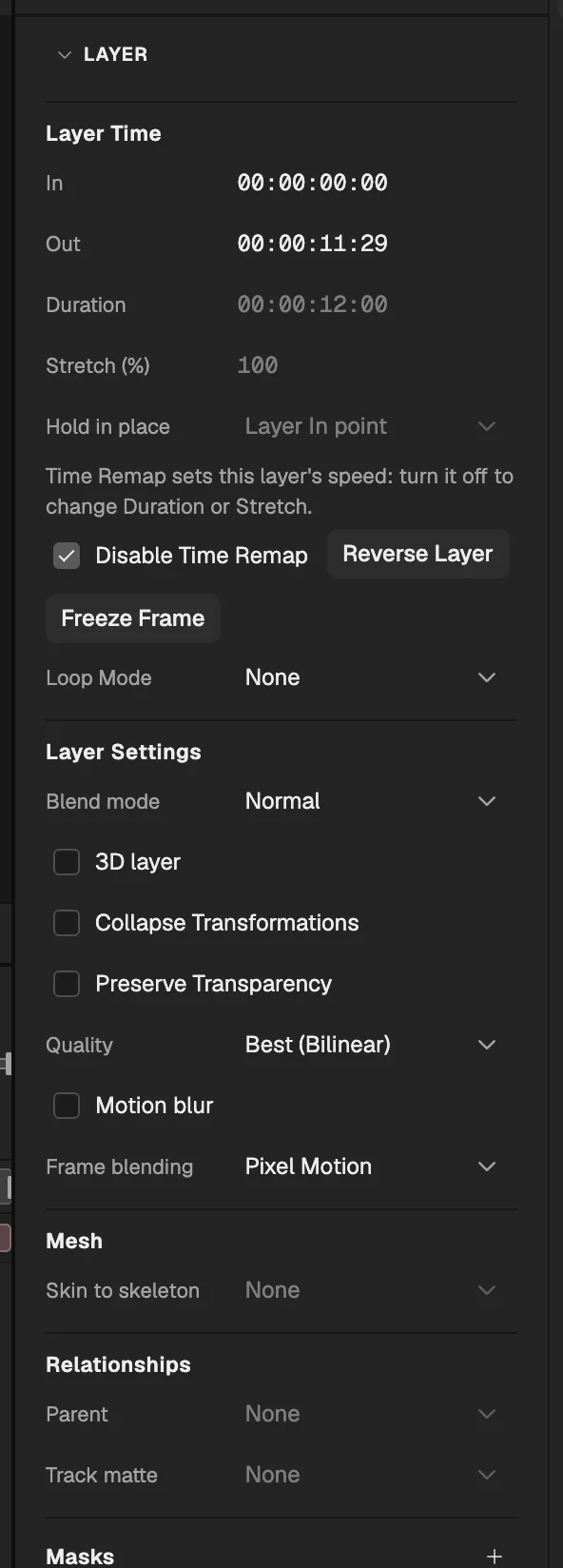
- Time Remap: which frame of the action each film frame shows.
- Frame blending: how moments between frames are drawn.
3. Key the four parts
Replace the two Time Remap keys with the ones in the table. Each key says: at this frame of the film, show this frame of the action.
Make the last key of the first part and the last key of the hold Hold keys, so the clock jumps back and stops cleanly.
| Part | Film frames | Leap frames | Keys |
|---|---|---|---|
| At speed | 0 → 62 | 4 → 66 | linear, then hold |
| Again, slowing | 74 → 86 → 200 | 8 → 20 → 28 | linear, then easing into the top |
| Held | 200 → 250 | 28 | hold |
| Running back | 250 → 322 | 28 → 6 | easing out, then hold |
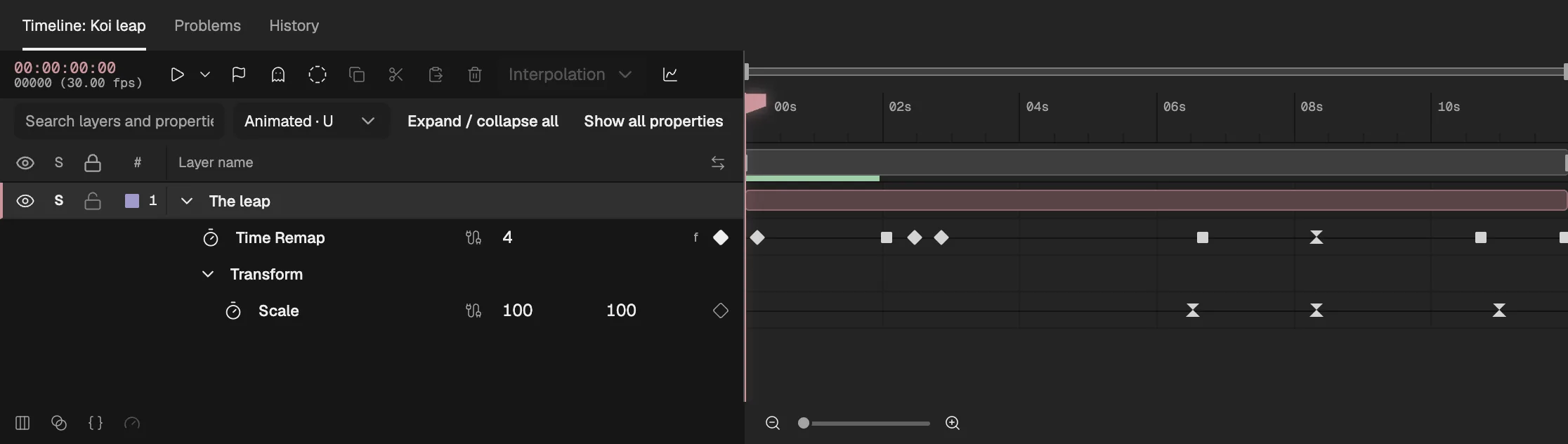
- The action's layer, its time remapped.
- One key wherever the speed changes.
- Hold keys: the clock jumps or stops.
A slope of one is real time, a shallow slope is slow motion, a flat line is a freeze, a falling slope runs the action backwards. Wherever the curve lands between two whole frames of the action, Pixel Motion draws the frame in between.
4. Ease into the hold
Select the Time Remap keys and select Show Graph Editor (see Graph Editor (opens in a new tab)).
Give the key at the top of the arc an incoming speed of 0 with about 75% influence, and the key that starts the reverse an outgoing speed of 0 with the same influence.
Check the curve: it should flatten smoothly into the hold and leave it smoothly, with no corner.
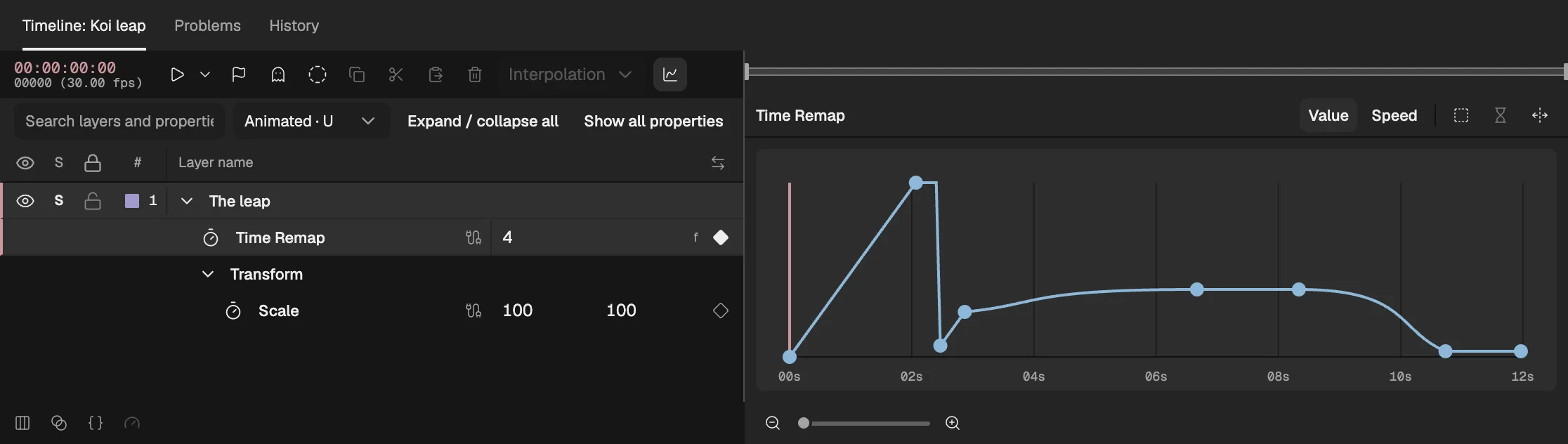
- Slowing: the curve flattens.
- The hold: a flat line.
- Running back: the curve falls.
5. Check the in-betweens
Step through the slow part frame by frame. Pixel Motion renders the two whole frames around each moment and moves every pixel part of the way between them.
Look for ghosts where something moves far in a single frame, such as a fast tail. If they show, give that stretch more real frames: slow it less there, or build the action at a higher frame rate.
- The four parts

Bones are exact at any moment. Particle World and other stepped simulations show their last whole frame between frames, so their smoothness in slow motion comes from Pixel Motion. At speed and in the hold every frame is a whole one and nothing is blended.
6. Push in on the hold
Put the action layer's Anchor Point and Position on the koi at the top of its arc, so it grows about the koi.
Key Scale from 100% a few frames before the hold to 112% at its end, and back to 100% as the leap runs back, with Easy Ease on each key (see Keyframes and easing (opens in a new tab)).
7. Export
Open Export video or images and choose WebM or MP4 (see Export (opens in a new tab)). Every in-between is rendered into the file exactly as Preview showed it.
Where to go from here
- Why it works. What can be slowed, held and reversed for free, and where the in-betweens give way. A koi slowed, held and run back
- Build the action. Rig a paper puppet with bones and IK and make it walk. Rig a walk cycle
- Another guide. Turn a cartoon character all the way round with a drawing set. Turn a character