Turn a cartoon character all the way round
Eight layered views, one Slider, parts that slide and bend between them, and keyframes that hold each view and snap to the next.
What you’ll make
- Eight views of one character, one every 45 degrees, each drawn as separate parts on the same canvas: neck, body, head, ears, hair, a cowlick, eyes, nose and mouth.
- A turn of six seconds at 24 frames a second that holds each key view and takes half a second for each quarter turn.
- A browser with WebGPU (external website, opens in a new tab), such as a current Chrome, Edge or Safari.
1. Draw the views as parts
Draw the character from the front, then every 45 degrees round to the front again: front, three-quarter, side, three-quarter back, back, and the other side's three. An image model can draw them; ask for the same character, the same canvas and the same flat colours each time.
Split each view into parts, one PNG each, left in place on the full canvas rather than cropped. Draw each part whole where another covers it, with its own closed outline, so it can move a little without opening a hole.
Name the parts the same in every view and number them from the front: 01 mouth … 11 neck. Put each view in its own folder, numbered in turning order, and add a ninth folder with the front again so the circle closes.
- The eight views

Check the views side by side before you go on. A turn only works if each drawing sits between its neighbours: the head the same height, the hair's lower edge rising and falling smoothly, the ears at one height. Here two of the back three-quarter views had to be redrawn because the hair came down too far and the head was too wide.
2. Make the drawing set
Import the folder of views (see Importing (opens in a new tab)). The views arrive as folders in the Project panel.
On the folder that holds them, select its Create drawing set button. The dialog lists the drawings in control order and the parts front to back.
Check what each part follows and is clipped by: the eyes, nose and mouth follow the head and show only inside it, the cowlick follows the hair. Name the control Turn and create the set (Make a drawing set (opens in a new tab)).
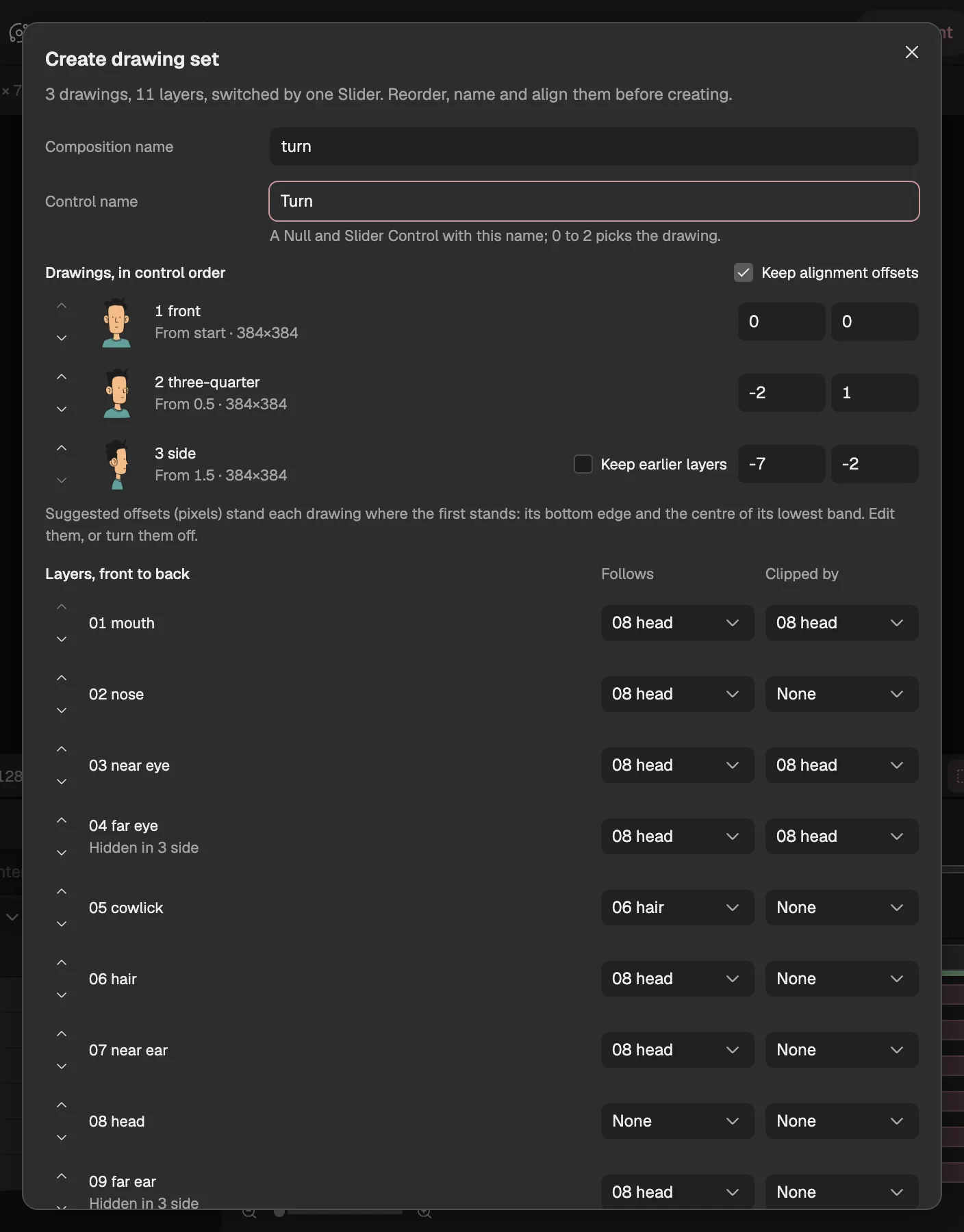
- The views, in control order.
- One layer per part, front to back.
- What the part moves with and shows inside.
- The Slider that picks the view.
3. Carry the parts between views
Select any part's layer, and in Properties › Behaviors open its Replacement.
Choose Deform between drawings. It measures how every part moves from each view to the next and fills in the gap, for all parts at once, in one undo step.
Select the Turn layer and drag its Slider in Effect Controls between whole values: the parts now slide, and the hair bends from one outline to the next instead of jumping.
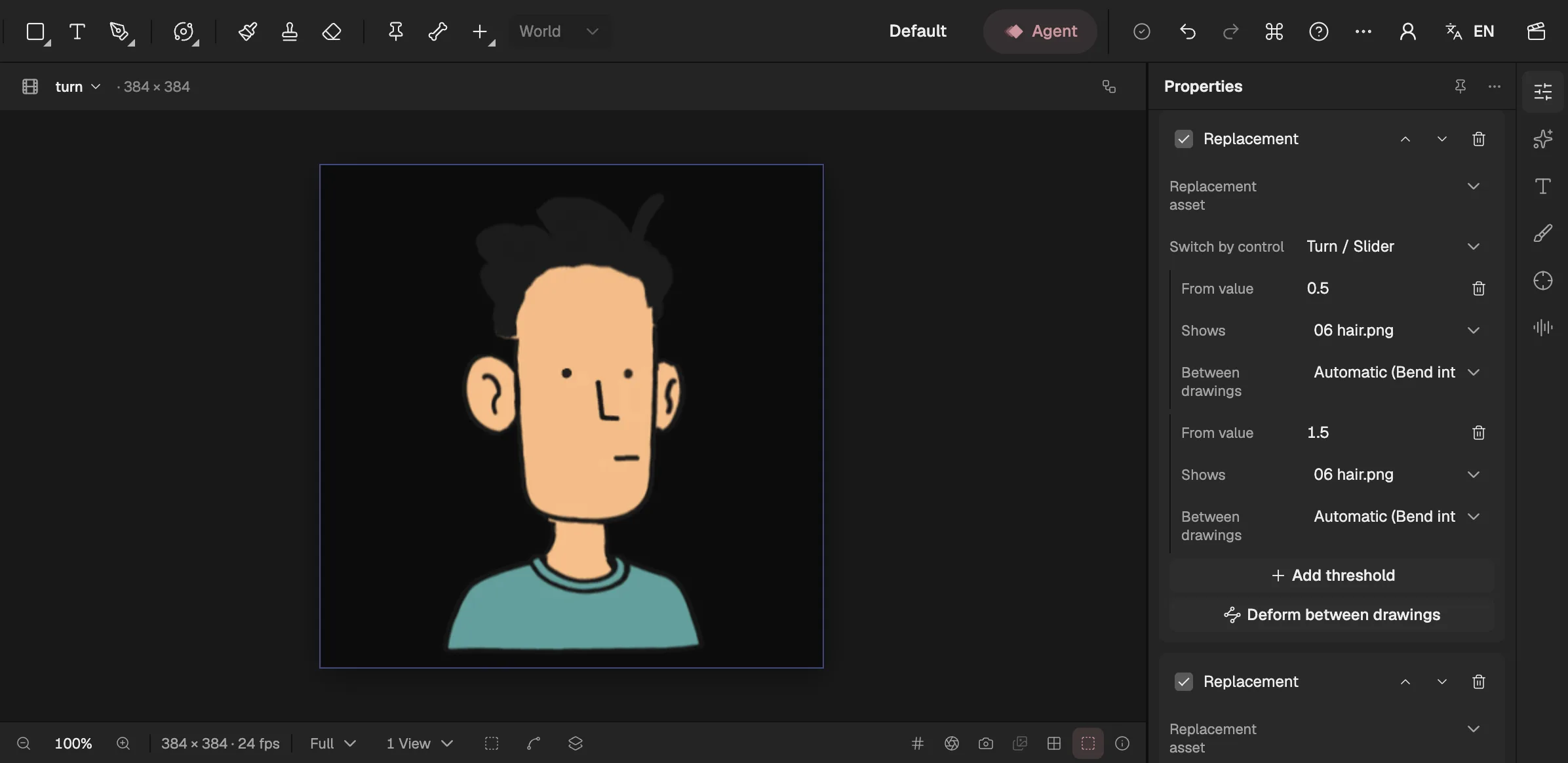
- Halfway between two views.
- Measure every part's way between views.
- How this part goes through this switch.
4. Check every switch
Step the Slider through each half-value, where one view hands over to the next, and watch each part.
Where a part jumps or bends badly, open its Replacement and pick another way under Between drawings: slide, bend into the next, or switch in place (Deform between drawings (opens in a new tab)).
Look for three things. A part that pops at the switch usually needs to slide rather than switch. A part that goes rubbery is bending across too big a change, and the cure is a better drawing, not a better tween. A whole view that pops is a drawing that doesn't sit between its neighbours. Don't polish the in-betweens beyond this: the next step decides how long anyone sees them.
5. Time the turn
Give the Slider keyframes (opens in a new tab): 0 is the front, 2 the side, 4 the back, 6 the other side and 8 the front again.
Hold each key view, then turn a quarter in 12 frames: start slowly, carry on a little past the view, and settle back. Use the frames in the table.
Ease every key, and shape the slow start in the Graph Editor (opens in a new tab): about 60% influence out of each turn's first key and into its settle.
| Quarter turn | Starts | Swings past | Settles |
|---|---|---|---|
| Front to side | frame 14 at 0 | frame 24 at 2.15 | frame 30 at 2 |
| Side to back | frame 47 at 2 | frame 57 at 4.15 | frame 63 at 4 |
| Back to side | frame 80 at 4 | frame 90 at 6.15 | frame 96 at 6 |
| Side to front | frame 113 at 6 | none | frame 125 at 8 |
This is where the turn comes alive. At a steady speed the in-betweens fill almost every frame and the turn looks like a turntable. Held views give the eye poses to read, and the quick turns keep the in-betweens to a few frames each. The last quarter lands on the front without a swing, so the turn loops.
6. Squash on the feet
Make a New composition for the shot, the same size and frame rate, and put the drawing set in it as one layer (nesting (opens in a new tab)).
Move that layer's Anchor Point to his feet and its Position to the same point, so scaling keeps the feet on the ground (Transform (opens in a new tab)).
Keyframe its Scale around each turn, as in the table, and ease every key.
| Around each turn | Frame | Scale (width × height) |
|---|---|---|
| Before | 6 frames before the turn | 100 × 100 |
| Sinks | as the turn starts | 104 × 95 |
| Stretches | halfway | 97 × 104 |
| Lands | as the turn ends | 102 × 98 |
| Back | 6 frames later | 100 × 100 |
A body pushes off before it turns. The small squash before each turn and the stretch through it give the turn that push, and because they live on the shot's layer rather than in the parts, you can retime either without touching the other.
7. Export it
Open the shot and choose Export video or images. Pick MP4 or an animated GIF, the whole work area, and the size you want (Export (opens in a new tab)).
Where to go from here
- Drawing sets in depth. What each part's switch can do, and the Pose Driver and Replacement behaviors underneath. Drawing sets
- Why the timing matters. The same turn at a steady speed and on cartoon timing, side by side. A character turning round
- Another guide. Rig a paper puppet with bones and IK and make it walk. Rig a walk cycle